Starting an Assessment Campaign
Creating Assessment Campaigns
To create an assessment campaign in HOPEX GRC:
1. In the navigation bar, click Assessment > Campaigns.
2. Click New.
 You may also create an assessment campaign from the home page (Quick access > Actions > Create an assessment campaign).
3. Select the Questionnaire Template to be used:
• Risk Assessment by Entity and Process
• Assessment of risks by application
For more details, see Risk Assessment Templates.• Control assessment
• Control Assessment by Entity and Regulatory Framework
For more details, see Controls Assessment Templates.4. Click Next.
The campaign creation page appears.
5. Specify the campaign Name.
6. Modify the Calendar if required.
The calendar serves to initialize the begin and end dates of the evaluation campaign. 7. Specify the Begin Date and the End Date.
8. Click Next.
9. In the Scope Selection window, select the objects that define the evaluation context.
The tree allows you to select controls or risks assessed in their context.
A control or risk is assessed in the context of the elements of the branch that extends from the object in question up to the root.
Some columns give indications to help you decide which risks or controls need to be assessed.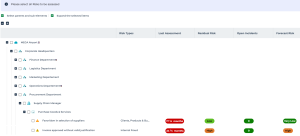
In the above example, if you select the "Procurement Department" entity, all risks and context objects located at a lower level are selected, as well as all parent context objects up to the tree root.
If you deselect a node of a branch, only the child elements of this branch are deselected.10. Click Next.
11. Look at the campaign summary.
Elements that will be assessed appear.
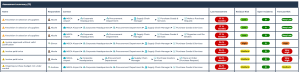
In particular, you can view:
• assessed characteristics (defined in the assessment template)
• assessed objects (risks or controls)
• context objects (entities, processes, etc.)
• assessment nodes, which correspond to objects placed in their context objects, associated with respondents.
• respondents
• possible errors (it is not possible to launch the campaign without specifying some specific information, for example respondents)
• Warnings, for information purpose (for example: missing e-mails)
12. Click Next.
13. In the page dedicated to planning, specify when you want the campaign to be started:
• Immediately
If you choose this option, the campaign is started as soon as you click OK.• Specific Time and Date
Your questionnaires will be sent to respondents at a specified date and time. This is the recommended option.• Not now
No questionnaires are sent. You will need to manually create an assessment session when you are ready to plan the sending of questionnaires. See Creating an Assessment Session Manually.This option is not available if you have chosen to create the assessment campaign without a template.14. Click OK.
Creating an Assessment Session Manually
You must manually create one or several assessment sessions if you have selected the “Not now” scheduling option when creating the assessment campaign.
See Previous step: Creating Assessment Campaigns.To create an assessment session:
1. In the properties page of the assessment campaign, select the Sessions page.
2. Click New then Next.
3. Select the session scope, that is to say the objects to be assessed in their context.
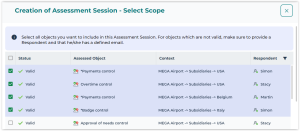 Only valid objects (for which a respondent and an e-mail have been specified) can be selected.
4. Click Next.
5. In the planning page, select whether you want to send questionnaires:
• Immediately
If you select “Immediately”, an assessment session is started right now.• at a Specific Time and Date