2. Configuring UAS Options
2.1. Configuring authentication options
UAS options are configured in HAS console.
To configure authentication options:
1) Connect to HAS console.
2) Access the Authentication module.
a. In the left pane, expand Modules.
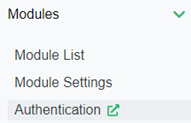
b. Click Authentication.
3) In UAS Administration, click the Identity providers section.
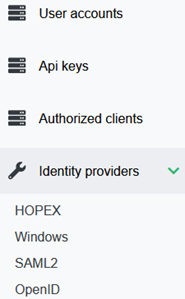
4) Select the Identity provider you want to configure.
5) Click Create.
6) To activate this Identity Provider, select Active.
7) You can configure as many Identity providers as you want.
2.2. Identity Provider Option Description
The identity provider options are the following:
SAML2, see
• SAML2 provider section
2.2.1. HOPEX provider
The HOPEX provider is the HOPEX default provider, which displays a login page with username and password.
To authenticate HOPEX users, use HOPEX User Native Authentication.
See HOPEX Administration documentation: “Authentication in HOPEX” section.
2.2.2. IIS Windows provider
With the IIS Windows provider HOPEX users are authenticated by Windows Authentication.
To configure IIS Windows provider, define the following parameters:
• Display Name
Defines the name of the button displayed on the login page for IIS Windows Identity provider.
Default value: “Windows”
• Windows Roles
As some logins belong to several (hundreds) groups you might need to filter HOPEX related groups. If you do not filter the groups, you might get http 400 errors, due to the size of cookies generated from the claims retrieved.
• ClaimForRoles
Enter the name of the claim used for the role.
• Windows Source Identifier
You can define the property used to identify the connection.
• Standard (by default)
• sAMAccountName
• EmployeeId
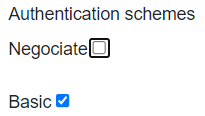
• Authentication schemes
If IIS and HAS:
• are on the same machine, keep the default settings (Negociate and Basic seleted)
• are not on the same machine (e.g.: in a cluster mode) you must clear Negociate.
2.2.3. SAML2 provider
SAML 2.0 is an XML based framework, used to describe and exchange security information. It can be used for Single Sign On (SSO), Identity Management and Federation.
To use SAML2 provider, you must set UAS in SSL Mode.
UAS manages only Service Provider (SP) initiated SSO and not Identity Provider (IDP) initiated SSO.
For examples regarding SAML2 Identity Provider implementation see:
To configure SAML2 Identity provider, define the following parameters:
In the General tab:
• Display Name
Defines the name of the button displayed on the login page for SAML2 Identity provider.
• Entity Identifier (Entity Id)
Entity Identifier is the identity of the Service Provider to use when sending requests to the Identity Provider and presenting the Service Provider in metadata.
• Metadata location
Location of the metadata for the Identity Provider. Automatically enabled.
The location can be a URL, an absolute path to a local file, or an app relative path (e.g.: ~/App_Data/IdpMetadata.xml). By default, the Entity Id is interpreted as the metadata location (this is a convention).
• Groups Authorized
As some logins belong to several (hundreds) groups you might need to filter HOPEX related groups. If you do not filter the groups, you might get http 400 errors, due to the size of cookies generated from the claims retrieved.
• ClaimForRoles
Enter the name of the claim used for the role.
• ClaimForSub
Enter the name of the claim used for the sub.
• ModulePath
Application root relative path for Saml2 Assertion Consumer EndPoint.
By default: "AuthServices".
It is used in the calculation of the url.
In case several SAML2 are configured, they must have a distinct ModulePath value.
In the Certificate and signature tab:
• Certificate friendly name
Certificate used by the service provider for signing or decryption.
• Want assertion signed
Select this option if you want the assertions to be signed.
• Want AuthnRequests signed
Select this option if you want this Identity Provider to get the AuthRequests signed.
• Authenticate Request Signing Behavior
You can modify the authenticate request signing behavior:
• “IfIdpWantAuthnRequestsSigned” (by default): signs AuthnRequests if the Identity Provider is configured for it.
• “always”: always signs AuthnRequests. AuthnRequestsSigned is set to true in metadata.
• “never”: never signs AuthnRequests.
• Certificate use
Allows to sign and/or encrypt SAML2 assertions.
You can modify the certificate use:
• Both (by default)
• Signing
• Encryption
In the Organization tab:
• Name / Email / Url
Enter the information (name, email, URL) describing the organization responsible for the entity.
In the Contact tab:
• Email
Enter the collection of contacts for the SAML2 entity.
2.2.4. OpenID Connect (OIDC) provider
Use the OpenID Connect (OIDC) provider to authenticate HOPEX users with an OpenID Connect account by OAUTH2.
For examples regarding OpenID Connect Identity Provider implementation see:
Prerequisite: authentication is performed using the Authorization Code Flow (response_type=code) only.
All tokens are returned from the Token Endpoint
(source: https://openid.net/specs/openid-connect-core-1_0.html#toc).
The Authorization Code Flow returns an Authorization Code to the Client, which can then exchange it for an ID Token and an Access Token directly. This provides the benefit of not exposing any tokens to the User Agent and possibly other malicious applications with access to the User Agent.
The Authorization Server can also authenticate the Client before exchanging the Authorization Code for an Access Token.
The Authorization Code flow is suitable for Clients that can securely maintain a Client Secret between themselves and the Authorization Server.
The Authorization Code Flow goes through the following steps:
1. Client prepares an Authentication Request containing the desired request parameters.
2. Client sends the request to the Authorization Server.
3. Authorization Server Authenticates the End-User.
4. Authorization Server obtains End-User Consent/Authorization.
5. Authorization Server sends the End-User back to the Client with an Authorization Code.
6. Client requests a response using the Authorization Code at the Token Endpoint.
7. Client receives a response that contains an ID Token and Access Token in the response body.
8. Client validates the ID token and retrieves the End-User's Subject Identifier.
To configure OpenID Connect provider, define the following parameters:
• Display Name
Defines the name of the button displayed on the login page for OpenID Connect Identity provider.
This name is also used in the calculation of the RedirectURL (specific to OpenID Connect protocol), which is also displayed on the login page.
• Authority server url
This URL defines the OpenID server location.
• Proxy Url
If the proxy is configured on the same server as UAS, this url defines the output url for the protocol to reach its endpoints (e.g.: DiscoveryEndPoint and TokenEndPoint).
• Client Identifier
Is the identifier of your application.
• Secret client
You can use either:
• the Secret > Client Secret (less secure), or
• a Certificate defined by a Thumbprint and an Audience, which is the Token EndPoint url of your IdentityServer, so as to read the Access Token via this certificate.
• Scopes
Each OpenID server must support the OpenId scope that provides the JWT (JSON Web Token) claims (https://datatracker.ietf.org/doc/html/rfc7519).
In addition, OpenID server can support other scopes like email.profile from which other claims are provided.
• ClaimForRoles
Enter the name of the claim used for the role.
• ClaimForSub
Enter the name of the claim used for the sub.
• MetadataAddress server url
The DiscoveryEndPoint url provides the metadata of the OpenID Connect identity provider. It provides information like endpoint token and scopes.
Usually, you do not need to enter this URL as it comes from the Authority Server URL. It should be:
[Authority Server url]/.well-known/openid-configuration
• Groups Authorized
As some logins belong to several (hundreds) groups you might need to filter HOPEX related groups. If you do not filter the groups, you might get http 400 errors, due to the size of cookies generated from the claims retrieved.