11. Uninstallation procedure
Should you want to remove HOPEX to make a clean re-install please follow the instructions below.
11.1. Removing IIS
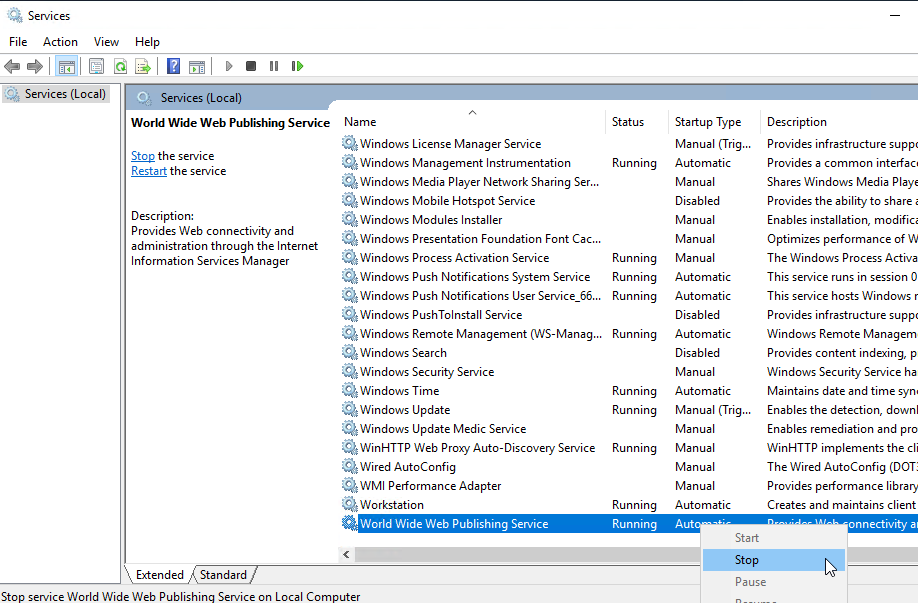
Ensure IIS service is stopped prior to start these steps.
11.1.1. Configuration removal
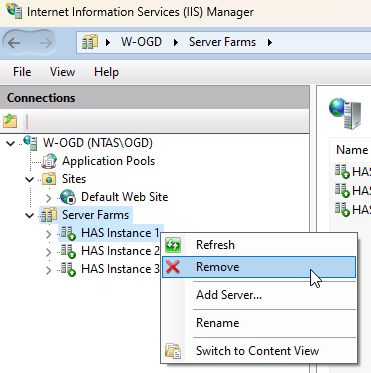
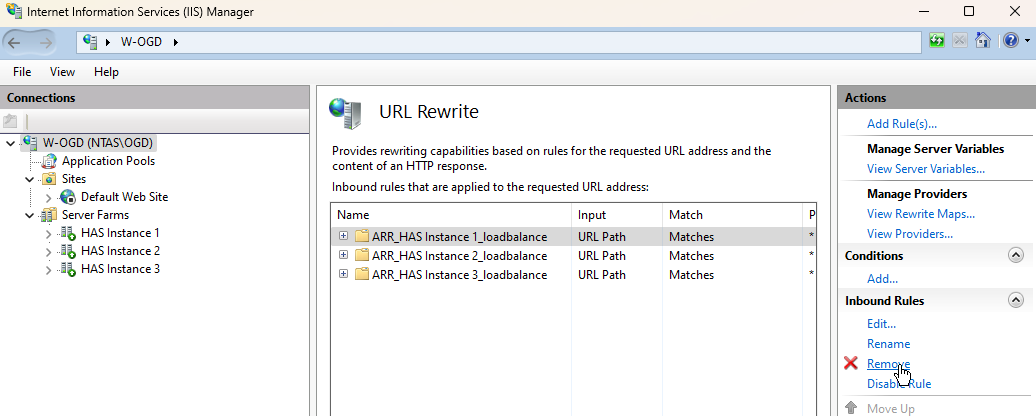
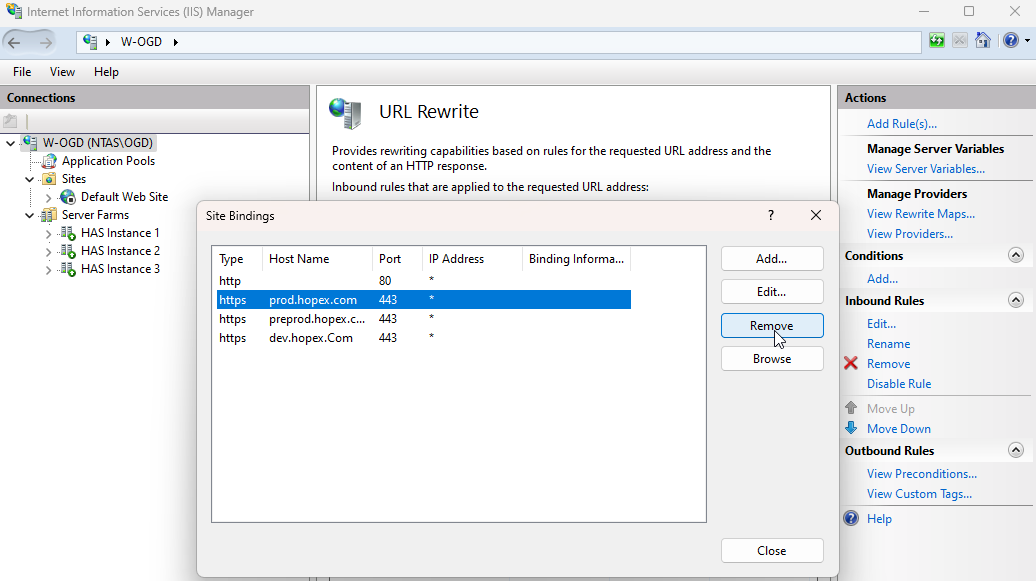
From IIS Manager remove all configurations that you have performed:
• Remove the server Farms
• Remove any rewrite rules you have created
• Remove any custom binding you have set
11.1.2. Prerequisite removal (optional)
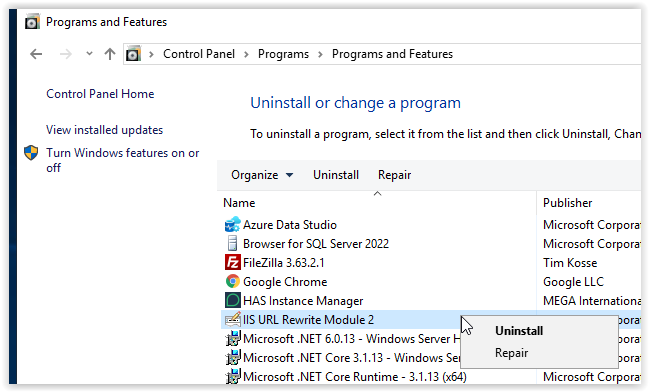
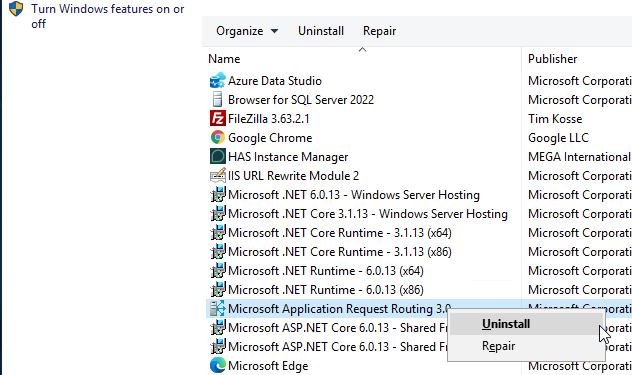
Should you want to fully reset the prerequisite component installed you can:
• Uninstall URL rewrite
• Uninstall ARR
• Uninstall IIS
Note: IIS, ARR and URL Rewrite might store configuration files that may not be removed when uninstalling.
11.2. Removing HOPEX applications
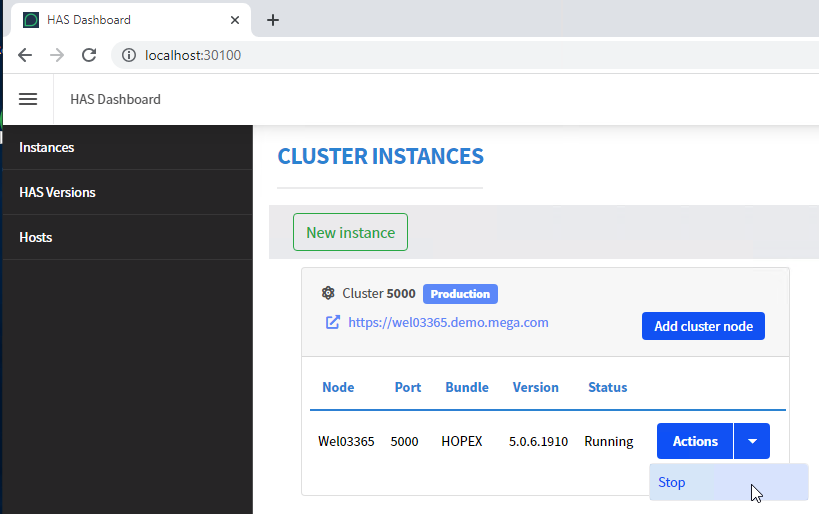
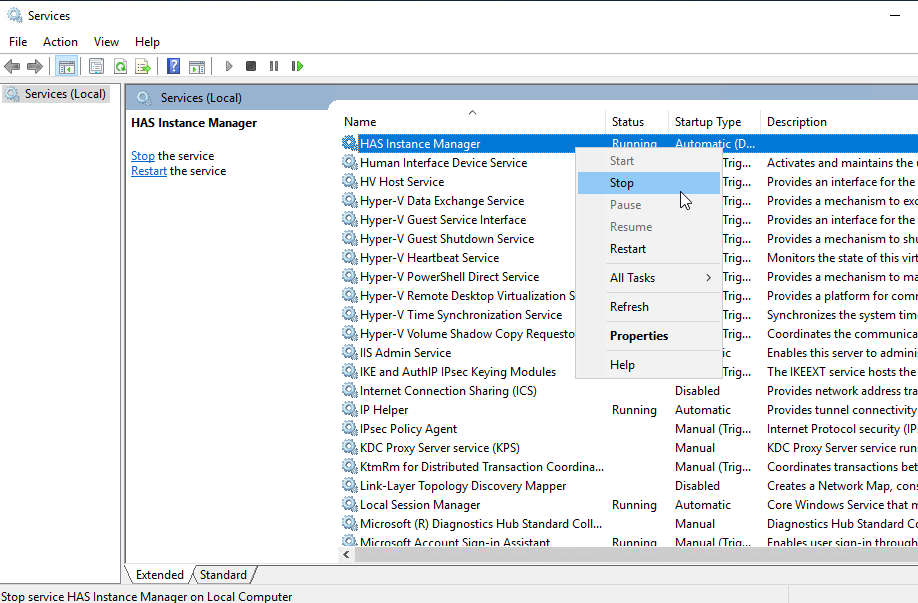
Ensure HAS Instance and HAS Instance Manager are stopped prior to start these steps:
• Stop the instance within the HAS instance manager
• Stop the HAS Instance manager service within Windows service manager
11.2.1. Uninstalling Application
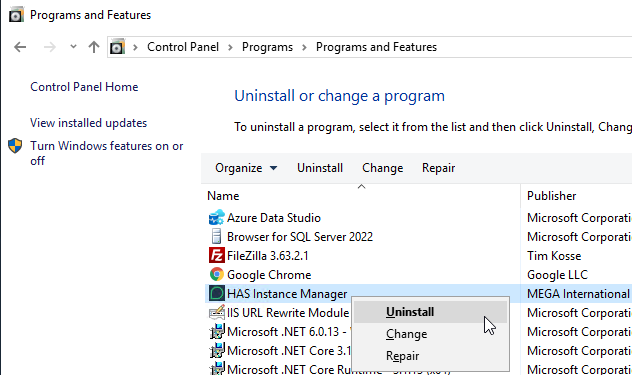
1. From Control Panel >> Programs >> Programs and Features select “Uninstall or change program.
2. Search for HAS Instance Manager and uninstall.
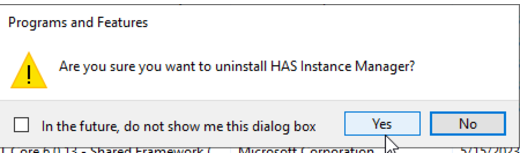
3. When prompted click Yes.
If you did not stop prior the HAS Instance Manager, you will be asked to stop it.
11.2.2. Deleting files
1. Open a Windows file explorer and go to the installation location.
Default: C:\ProgramData\MEGA\Hopex Application Server
2. Select all folders and files and delete them.
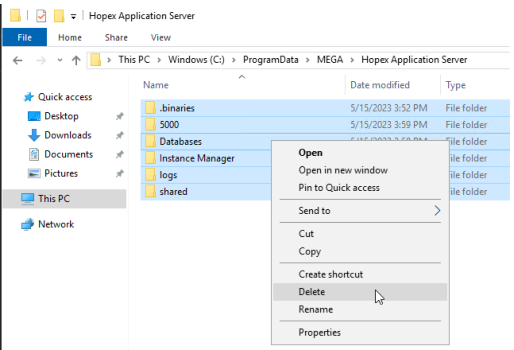
If you did not stop the HAS instance you won't be able to delete all files. Restart the server and retry.
11.2.3. Removing SSL Certificate
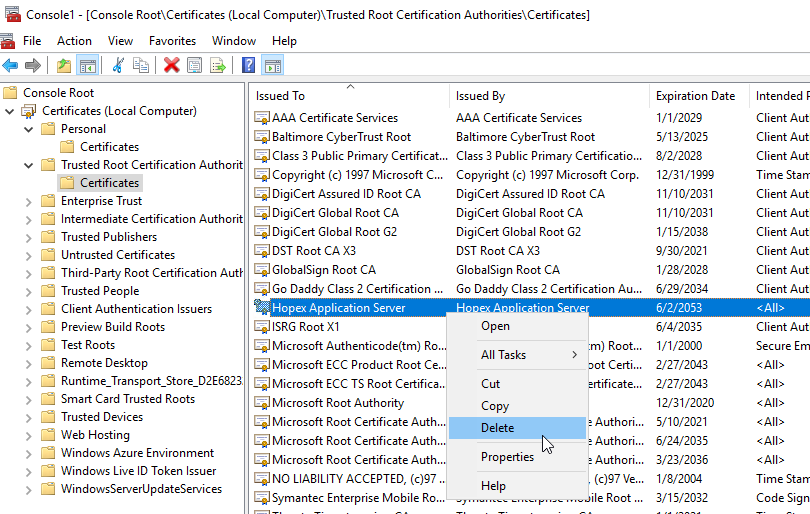
1. Open an MMC console and add Certificates snap-in.
2. In Trusted Root Certification Authorities search for Hopex Application Server or custom SSL certificate you may have used.
3. Delete it.
11.2.4. Uninstalling prerequisites (optional)
If not used by any other component, you can also uninstall the prerequisites to clean your server.
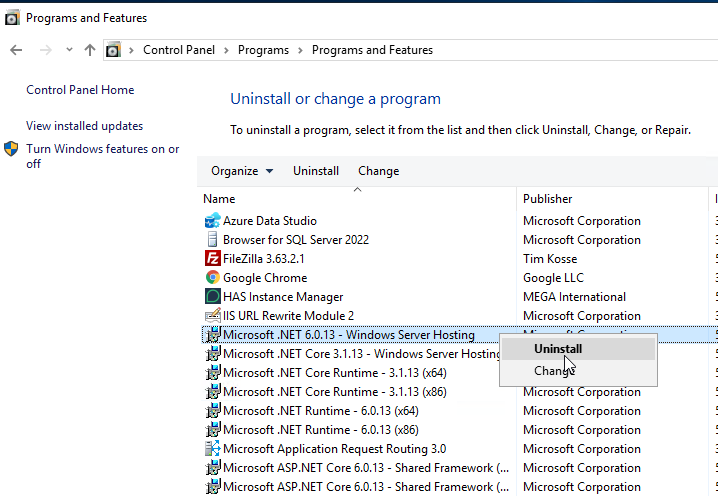
1. From Control Panel > Programs > Programs and Features, select Uninstall or change a program.
2. Delete any Microsoft .NET 3.1, 6.0, or 8.0: Windows Server Hosting Bundle, SDK, Core Runtime…
11.3. Removing RDBMS databases
You may want also to delete:
• The HAS Instance database that contains all the configuration
• The Environment SystemDB and Repositories: only if you don't want to use HOPEX anymore forever.
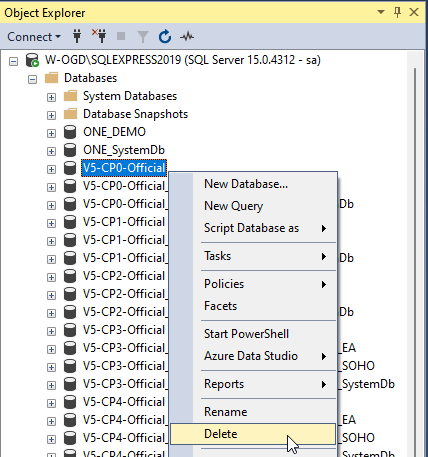
From your preferred tool delete the instance database.
Default name: HAS_5000