Merging Two Objects
The object merge feature is available with the HOPEX Power Supervisor technical module.
When you merge two objects, you obtain a single object by transferring the characteristics and links from one object to the other. The source object is deleted. It is therefore recommended that merges be done in a new private workspace, so you can discard the changes if the result is not satisfactory.
You must have administration rights to merge two objects.
Choice of the objects to be merged
The Target object is the reference object that will be merged with the Source object. By default:
• its characteristics are not modified
• merging proposes addition of source object links.
The Source object is the object of which:
• you want to reuse certain characteristics or certain links
• characteristics and links will be transferred to the Target object.
When the link is to be a unique link (e.g., for sub-typing where the type is unique), the link of the target object is kept by default.
 When merging is completed, the source object is deleted.
 You can Explore objects using the corresponding command. It can also be used to explore their links.
Merging Two Objects
To merge two objects:
1. Connect to HOPEX.
2. In the menu bar, select Tools > Manage > Merge Two Objects.
The first step of the Merge objects wizard appears: Object selection.
 To have the right to merge two objects, you must have the right to delete objects.
3. In the Object pane, select the object type to be merged.
4. In the Source field, click the arrow and select the source object.
5. In the Target field, click the arrow and select the target object.
6. Click Next.
If the target and source objects are the same, the Next button is disabled.The second step of the Merge objects wizard appears: Characteristics. It presents the differences found in characteristic values of both objects.
7. Select the source object characteristics you want to transfer to the target object. Characteristics that remain selected in the target object are kept.
8. Click Next.
The third step of the Merge objects wizard appears: Unique links (those that can only exist once for a given object).
Example: a message can have only one super-type.
This step appears only if the objects to be merged have unique links connecting them to different objects.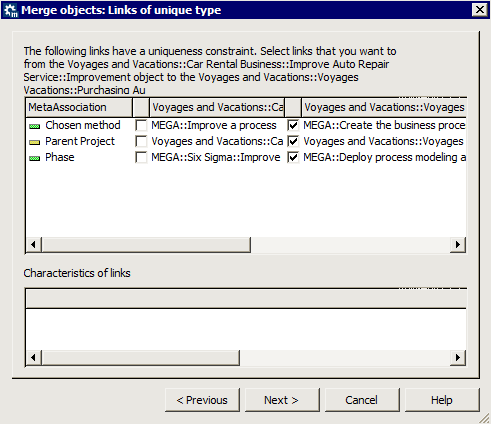
9. Select the links to be transferred.
10. Click Next.
The Merge objects wizard shows: Links.
• When the link does not exist for the target object, the default is to connect the target object (Action : "Keep"). You can select the Do not connect command so as not to transfer the link.
You can Keep existing links, or Disconnect them.
• When the two objects are linked to the same object by the same link, it is possible to Not change characteristics of the link for the target object, or to Copy characteristics of the link for the source object. In this case, you can indicate for each characteristic whether to use the value of the source object, or keep the value of the target object.
11. Click Next.
12. Click Finish to start merging.
The gauge indicates progress of the operation.
When merging has been completed, the source object no longer exists and the selected characteristics and links have been transferred to the target object.
"_TransferredObject" temporary merge objects are created on this occasion. Merge objects of a repository can all be exported at export of HOPEX objects.