6. New/Replace/Override Resource Files
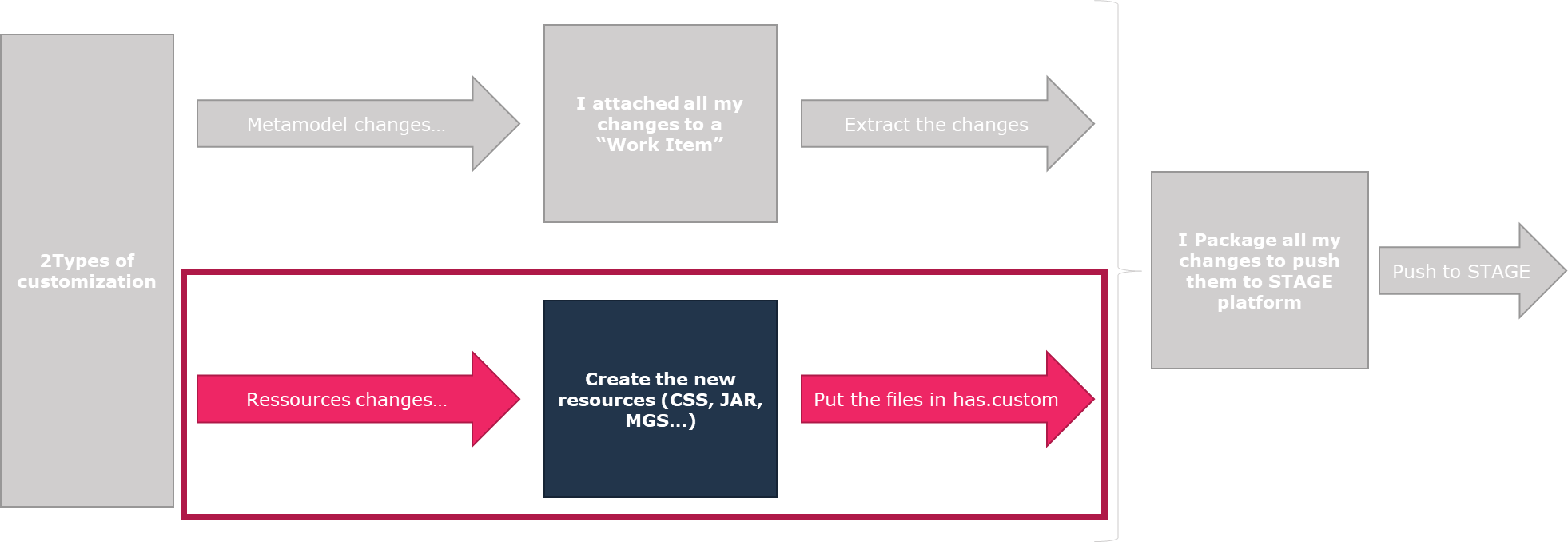
All the custom files you create, whatever their type, must be stored in the has.custom module. These files will be packaged to be later pushed to STAGE or PROD environment.

Depending on the nature of the files the location might be different. The general rules are as follow:
• Each module has a folder with sub-folders within the has.custom module.
• You must create a folder structure that reflects the folder structure of the standard module.
Note: you cannot replace/delete standard files. You must store your files in custom folder, even if they have the same name.
6.1. Folders and sub-folders structures
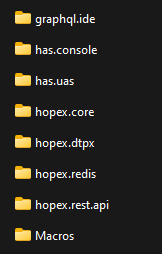
The standard folder structure located in “.shadowsFiles” contains one folder per module.
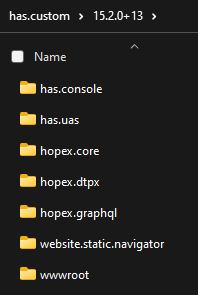
For each module you want to customize, create a new sub-folder with the same name (ID) in the custom module.
|
Standard modules folder name
|
Custom folder structure
|
 |
 |
|
|
In that example we want to customize login page, custom graphQL schema, custom scripts…
|
In the default custom module, you can find tree-structured folders (provided by default) corresponding to the most popular customizations.
In case the structure is not available, you must reproduce the tree-structure.
Once you have created your structure, you can bring in your custom files.
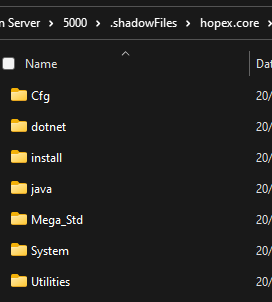
Example with the hopex.core module:
|
Standard folder structure
|
Custom folder structure to override
|
 |
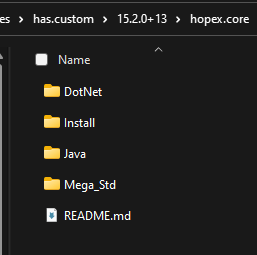 |
Note: System and Utilities folders cannot be overridden in custom module.
Whether you create files for:
• having new behavior,
• replacing or overriding standard files,
you must follow exactly the folder structure.
Most commonly created or changed files are stored in the following folder locations:
|
File type
|
Location
|
|
DLL
|
C:\...\HOPEX Application Server\5000\.shadowFiles\has.custom\<Module version>\DotNet
|
|
JAR
|
C:\...\HOPEX Application Server\5000\.shadowFiles\has.custom\<Module version>\Java
|
|
ICO
|
C:\...\HOPEX Application Server\5000\.shadowFiles\has.custom\<Module version>\hopex.core\Mega_Std
|
|
MGS
|
C:\...\HOPEX Application Server\5000\.shadowFiles\has.custom\<Module version>\hopex.core\Mega_Std
|
|
PNG
|
C:\...\HOPEX Application Server\5000\.shadowFiles\has.custom\<Module version>\hopex.core\Mega_Std
|
|
DOCX
For document template
|
C:\...\HOPEX Application Server\5000\.shadowFiles\has.custom\<Module version>\hopex.core\Mega_Std
|
|
CSS
static website generation
|
C:\...\HOPEX Application Server\5000\.shadowFiles\has.custom\<Module version>\hopex.core\Mega_Std
|
|
CSS
Hopex web CSS
|
C:\...\HOPEX Application Server\5000\.shadowFiles\has.custom\<Module version>\wwwroot
|
Where here 5000 is the HAS instance name.
See common examples in the following section.
6.2. Examples of common files and folders customized
6.2.1. Diagram Shapes
To customize shapes in diagrams:
1. Edit the related files with extension “*.MGS”.
2. Create your custom shapes.
3. Store the custom shapes in its dedicated folder.
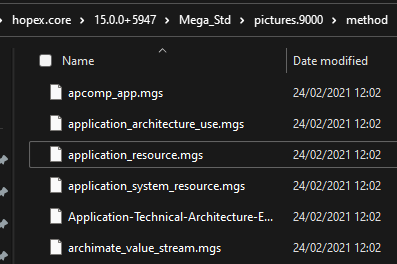
• The standard shapes are located here:
C:\...\HOPEX Application Server\<HAS instance name>\.shadowFiles\hopex.core\<Module version>\Mega_Std
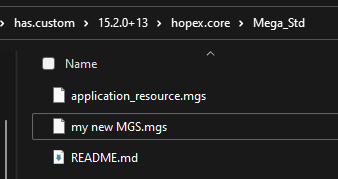
• The custum shapes are located here:
C:\...\HOPEX Application Server\<HAS instance name>\.shadowFiles\has.custom\<Module version>\hopex.core\Mega_Std
|
Standard folder structure
|
Custom folder structure to override
|
 |
 |
 |
All MGS must be stored directly in Mega_Std of the custom module without subfolder Pictures.XXXX.
|
6.2.2. Login page and Portal page
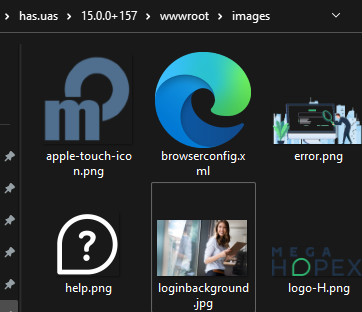
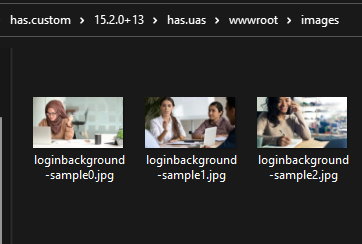
The portal and login pages are contained in the “has.uas” module. Should you want, for example, to change the background image you must put your custom png/jpg in a folder structure that matches the one from the standard.
Example: changing the login page background.
• The standard file “loginbackground.jpg” is located here:
C:\...\HOPEX Application Server\5000\.shadowFiles\has.uas\15.0.0+157\wwwroot\images
• Your custom file is located here:
C:\...\HOPEX Application Server\5000\.shadowFiles\ has.custom\15.2.0+13\has.uas\wwwroot\images
|
Standard folder structure
|
Custom folder structure to override
|
 |
 |
6.2.3. GraphQL custom schema
If you created custom schema for your GraphQL REST API, you must store them in the following folder:
• If standard location is:
C:\...\HOPEX Application Server\5000\.shadowFiles\Macros\hopex.graphql\7.87.506+5947\CONFIG\V3\Standard
• Custom location is:
C:\...\HOPEX Application Server\5000\.shadowFiles\has.custom\15.2.0+13\hopex.graphql\CONFIG\V3\Custom
You have now successfully completed the tasks to put your files in the right folders.