3. Getting Ready for Customization
Before starting any customization, you must first:
1. Install the HOPEX Application Server customization module.
2. Launch the Environment automatic update.
3. Get NuGet packages.
3.1. Installing HAS Customization module
You can install the HOPEX Application Server customization module:
• Online
In the HAS Console, add the HOPEX Application Server customization module.
In the HAS Console, add the HOPEX Application Server customization module.
• Offline
Download the latest version of HOPEX Application Server customization module from the store https://store.mega.com/modules/details/has.custom.
Download the latest version of HOPEX Application Server customization module from the store https://store.mega.com/modules/details/has.custom.
3.1.1. Online mode
To install HAS Customization module online:
1. Connect to HOPEX Application Server – Console.
2. Select Modules > Module List.
3. In Add new tab, search for HOPEX Application Server customization module.
4. Download the required version.
The HOPEX Application Server customization module (the has.custom package) is added to the module list.
3.1.2. Offline mode
To install HAS Customization module offline:
1. Access HOPEX Store: https://store.mega.com/modules/details/has.custom.
2. Download the required version of HOPEX Application Server customization module.
3. Store it in a location where the offline server will be able to access it.
4. Connect to HOPEX Application Server – Console.
5. Select Modules > Module List.
6. In Add new tab, click Upload from file.
The HOPEX Application Server customization module (the has.custom package) is added to the module list.
3.2. Launching automatic update
Once the HOPEX Application Server customization module is deployed in HAS, you must launch the environment automatic update.
To launch the environment automatic update:
1. Make sure the HOPEX Core Back-End module is stopped.
2. In administration.exe, connect to the environment.
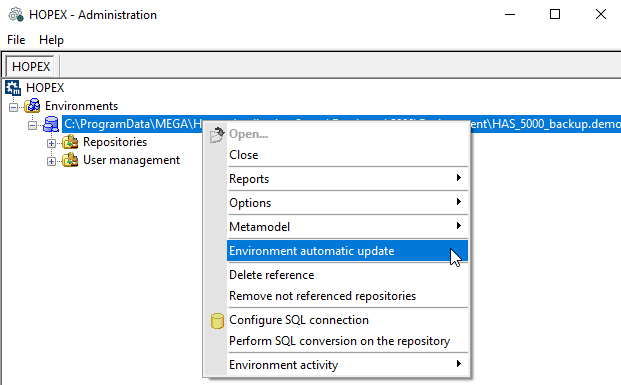
3. Right-click the environment and select Environment automatic update.
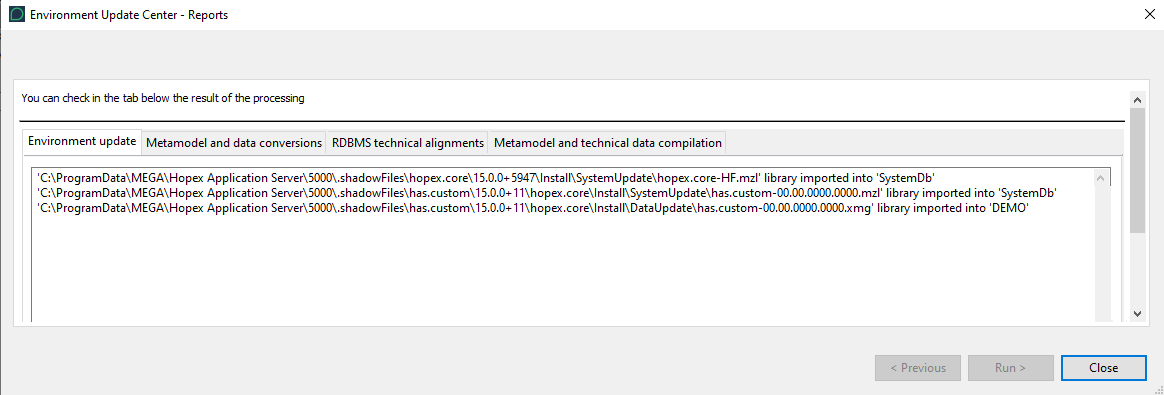
The following files with mandatory data are imported:
• hopex.core-HF-mzl to systemdb
• has.custom-00.00.0000.0000.mzl to systemdb
• has.custom-00.00.0000.0000.xmg to data repository
3.3. Getting NuGet package
Prerequisite:
Ensure you have the pre-requisite installed:
Download and install .NET Core ex .NET Core 6 64bits as described in the prerequisite.
To import the NuGet Package into the server:
1. Connect to the server in RDP.
2. Go to the HAS installation folder.
3. Find the has.custom folder.
E.g.: C:\ProgramData\HOPEX Application Server\5000\.shadowFiles\has.custom\15.2.0
4. Read the HOW-TO-BUILD.md file.
3.3.1. Online mode
With a user that have enough privilege:
1. Launch a PowerShell script windows.
2. Launch the “1 - Online- install nuget package.ps1” script.

When successful you will have a message such as:
Tool 'hopex.applicationserver.tool' was successfully updated from version '15.5.0.69' to version '15.5.0.79'
If this is not the first time you launch the command, existing version will be updated if needed.
In case a more recent version exists, you might get an error message. In that case edit the PowerShell script.

You are now ready to start your customization and package them.