Conditioning Navigation in a Tree
Studio offers the possibility of creating specific branches for each node of a tree. You can define navigation conditions on:
• A node
• A branch
• A classification folder
Defining a navigation condition on a node
To condition navigation on a node:
1. Open the Properties window of the MetaTreeNode that interests you, for example "Business Process (Standard Navigation)".
2. Right-click in the MetaTreeNodeCondition space and select Add.
3. In the Type field of the filter created, select the type of filter you want to use.
For example, if you want to create a filter on business processes that do not have a parent folder, you use the "Parent Folder" MetaAssociationEnd.
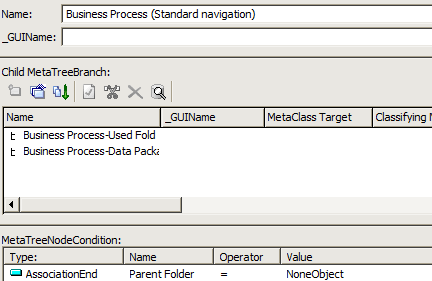
4. In the Name box, select the identifier that interests you (for example: "Parent folder").
5. Select an Operator, then a Value.
 If the node is not connected to a MetaClass, no condition is proposed.
 An Option can indicate that a condition has already been defined.
Defining a navigation condition on a branch
Given that a branch can also correspond to classification folder, there are two types of conditioning on a branch:
• one relating to the main branch.
• the other relating to the classification branches.
To condition navigation in a branch:
1. Open the Properties window of the MetaTreeBranch that interests you.
2. To define conditioning on the main branch, right-click in the MetaTreeBranchCondition on Master space and select Add.
3. In the Type field of the filter created, select the type of filter you want to use.
4. In the Name field, select the identifier that interests you, for example "Parent Folder".
5. Select an Operator, then a Value.
Defining a navigation condition on a classification folder
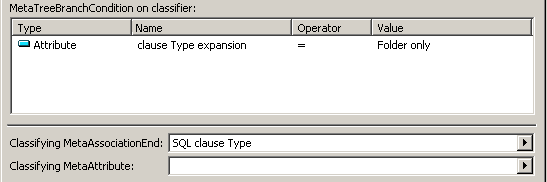
You can define a condition on a branch of the classification folder. To do this, use the MetaTreeBranchCondition on classifier area of the Properties window of the MetaTreeBranch that interests you, following a procedure as described in Defining a navigation condition on a branch.