9 Communication between HOPEX and the outside
The MEGA application offers various possibilities of communication with the outside, for administration tasks for example.
9.1 API Scripts and .NET
 Use .NET applications only with Administration APIs. For Dispatch call, see “Late binding” information on Microsoft Help and Support website:
 Access and update APIs of the HOPEX repository are presented in the form of COM components. They can be integrated in a .NET application. The user can develop .NET compatible components accessing HOPEX repository data. This section explains the principle used to implement a .NET application accessing data in a HOPEX repository. It also raises points relating to constraints linked to choice of .NET language.
9.1.1 Implementation principle
Whatever the language chosen for your .NET application (Visual Basic.NET, C++. NET, C#, etc.), you can integrate a COM component and use objects and functions exported.
In Visual.NET:
1. Select Project > Add Reference.
2. In the Add Reference dialog box, select the COM tab.
3. Select the MEGA Application Automation component component or query the DLL in <HOPEX folder> \system\mg_mapp.dll.
4. Add this dll to the list of selected components.
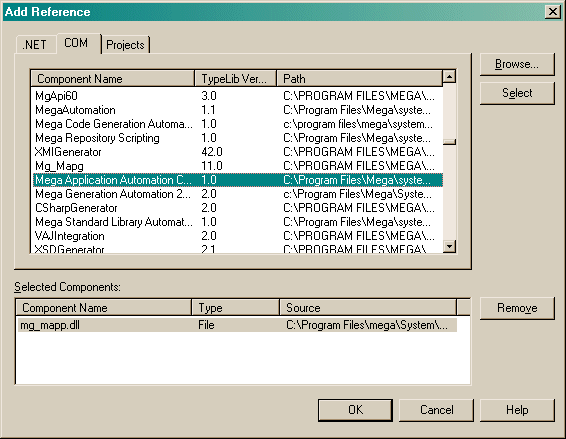
When a reference has been created for the component, API objects are accessible. A namespace has been created automatically and is called MegaMapp.
To access API classes such as MegaApplication, MegaCollection, etc., prefix the class name with this namespace: MegaMapp.
Intellisense now handles display of available classes as shown in the following figure.
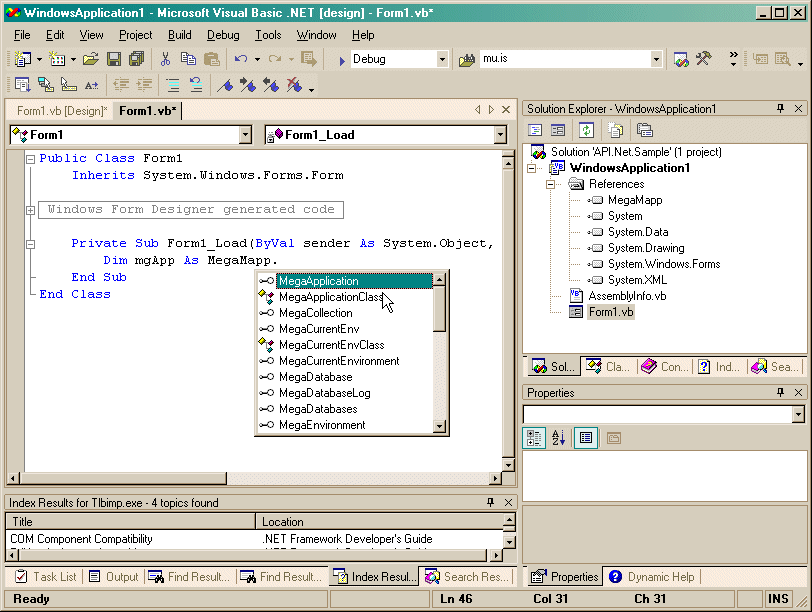
COM component integration mechanism
Life cycle management of COM and .NET objects is not handled in the same way. For COM objects, the application handles reference creation (by QueryInterface::AddRef()) and reference deletion (by QueryInterface::Release()). In the case of a .NET object, it is the framework that handles freeing of objects.
To ensure total integration of the MEGA API component, Visual.NET automatically creates an intermediate .NET DLL. The role of this intermediate dll (interop.MegaMapp.dll) is to encapsulate each COM object exported and to handle its life cycle. From the user point of view, the operation is transparent and it can use objects of the API like any other .NET object.
Strong naming
To avoid implementation or compatibility problems caused by updating of certain DLLs, developments can be carried out using strong names. This system allows you to assign to each application object an assembly comprising this name and a unique key.
For more details, refer to Strong-Named Assemblies of MSDN.
For this type of development, all components inserted in the project must be signed with an identification key. Therefore, the encapsulation DLL generated by Visual.NET (interop.MegaMapp.dll) is not assigned to a key. It can not therefore be inserted in this type of project.
To alleviate this problem, the encapsulation DLL should be generated manually using the tlbimp.exe utility provided with the .NET framework.
It is this utility that is used to create the encapsulation dll automatically, but all options are not used.
On a command line, enter the sequence:
TLBIMP COMdll.dll /out:Netdll.dll /keyfile:keyfile.snk /
namespace:MEGA /asmversion:x.0.0.0
Where parameters are as follows:
o COMDll.dll: name of the COM DLL to be converted. It can be complemented by the complete name of the folder (use quotes if the name includes spaces).
o Netdll.dll: name of the encapsulation DLL
o keyfile.snk: name of the file containing the unique key assigned to the application. This file can be generated using the sn.exe utility provided with the .NET framework.
o namespace: MEGA: "MEGA" is the name of the encapsulation DLL namespace. In this case, the API objects will be accessible by prefixing class names with "MEGA"
o asmversion: defines the version number of the generated DLL.
9.1.2 Language characteristics
In theory, all .NET languages are interchangeable. Classes can be created in VB.NET and overload definitions in C# or C++.NET.
In practice, there are differences between each language.
Optional parameters
Languages like C# do not allow the use of optional parameters. However, this is possible in VB.NET.
The MEGA API has many functions of which parameters are optional. These are either options (MegaDatabase.HistoryReset()), or sort or assignment parameters
(MegaRoot.getSelection(), MegaObject.getCollection(), MegaCollection.Create()). Finally, to enable use of APIs in languages like C#, optional parameters can be indicated as empty character chains. In this case, it can be become complicated to provide the six optional parameters of functions Create() or getCollection(). In addition, it is recommended that an intermediate class be defined exporting underlying functions using different overloads (1 to 6 parameters if necessary).
Unexplained functions
MEGA APIs accessed from VBA or VBScript enable use of a certain number of functions undeclared in the type library. This is the case for functions derived from operators like MegaObject.Extract().
This mechanism is possible in VB6 or VBScript using the tardive (late binding) link and implementation by each COM object of the Dispatch() interface (see MSDN on this subject).
In VB.NET this mechanism is also possible using the Option Strict Off directive. However, highly typed languages (such as C# or Java) do not allow access to undeclared functions from an untyped variable. We must pass to COM objects by a reference.
9.2 VBA Application Example (Visual Basic for Applications)
Example of integration between Microsoft Excel® and HOPEX
This example shows how to access HOPEX from Excel and retrieve data contained in a HOPEX repository that can be used by Excel.
In this case, we shall create a macro from Excel. This macro will access HOPEX, retrieve the names of procedures contained in the current repository and display them in an Excel spreadsheet.
To create a new macro in Excel:
1. From Excel menu bar, display the Developer menu (in Excel options > Customize Ribbon).
2. In the Developer menu select Visual Basic.
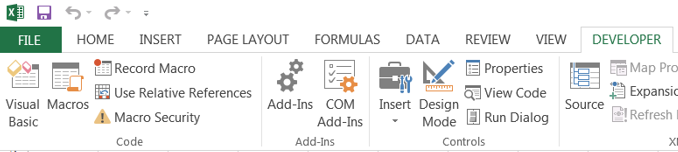
The Visual Basic editor opens.
To use MEGA APIs and benefit from Intellisense (display of names of classes, functions, parameters, etc.) create a reference for a MEGA component (DLL) in the VBA project.
To create a reference for this component:
1. In the Visual Basic editor menu bar, select Tools > References.
2. In the VBAProject References dialog box, select the Mega Application Automation Components component.
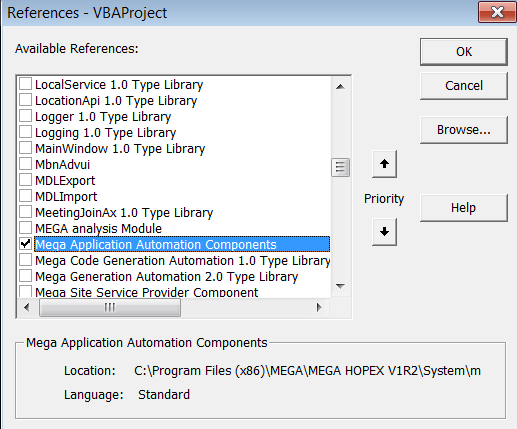
If the component does not appear in the list, click Browse and add it from the "System" directory of the HOPEX installation folder (the DLL file to be added is called mg_mapp.dll).
3. Enter the macro code in the editor:
Sub ImportProcedure()
Dim oMegaCurrentEnvironment As New MegaCurrentEnv
Dim oMegaRoot As MegaRoot
Set oMegaRoot = oMegaCurrentEnvironment.GetRoot
Dim oProcedure As MegaObject
Dim nRow As Integer nRow = 1
For Each oProcedure In oMegaRoot.GetCollection("Procedure")
Range("B" & nRow).FormulaR1C1 = oProcedure.GetProp("Name")
nRow = nRow + 1
Next
End Sub
Code description:
Sub ImportProcedure()
Contains the name of the code used.
Dim oMegaCurrentEnvironment As New MegaCurrentEnv
The oMegaCurrentEnvironment variable is declared and assigned an instance of the class MegaCurrentEnv corresponding to the current HOPEX environment.
Dim oMegaRoot As MegaRoot
The oMegaRoot variable of type MegaRoot is declared (corresponding to the root of a HOPEX repository).
Set oMegaRoot = oMegaCurrentEnvironment.GetRoot
The root of the repository open on the current environment is retrieved (oMegaCurrentEnvironment.GetRoot) and is assigned to the variable oMegaRoot.
Dim oProcedure As MegaObject
The oProcedure variable of type MegaObject is declared (corresponding to a MEGA object).
The remainder of the code retrieves the collection of procedures and displays the name of each procedure in a different cell of the same Excel spreadsheet column.
Dim nRow As Integer nRow = 1
variable nRow of integer type is declared.Integer nRow = 1
For Each oProcedure In oMegaRoot.GetCollection("Procedure")
Range("B" & nRow).FormulaR1C1 = oProcedure.GetProp("Name")
nRow = nRow + 1
Next
End Sub
For each procedure of the collection of repository procedures, the procedure name is inserted in a cell of column B, beginning with cell B1.
Counter nRow enables passage from one cell to another.
To execute this macro:
1. In the Visual Basic editor toolbar, click  .
.
.A message asks if you accept the process that will try to access the HOPEX repository.
2. Click Yes.
The names of the repository procedures are displayed in the Excel spreadsheet.
The same principle is used to access HOPEX from other VBA compatible applications (Word or PowerPoint for example).