How to Duplicate a Report Template
The recommended way to create a new Report Template similar to an existing one is to duplicate a Report Template.
To duplicate a Report Template:
1. Access the Report Template you want to duplicate.

2. Right-click the Report Template and select Manage > Duplicate.
3. Define the Report Template name.
4. Select the duplication name format for your Report Template (Prefix or Suffix).
5. Click OK.
How to Duplicate a Report Data View
To duplicate a Report Data View:
1. Access the Report Data View you want to duplicate.
2. Right-click the Report Data View and select Manage > Duplicate.
3. Define the Report Data View name.
4. Select the duplication name format for your Report Data View (Prefix or Suffix).
5. Click OK.
How to Add Reports to an Object Property Pages
You can add object-based reports in the object property pages (Reporting page).
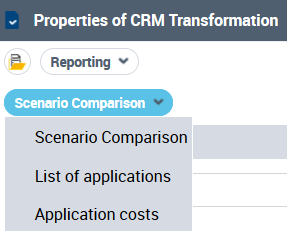
Example: you can add the "Application costs", "List of Applications", "Scenario Comparison" reports in the property pages of all the Portfolios (e.g.: "CRM Transformation" portfolio).
To add a report in an object property pages:
1. Access the Report Template (based on a macro) corresponding to the report you want to add to the object property pages.
Example: "Application costs" Report Template.
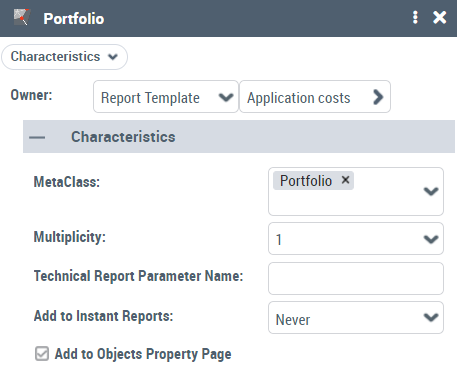
2. Access the Report Parameter properties.
Example: "Portfolio" Report Parameter.
3. In the Characteristics page, select Add to Objects Property Page.
A Reporting page including the corresponding report is added to all the object property pages.
Example: in the Property pages of all the Portfolios, the Reporting property page displays the "Application costs" report.
4. You can add as many reports as available to the object Reporting property page.
Example: together with "Application costs" report you can add "List of Applications" and "Scenario Comparison" reports to the Reporting property page of all the portfolios.