How to Add Sub-totals in a Table Break
In Table type Report Data Views, where a grouping is defined, you can add break rows in tables when the value of a given column changes.

In the Break rows, you can display computation results performed on each column including numerical values.
To add sub-totals in a table:
1. Access the Report Table View properties: Table.
2. Click Add subtotals to add a break.
The break is created.
3. Select the break row, and define its characteristics:
• (optional) in Title field, enter the title to be displayed in the break.
• in Total by, select the grouping column.
• in Operation Title, select the subtitle display (values are: Automatic/Given/No subtitle).
• in Break Type, select the break types you want to add (sub-total only or sub-total and grand-total).
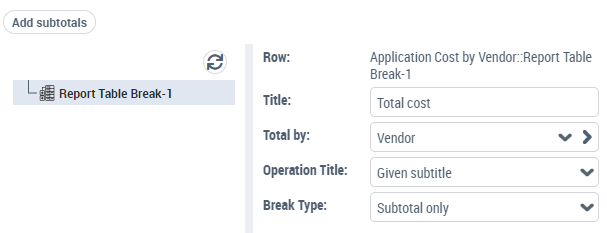
The break row is defined with a title.
4. Roll the mouse over the break and click Add computation:
• in the Column Concerned field, select the column concerned by the computation
• In the Function field, select the computation to be applied to the column.
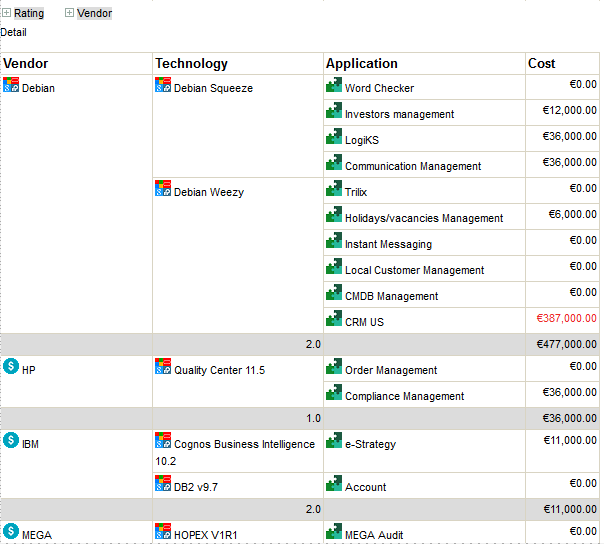
For example, you can group the table rows according to Vendor. You can add a break row after each group (Vendor), and for each vendor, you can display the number of Technologies and the sum of costs.
You get the following report: