Defining Portfolio Assessment Criteria
You can compare applications defined in a portfolio based on common criteria associated with the portfolio.
 A criterion is a reference element used to compare objects in a portfolio. Criterion values can be predefined.
To define portfolio criteria, you can:
• use existing criteria in the repository,
• Create new criteria and associated values.
 Criteria are defined from the MetaClass (object type) TaggedValue. Certain dialog boxes use this term rather than Criteria.
Using Existing Criteria
To connect existing criteria to an application portfolio:
1. Click the navigation menu, then Portfolios > Applications.
2. Select the portfolio concerned and, in the command bar associated with the edit area, click Properties.
The properties dialog box of the portfolio appears.
3. Click the drop-down list then Characteristics.
4. In the characteristics, expand the Portfolio Criteria section.
5. In the section, click the New button.
The search pane is displayed with a list of criteria already defined.
6. Select the criteria that interest you.
7. Click Connect.
Each selected criterion is displayed in portfolio characteristics.
Using Existing Criteria
Standard criteria are proposed to process costs modeled on objects and initiatives.
For more details on modeling of costs, see Managing Application and Application System Costs.Standard criteria enabling analysis of costs declared on initiatives as a function of their type and nature are the following:
• For type:
• Capital expenses
• Operating expenses
• For nature:
• Infrastructure costs
• Software licenses costs
• Manpower costs
• Service costs
The names of standard criteria enabling analysis of costs declared on objects carry the extension "Reference", for example "Reference Costs".
Given that certain criteria are automatically calculated, they cannot be modified from the Inventory or Assessment tabs of the portfolio.
For more details, see Evaluating Applications on Portfolio Criteria.Creating a New Criterion
To create new criteria for portfolio application comparison:
1. Open the Criteria properties page of the current portfolio.
2. Click the New button.
The creation window opens.
3. Indicate the name of the site and click OK.
The new criteria appears in the list of portfolio criteria.
Defining criteria format
Specification of type and format of a criteria (or TaggedValue) is identical to that of a MetaAttribute. For more details on declaration of criteria format, see chapter "MetaAttributes" of the Studio guide .
To define characteristics of a criteria:
1. Open the Characteristics properties page of the current criteria.
2. In the MetaAttribute Type field, indicate the type that will take the criteria values.
|
MetaAttribute Type
|
Meaning
|
|---|---|
|
String
|
Alphanumeric, the value of the MetaAttribute Length attribute should then be specified
|
|
DateTime
|
Date
|
|
VarChar
|
ASCII text
|
|
VarBinary
|
Binary text (reserved)
|
|
Boolean
|
Boolean (0 or 1)
|
|
Short
|
Integer (0-65535)
|
|
Long
|
Integer (0- 4294967295)
|
|
Binary
|
Binary (reserved)
|
|
Double
|
Integer (0- 18446744073709551616)
|
|
Float
|
Floating number
|
3. In the MetaAttribute Format field, indicate the Format that will take the criteria values. Possible values are:
• Standard: for character strings
• Currency: for currencies
• Enumeration: for a list of character strings with predefined values
• Enumeration (Opened): for a list of character strings open to the user
• Duration: for dates
• Percent: to enter a percentage
• Double: to enter a number
• Object: to enter an object
• Signed Number: to enter a number possibly negative. In this case, MetaAttribute Type must be Short, Long, Double or Float.
 The following formats are recognized in analysis reports: Standard, Enumeration and Signed Number.
 4. Click OK.
To define values associated with a criterion of Enumeration format:
1. Open the External Value properties page of the current criteria.
2. Click the New to create new values.
Defining Criterion Aggregation Rules
Aggregation of a criterion enables definition of calculation rules that will be applied to application values to obtain the criterion value on a portfolio. In this way you can compare portfolios.
To define criterion aggregation rules:
 Open the properties pages of the criterion.Click the drop-down list then Characteristics.
Aggregation policies proposed as standard are:
• Minimum
• Maximum
• Average
• Sum
For example, the Cost criterion associated with a portfolio can be obtained by calculating the average cost of initiatives making up the portfolio, or the sum of costs of each of the elements.
To fix more specific aggregation rules, the aggregation policy can be defined by a Macro. The name of the macro is defined in the Aggregation Macro column.
For more information on Macros in HOPEX, see the guide All about starting with APIs.The result of aggregation of different criteria is accessible in the Aggregation Value column.
Evaluating Applications on Portfolio Criteria
Portfolio applications are evaluated related to different portfolio criteria.
Standard criteria relating to costs are automatically calculated, they cannot therefore be modified in this tab. For more details on these criteria, see Using Existing Criteria.Accessing applications to be evaluated
To access evaluations of all portfolio applications:
1. Open the properties pages of the portfolio.
2. Click the drop-down list then Evaluation.
The list of evaluations of all portfolio applications according to different criteria is displayed.
3. To define a criterion value on an application, select the application concerned and click in the criterion column.
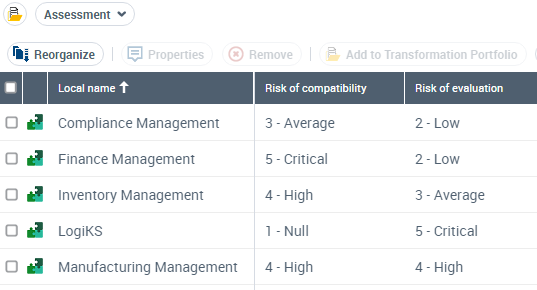
Generating a PDF or Excel evaluation data file
The PDF and Excel allow you to generate PDF and Excel files of evaluation results.
For reasons of readability, the PDF file contains a maximum 12 columns.Generating an instant report on evaluation data
Instant reports allow you to carry out drill-down analysis on evaluated objects. They provide greater detail depending on specific analysis perspectives (quantitative, time, etc.).
To generate an instant report on a list of evaluated applications:
1. Open the properties pages of the portfolio.
2. Click the drop-down list then Inventory.
3. In the list of applications, select those to be analyzed.
If you do not select an application, by default the report covers all applications.
4. Click Instant Report.
If necessary, click  to display the hidden commands.
5. Select the required analysis type, for example "Breakdown".
6. Click OK.
7. In the list of possible grouping criteria, select "Costs".
For all selected technologies, you receive the cost breakdown according to their levels.
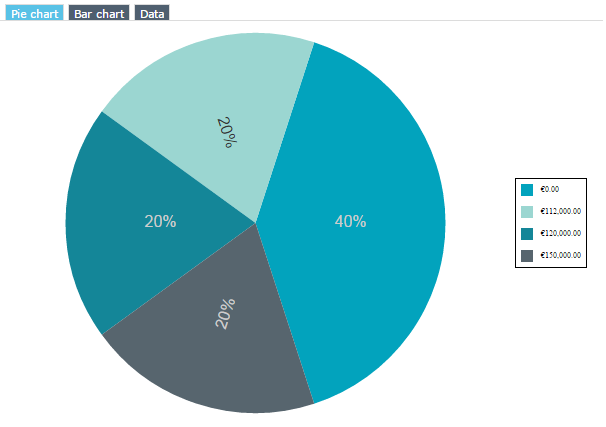
Portfolio costs report
A report automatically displays the global costs of applications contained in a portfolio.
To access the portfolio cost report:
1. Open the properties of the portfolio.
2. Select Reporting > Costs Report.
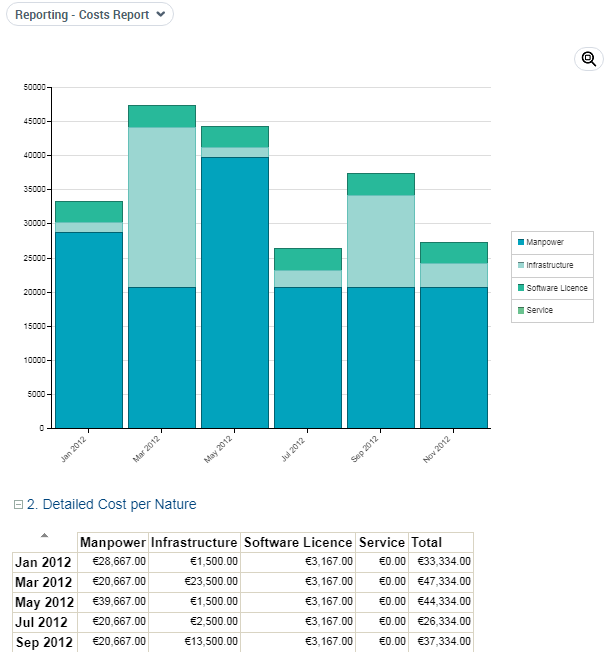
An analysis report also summarizes costs of applications and of their versions and deployments between the portfolio start date and end date.