Managing Recommendations
 Recommendations are used within the framework of HOPEX Internal Audit.
Accessing recommendations
To access your recommendations:
 In the navigation menu, select My tasks > Recommendations.
Recommendations are classified according to their status:
• Recommendations
• Delayed recommendations
Implementing recommendations
You may be required to manage recommendations following testing activities or production of the final audit report.
As a recommendation owner, you may:
• create actions whose objective is to implement recommendations.
• specify a progress percentage for the actions
For more information on recommendations within the framework of HOPEX Internal Audit: see Implementing Recommendations.
Creating an action within the framework of a recommendation
To create an action:
1. See Accessing recommendations.
2. In the properties of the recommendation, select the Action Plan page.
3. In the Actions section, click New.
4. Open the properties of the action created.
5. Modify its name if necessary, enter a date limit and an action Owner.
The list available in the Owner field corresponds to the list of auditees defined on the audit.Submitting an action plan (consisting of recommendations)
Actions created and assigned to appropriate users constitute an action plan within the framework of HOPEX Internal Audit.
You may submit the action plan to the lead auditor or the audit director via the recommendations workflow.
To do this:
1. See Accessing recommendations.
2. Click the recommendation name and select Action Plan to be Submitted > Submit Action Plan.
The lead auditor or audit director validates the action plan by return.Viewing recommendation widgets
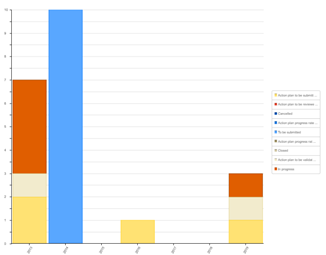
Recommendations by status and year
This bar chart displays recommendations:
• By year
• By status (each color corresponding to a distinct status)
Recommendations by status and audit
This bar chart displays recommendations:
• By audit
• By status (each color corresponding to a distinct status)
Recommendation Dashboard
This dashboard displays action breakdown by progress for all “in progress” recommendations you are responsible for.
• Delayed
• On Time