Handling a Report
Displaying a report chart in full page
You can display a chart from a report in full page. When using this display, you cannot edit the report.
To display the chart in full page: click Display in full page mode  on the top right corner of the chart.
on the top right corner of the chart. To exit the full page mode, click Exit full page mode
  .
.Displaying a report in a browser tab
You can display a report in a new browser tab while keeping your HOPEX desktop open for any simultaneous task.
To display a report in a new browser tab:
1. Access your reports.
See Accessing your reports in a HOPEX solution. or access your favorite reports.2. Roll the mouse over of the report name and click Open in a new tab  .
.
.You can thus display several reports in browser tabs.
Updating a report
When a report is not up to date, a message (at the top of the report) specifies the date of the latest generation of the report as well the time required for generation. If the data contained in the list of objects changes, you must refresh the report to take these changes into account.
When the report is up to date, the message for the latest report generation date is not displayed.To update the report:
1. Access the report.
2. In the report title, click Refresh  .
.
.The report is updated.
Obtaining the list of objects from a data series
To get the list of objects making up part of the chart:
1. Access the report.
2. Click the chart part concerned.
In a bubble chart, roll the mouse over the bubble and click Set of objects, click to view details.In a chord diagram, roll the mouse over the chord and click Click to view details  .
.The list of objects contained in this part is displayed in the Results window.
In the list, you can click:
The functionalities available depend on the desktop on which you are working• Properties  , to view the properties of an element in the series.
, to view the properties of an element in the series.• Excel  , to export the elements of the series in .xlsx format.
, to export the elements of the series in .xlsx format.• Instant Report  , to generate an instant report for the series.
, to generate an instant report for the series.Hiding a data series
For improved readability, you can hide data series in the report chart.
To show/hide a data series:
1. Access the report.
2. In the report legend, click the relevant data series.
In the legend, the color that represents the series is grayed.
The series is not shown anymore in the chart.
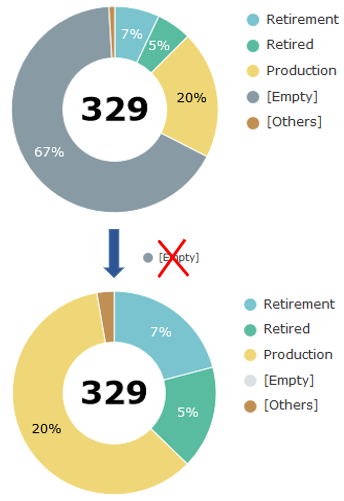
You can hide several series.Example: in the chart showing the breakdown of applications according to their current state, you can hide the series "[empty]" that represents the applications whose state is not entered.
3. In the legend, click the series again to re-display it in the chart.
Displaying the properties of an object contained in a report
In a report, you can access object properties of:
• objects displayed in the chart
E.g.: in a table, a matrix, a dendrogram, a graph, a breakdown map
• objects making up a part of the chart
Ex.: in a pie chart, bar chart, bubble chart, heatmap, word cloud.
Table - Matrix - Dendrogram - Breakdown map
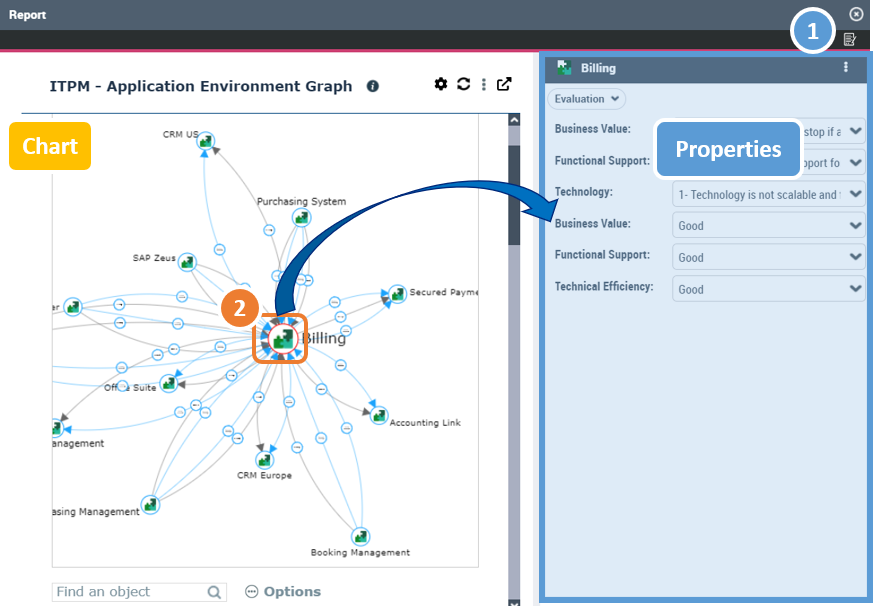
To display the properties of an object contained in a report:
1. In the report toolbar, click  to display the properties window.
to display the properties window.2. In the chart, right-click the object and select Properties.
The object properties are displayed in the Properties window.
E.g.: in a graph
Pie chart - Bar chart - Bubble chart - Heatmap - Word cloud
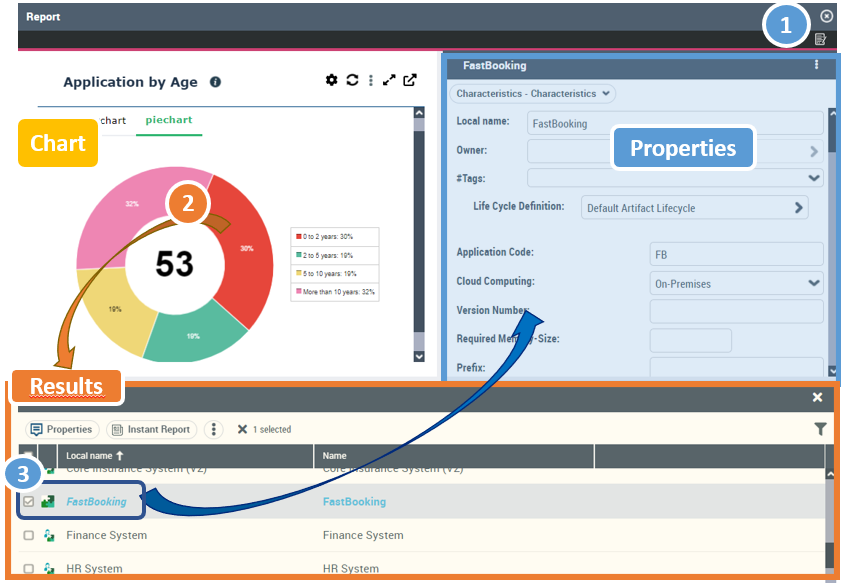
In a report, to display the properties of an object making up a chart part:
1. In the report toolbar, click to display the Properties window.
to display the Properties window.2. In the chart, click the relevant part.
E.g.: in a pie chart.
3. In the list of results, click the name of the object.
Its properties are displayed in the Properties window.