Displaying Diagram Thumbnail in a Diagram
Displaying the diagram describing the object as a thumbnail
Within a diagram, you can display the diagrams of the objects, which are themselves described. The objects are displayed in the form of thumbnails, which you can be enlarged.
To view the diagram of a described object:
1. In the diagram, right-click an object itself described by a diagram
E.g.: the ”Search for Products To Order” Organizational Process.
2. In the Graphic element section, select Display the diagram describing the object.
The object is replaced by the thumbnail of the diagram, which describes it.
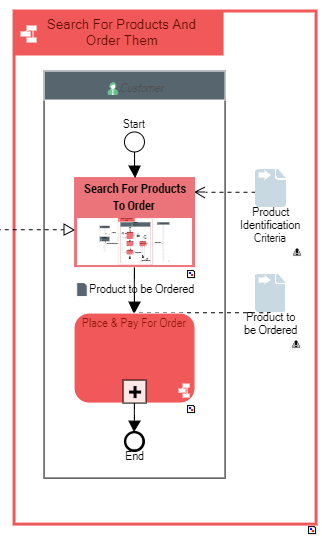
3. Repeat the action on another object described by a diagram.
E.g.: the ”Place & Pay for Order” Organizational Process.
4. You can enlarge the objects to make the thumbnails easier to read.
 For help, see Adding Space between Elements.
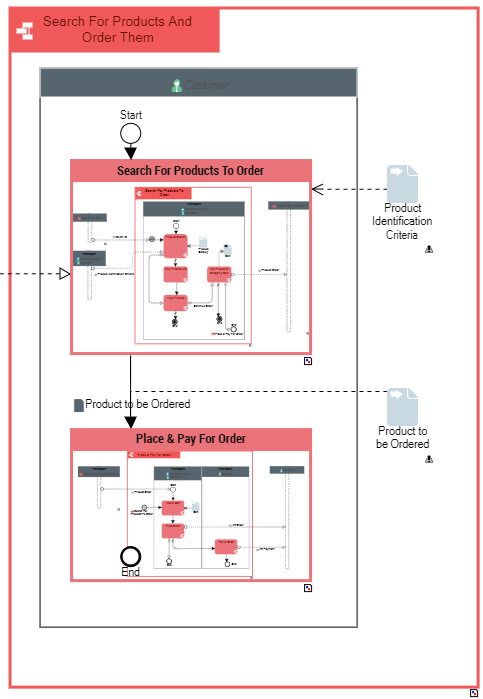 To no longer display the diagram thumbnail, right-click the object concerned and in the Graphic element section, clear Display the diagram describing the object.
Launching the exploded diagram report
This report enables to build a summary view of a hierarchy of diagrams within a diagram.
It consists in opening the diagram of each object to include it in the diagram describing the root object.
The diagrams which describe the objects mentioned in the source diagram are displayed recursively, so that several diagramming may appear.
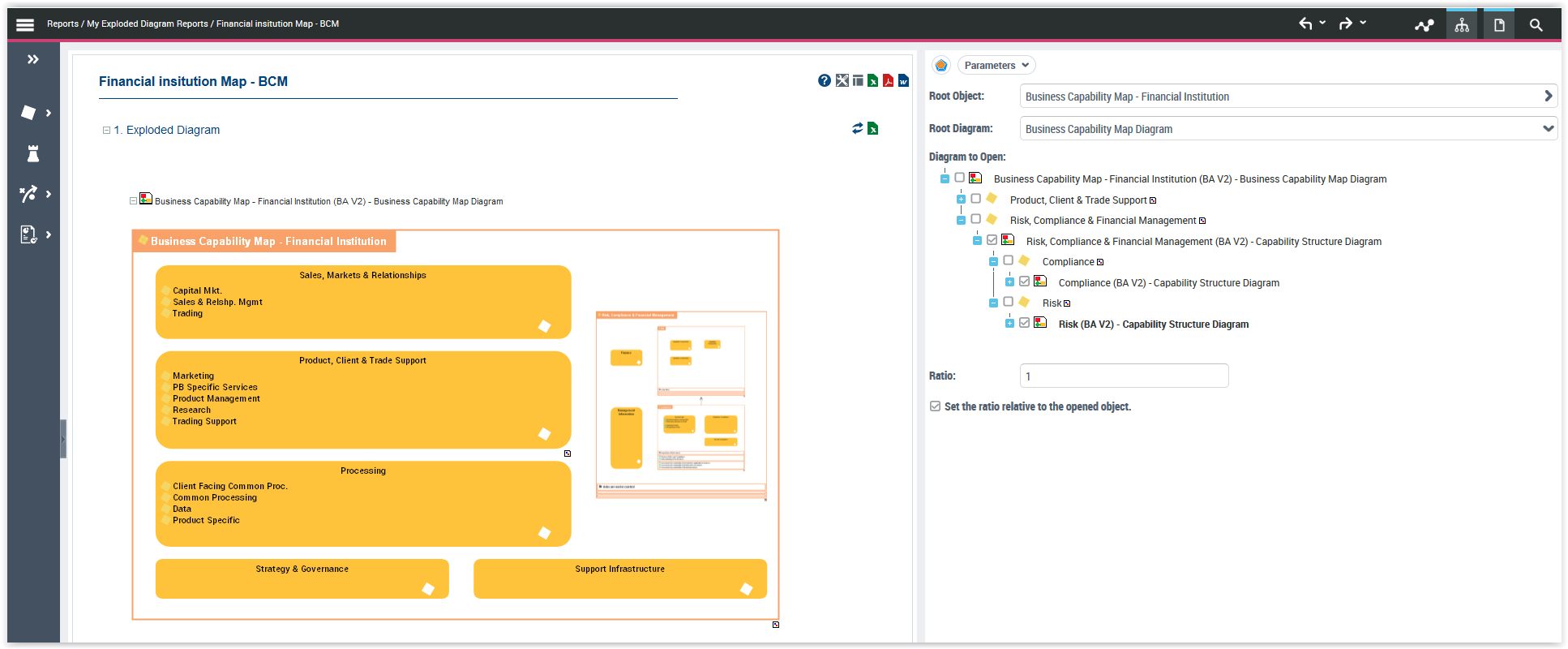
Report of exploded diagrams in a business capability map
Depending on the solution used, several means are available to access this report, for example:
1. Right-click the root object and select Documentation > Report Discovery.
2. Unfold the folder “Platform tools” to launch the report.
Report parameters
Input data of this report is specified by the selection of:
• A root object diagram
• Diagrams to be included and to display
Parameters | Constraints |
|---|---|
Root object | One object is mandatory |
Root diagram | Diagram associated with the root object |
Diagrams to be included | Diagram(s) describing a tree object of diagram > object in diagram > description > object in diagram > … type which is offered from the root diagram |
Ratio | Defines the zoom factor applied to the diagram (by default equal to 1) - 0<ratio<1 : the diagram is smaller than the reference size - ratio>1 : the diagram is bigger than the reference size The reference size is defined in the option “The ratio is relative to the open object”. |
The ratio is relative to the open object | This check box enables to define whether the ratio applies to the size of: - the diagram to include (check box unchecked) - the object in the root diagram (check box checked) Examples: - Check box unchecked and ratio of 0.5: the diagram included is twice smaller than the source diagram. - Check box checked and ratio of 1.0: the sub-diagram is the same size as the object of the root diagram. |
Insert border | Deactivated by default Enables to insert a border around the sub-diagram included. This can be useful if for example the sub-diagram does not already contain a border around the described object. |
Recompute links | Deactivated by default Enables to reroute all links which go to or from an opened object to the appropriate target in the sub-diagram (e.g. an interaction to or from the object may trigger a service point or be triggered by a request point in the sub-diagram); if deactivated, the lines from the top diagram remain as they were in the original position. |