Sequence Diagram
The sequence diagram highlights the chronology of messages exchanged between objects participating in an interaction. These objects are represented in the diagram by their lifelines.
Example of a sequence diagram
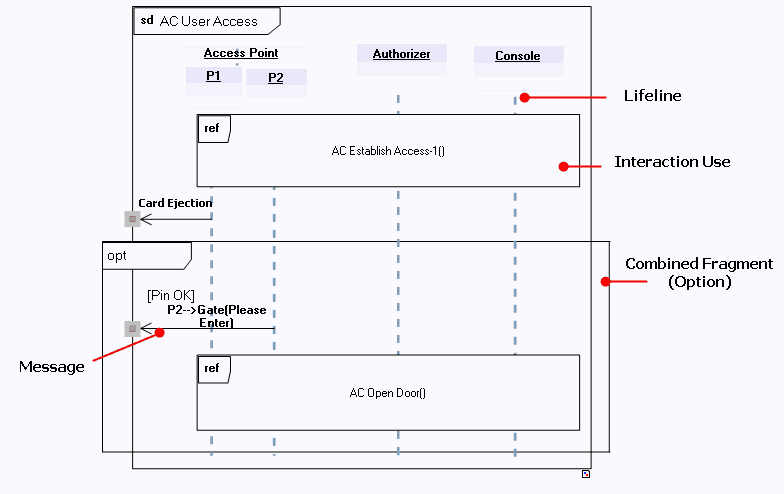
The diagram below describes behavior of an automated teller machine:
• Two entry points (represented by lifelines) have a user access check. This check is described in an interaction.
• Depending on the result of the check, either access is refused and the user card is rejected, or door opening is actuated;
• An optional behavior (represented by a combined fragment) can influence door opening.
Creating a Sequence Diagram
To create a sequence diagram in HOPEX IT Architecture :
1. Right-click on an interaction.
2. In the pop-up menu that appears, click New > Interaction Diagram.
See also Creating an Interaction.
Lifelines
A lifeline represents a participant in an interaction.
Lifelines are instances of different types (of classes, of actors, etc.).
In a sequence diagram, time is represented as passing from top to bottom along the lifelines of these objects. Message instances transit between these objects.
 The instances represented in a sequence diagram can be instances of a class, actor, package, use case, component, or node, used to define the sequence diagrams at the desired level of detail.
Creating a lifeline
To create a lifeline/
1. Click the Lifeline button.
button.2. Click in the diagram.
A dialog box opens.
3. Enter the name of the lifeline.
4. Click Add.
The lifeline appears in the diagram.
Lifeline properties
To access properties of a lifeline:
 Select the instance and click Properties in the edit window if it is not activated.
You can select the Type of the object (Actor, Class, etc.), specify the Class, Actor, etc. of which it is an instance, and indicate its Stereotype.
Messages
A message defines a particular communication between lifelines of an interaction. It specifies the sender and receiver via intermediate occurrence specifications, as well as the type of communication. This communication can be, for example, sending a signal, calling an operation or deleting an instance.
Examples of exchanged messages
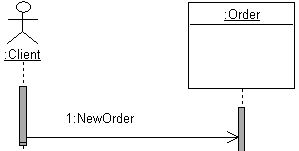
1) The message sent by the "Client" actor to the "Order" class carries the "New Order" signal.
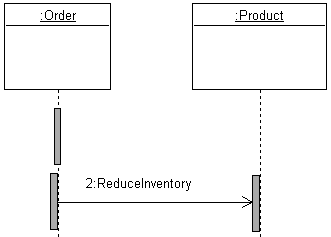
2) The message sent by the "Order" class to the "Product" class calls the "Reduce inventory" operation.
Creating a message
To create a message in the sequence diagram:
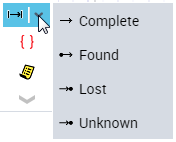
1. Click the Message button in the insert toolbar, selecting the required message type.
2. Click on the dotted line under the first object, and hold down the mouse button while dragging the cursor to the dotted line under the second object.
The message exchanged between the two objects is drawn.
Message types
You can create four types of message:
• In a message type "Complete", the sender and receiver are both defined.
• In a message type "Lost", only the sender is known. Here we consider that the message never reaches its destination.
• In a message type "Found", only the receiver is known. This is the case when origin of the message is outside the description context.
• In a message type "Unknown", neither sender nor receiver are defined.
Execution Specification
An execution specification represents an action or behavior unit that progresses from a start occurrence specification to an end occurrence specification.
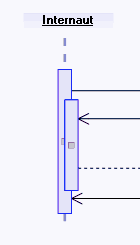
Creating an execution specification
To create an execution specification:
1. In the sequence diagram, click the Execution Specification button  in the object insert toolbar.
in the object insert toolbar.2. Position it on the lifeline concerned.
The specification appears in the diagram.
Occurrence specification
Creation of a message or an execution specification automatically creates occurrence specifications.
An occurrence specification is a syntax point at the extremity of a message or at the start or end of an execution specification.
Occurrence specifications are ordered along a lifeline.
These are basic semantic units of an interaction.
You can access the pop-up menu of an occurrence specification by right-clicking one of the extremities of a message.

Calculating sequence numbers
From positioning of occurrence specifications, a calculation tool enables ordering of messages and execution specifications.
To order messages circulating between lifelines of an interaction:
1. Open the pop-up menu of the described interaction.
2. Select Calculate Sequence Numbers.
The tool automatically applies numbers to messages.
Example
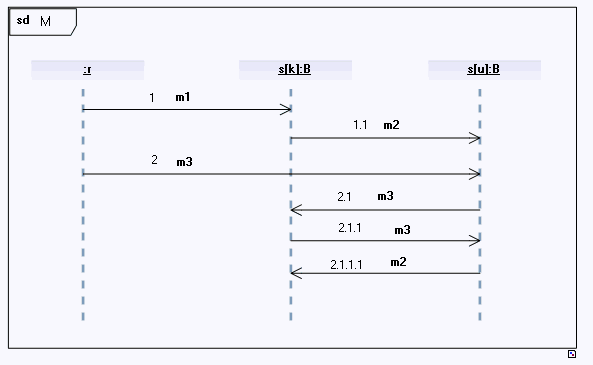
You can manually modify the sequence number of a message in the message properties dialog box:
Select the Characteristics tab and change the value in the Sequence Expression.When you restart calculation of sequence numbers, this updates sequencing according to the modifications made.
Combined Fragment
A combined fragment enables concise description of several execution sequences.
A combined fragment is defined by an interaction operator and the corresponding interaction operands.
Creating a combined fragment
To create a combined fragment:
1. In the sequence diagram insert toolbar, click the Combined Fragment button.
You can associate different types of interaction operator to a combined fragment. The arrow at the right of the button offers shortcuts to four of these. See Interaction operator type.
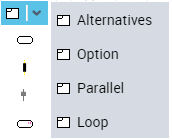
2. Click in the diagram.
The combined fragment creation dialog box appears.
3. Specify its Name and the Interaction Operator Type if not already indicated.
4. Click Finish.
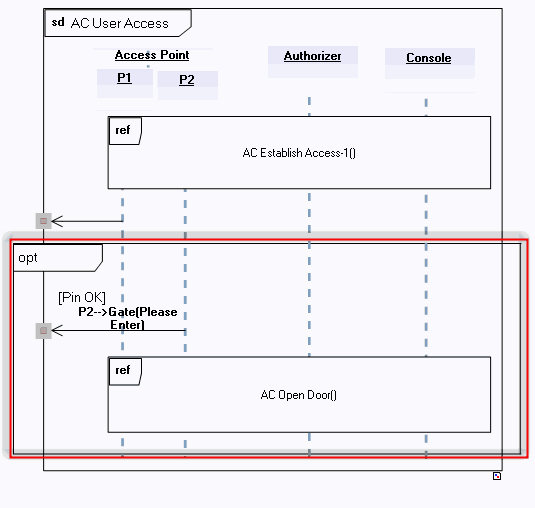
A combined fragment is represented by a rectangle with the interaction operator type displayed at the top left-hand corner.
In the example below, a combined fragment of option type translates a behavior that could disturb normal operation (door opening).
Interaction operator type
The interaction operator type conditions meaning of the combined fragment. There are various operator types: seq, alt, opt, break, par, strict, loop, region, neg, assert, ignore and consider.
Alternatives
Alt expresses the possibility of choosing between different possible behaviors by evaluating guard conditions associated with each of the operands. Only one of these operands can be executed.
The Else operand is selected when none of the other conditions is satisfied.
Option
Opt represents a choice between the unique operand proposed, or none.
Break
Break represents a stop scenario that is executed instead of the rest of the containing interaction fragment.
Parallel
Par means that the different operands can be executed in parallel. Occurrence specifications of different interaction operands can be sequenced in various ways as long as the order imposed by each operand is maintained.
Weak Sequencing
Seq designates weak sequencing between behaviors of operands defined by three properties:
- Order of occurrence specifications within each of the operands is maintained in the result.
- Occurrence specifications of different lifelines from different operands can appear in any order.
- Occurrence specifications of the same lifeline from different operands are ordered so that the occurrence specification of the first operand appears before that of the second.
Strict Sequencing
Strict defines strict sequencing of operand behaviors.
Negative
Neg represents an invalid operand.
Critical Area
Critical represents an area that must be processed atomically, meaning that occurrence specifications cannot be sequenced with those of this critical area.
Ignore/Consider
Ignore and consider require that a list of relevant messages be specified.
Ignore indicates that the types of certain messages are ignored in the combined fragment.
Consider indicates that certain messages will be considered in the combined fragment. This is equivalent to defining all other messages as 'ignored'.
Assertion
Assert represents a sequence that is the only one valid for a given message.
Therefore any sequence defined by an interaction fragment that starts with messages leading to the sequence defined by the Assert block and continuing with an exchange of messages that do not respect the Assert block must be defined as invalid.
Assertions are frequently used in combination with Ignore and Consider types.
Loop
Loop indicates that the interaction operand will be repeated a certain number of times. It is possible to specify minimum and maximum number of loops, as well as an expression of loop continuation.
Interaction operands
An interaction operand is contained in a combined fragment, and represents an operand of the expression given by the containing combined fragment. It can be conditioned by an interaction constraint, which acts as guard condition.
Creating an Interaction Operand
To create an interaction operand:
1. Right-click the combined fragment which contains the interaction operand.
2. Select New > Interaction Operand.
3. Name the operand and click OK.
Creating an Interaction Constraint
To create the interaction constraint that will condition the operand:
1. Open the properties dialog box of the interaction operand.
2. Click the Characteristics tab.
3. In the Condition frame, click New.
4. The condition is represented by a constraint. Define the constraint and click OK.
Interaction Use
An interaction use refers to an interaction. It is a means of copying content of the interaction referenced at the interaction occurrence location.
Example
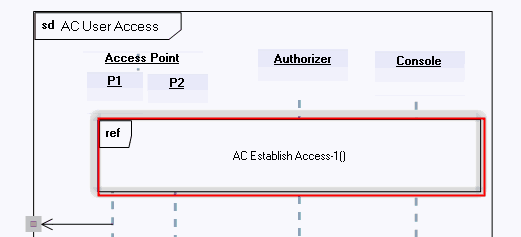
To create an interaction use:
1. Click the Interaction Use button 
2. Click in the diagram.
3. In the dialog box that appears, specify the name and the interaction called.
4. Click Finish.
You can specify arguments of an interaction use. An argument is a specific value corresponding to a parameter of the interaction called. In addition, when the argument has been created on the interaction use, you must align it with the interaction parameter called.
To create an argument:
1. Open the Characteristics property page of the interaction use.
2. In the Arguments frame, click the New button.
A value specification is created.
You can rename it and specify its characteristics by opening its properties dialog box.
To align the argument with the interaction parameter called:
1. In the Characteristics property page of the interaction use.
2. Click the arrow at the right of the Interaction called box and select Modify .
A dialog box displays characteristics of the interaction called.
3. For each parameter, click in the value column and select the corresponding value specification.
Gate
A gate is a connection point between a message external to an interaction fragment and a message belonging to this interaction fragment.
Example
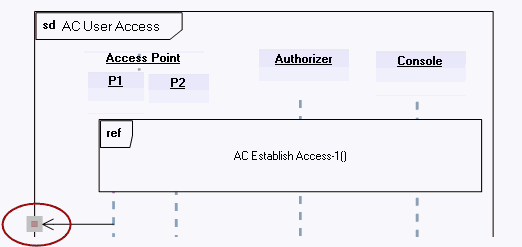
To create a gate in the sequence diagram:
1. Click the Gate button  in the object insert toolbar.
in the object insert toolbar.2. Click on the frame outlining the interaction at the point you wish to position the gate.
The gate then appears in the diagram.
Continuation
A continuation is a syntax means for defining the continuation of sequences of different branches of an Alternatives combined fragment. Continuations are similar to labels representing intermediate points in a control flow.