Creating an Inventory of Regulatory Frameworks (External Regulations)
A regulatory framework is an authority document falling under any of following categories: regulations (rules of law that, if not followed, can result in penalties), guidelines, standards, best practices.
HOPEX Data Governance provides by default the BCBS 239 banking regulatory framework as well as the Solvability II regulation, in the form of modules. You can define other regulatory frameworks in your repository.
Importing the Module of Regulatory Frameworks
The libraries of regulations to be imported are delivered in the form of modules that can be downloaded into the HOPEX HAS console.
To download the module of a regulation:
 From your HOPEX version, open the HAS Administration Console and download the module. See Importing a Module into HOPEX.
Structure of a Regulatory Framework
A regulatory framework defines the content of a regulation. It includes a set of sections, and under each section, sub-sections and articles.
You can define the objects in your organization that are constrained by the regulation as well as the business rules that ensure the implementation of the regulation within the company.
Because a regulation can contain many chapters, you can indicate precisely to which section or article objects are subject and for which business rules to associate.
 For more details on business rules, see Ensure Compliance with Data: Create Business Rules.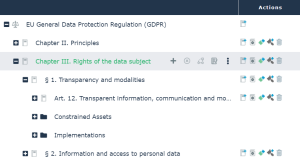
Creating a Regulatory Framework
To create a regulatory framework in HOPEX Data Governance:
1. In the navigation menu, click Compliance> Regulatory frameworks.
2. In the edit area, click the Regulatory Frameworks tab.
3. Click New.
4. In the dialog box that appears, specify:
• the name of the regulatory framework
• its description
5. Click OK.
The regulatory framework appears in the list.
Defining the objects in your organization constrained by a regulatory framework
You can define which objects a regulation constrains in the properties of the object in question. For example, to define the regulations associated with a concept, see: Regulations.
Viewing the objects constrained by a regulatory framework
To view the objects constrained by a regulatory framework:
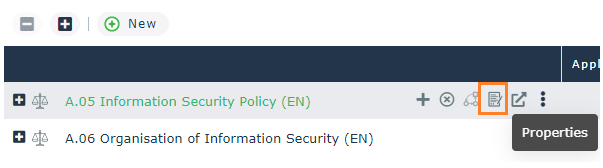
1. Select the regulatory framework.
Buttons appear to its right.
2. Click Properties.
3. In the regulatory framework properties, click the Subjected Elements page.
Adding a Section to the Regulatory Framework
To add a section to the regulatory framework:
1. Click the regulatory framework icon then New > Regulation Section.
The creation window for a section opens.
2. Specify:
• (optional) the section code
• the title
The name of the section is calculated automatically using the code of the title.• the description, which corresponds to the text of the section.
When the section is composed of other sections and articles, the texts can appear in them.• (optional) the subjected elements: these concern the objects that are constrained by the section. It can be business data, physical data, application data, etc.
• (optional) implementation: this concerns the business rules that ensure the effective implementation of the regulation within the enterprise.
3. Click OK.
The section appears in the navigation tree.
Defining the objects constrained by a section of a regulatory framework
To view the objects constrained by a regulatory framework:
1. Select the regulatory framework.
Buttons appear to its right.
2. Click Properties.
3. In the section properties, click the Subjected Elements page.
Adding an Article to a Section
To add an article to a section:
1. Click the section icon then New > Regulation Section.
The window for creating an article appears. You can define the following information:
• the article code
• the title
The name of the article is calculated automatically using the code of the title.• the description, which corresponds to the text of the article.
• (optional) the concept definitions that can be associated with key words of the text.
• (optional) the subjected elements: these concern the objects that are constrained by the article. It can be business data, physical data, application data, etc.
• (optional) implementations: this concerns the business rules that ensure the effective implementation of the regulation within the enterprise.
2. Click OK.
The article appears in the navigation tree under the section.
Adding a Definition to an Article
You can connect to the article definitions of concepts that exist in your repository that support the understanding of the article.
To create the definition of an article:
1. In the framework regulatory tree, select the article.
Buttons appear to its right.
2. Click Properties.
3. In its properties window, click the Characteristics page.
4. In the Definition section, click New.
The definition creation window opens.
5. Select the Object type that carries the definition, for example, a concept, and select from the Short name list the object in question..
6. Click OK.
See also:
With a data catalog you can specify which sections and articles of a regulatory framework apply to an organization. See Regulations Associated with the Catalog.
Creating the Inventory of Control Directives
Control directives are an interpretation of the law and contribute to the enforcement of any regulation article your organization has to comply with.
In HOPEX Data Governance you can view the control directives in different ways:
• within the control frameworks that contain them
• in a tree structure that lists the control directives
• within the regulatory frameworks in which they appear
• in the UCF documents. See Importing UCF Documents.
Implementation controls may be associated with the control directives. See: Defining Data Quality Controls.
Accessing the list of control directives
To access control directives from a tree:
1. In the navigation menu, click Compliance> Regulatory frameworks.
2. In the edit area, click the By Control Directives tab.
First-level Implied control directives appear in this list only if one of their children is mandated. Some columns indicate:
• whether the control directive constrains the organization
• the number of implementing controls associated
Supported and supporting directives
All control directives are displayed in a tree that enables to view their inter-relations.
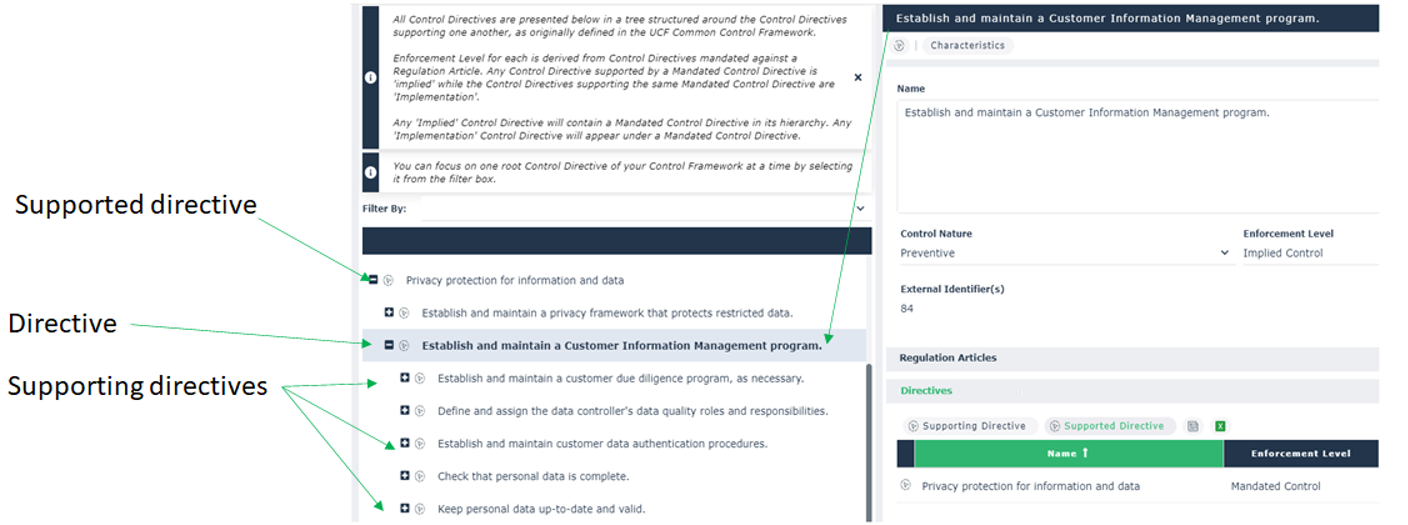
Having several control directives in the Supported Directive tab of a a control directive is highly beneficial. This means that efforts spent implementing one mandated control directive also contributes partly to the implementation of its supported control directives.
Enforcement level of control directives
There are three enforcement levels for each control directive:
• mandated
 a mandated directive is directly associated to a regulation article. It implements a regulatory framework.
• implied
An implied directive is a non-mandated control directive that is a parent of a mandated directive. It indicates that one of the control directives contained within its supporting hierarchy is mandated. • implementation
An implementation directive is a non-mandated directive that is a child of a mandated directive. It provides details regarding how to carry out the mandated directive and facilitates its implementation.Enforcement level for control directives | |
|---|---|
Implied control directive | - Is not mandated - Contains at least a mandated control directive in its hierarchy - Allows to display the mandated control directives within the UCF hierarchy - Is supported by a mandated control directive |
Implementation control directive | - Is not mandated - Appears under a mandated control directive (is supporting a mandated control directive) |
Mandated control directive | - Is supporting an implied control directive - Can be supported by implementation control directives - Can support or be supported by other mandated directives |
Associating a control directive with an article of regulatory framework
From an article, you can create a control directive or connect an existing control directive.
To create a control directive from an article:
3. In the framework regulatory tree, select the article.
Buttons appear to its right.
4. Click the New > Control Directive button.
The window for creating a control directive appears.
5. Enter the name of the control directive.
6. Click OK.
To connect an existing control directive to an article:
1. In the framework regulatory tree, select the article.
Buttons appear to its right.
2. Click the Connect > Control Directive button.
The search window appears.
3. Enter the name of the control directive or click directly on the Find button.
The list of control directives appears.
4. Select the control directive in question.
5. Click Connect.
Viewing articles associated with a control directive
To view articles associated with a control directive:
1. Open the properties of the control directive.
2. Click the Characteristics page.
3. Expand the Fulfilled Regulation Articles.