Creating a Calculation Rule on a Business Object
You can create calculation rules on concept components and concept properties.
Calculation Rule on a Concept Component
To indicate that a concept component is calculated, you must link the concept and the component with a link of type Computed Concept Component and define the calculation rule for the component.
The calculation rule defines the input and output objects as well as the expression of the rule. The input and output objects can consist of different types of business information. The output objects are concepts only.
To create a computed concept component between two concepts of a concept domain:
1. In the concept graph associated with the concept domain, click on the concept that holds the other one.
A bar containing the objects you can insert appears.
2. Click on the icon that represents the Computed concept component.
3. Slide the cursor to the target concept.
4. When the cursor becomes a double chain link, release the mouse button.
The computed concept component creation wizard appears.
5. Enter the Name of the data area.
6. Specify if a term must be created or not.
7. Click Next.
8. Associate a concept rule and click OK.
The concept component appears in the graph.
 A new term with the same name as the concept component is also created if you have selected creation of a term.
To access the definition of the rule:
1. Open the properties of the concept component.
2. In the Characteristics > Calculation rule page, enter the input and output parameters of the rule, as well as the description of the rule.
Calculation Rule on a Concept Property
To indicate that a concept property is calculated, you must link the concept and the concept property with a link of type Computed Sub-Property and define the calculation rule for the concept property.
The calculation rule defines the input and output objects as well as the expression of the rule. The input and output objects of the rule are concept properties.
To create a computed sub-property:
1. In the concept graph create the concept property.
2. Click the concept that owns the concept property.
A bar containing the objects you can insert appears.
3. Click on the icon that represents the Computed Sub-Property.
4. Slide the cursor to the target concept property.
5. When the cursor becomes a double chain link, release the mouse button.
The creation wizard of a computed sub-property appears.
6. Specify if a term must be created or not.
7. Click Next.
8. Associate a rule and click OK.
The computed sub-property appears in the graph.
A new term with the same name as the concept property is also created if you have selected creation of a term.To access the definition of the calculation rule:
1. Open the properties of the computed sub-property.
2. In the Characteristics > Calculation rule page, enter the input and output parameters of the rule, as well as the description of the rule.
Example
The “Book” concept is described by the following concept properties:
• “Book price”
• “Number of copies sold”
• "Sales amount”
• "Royalties amount”
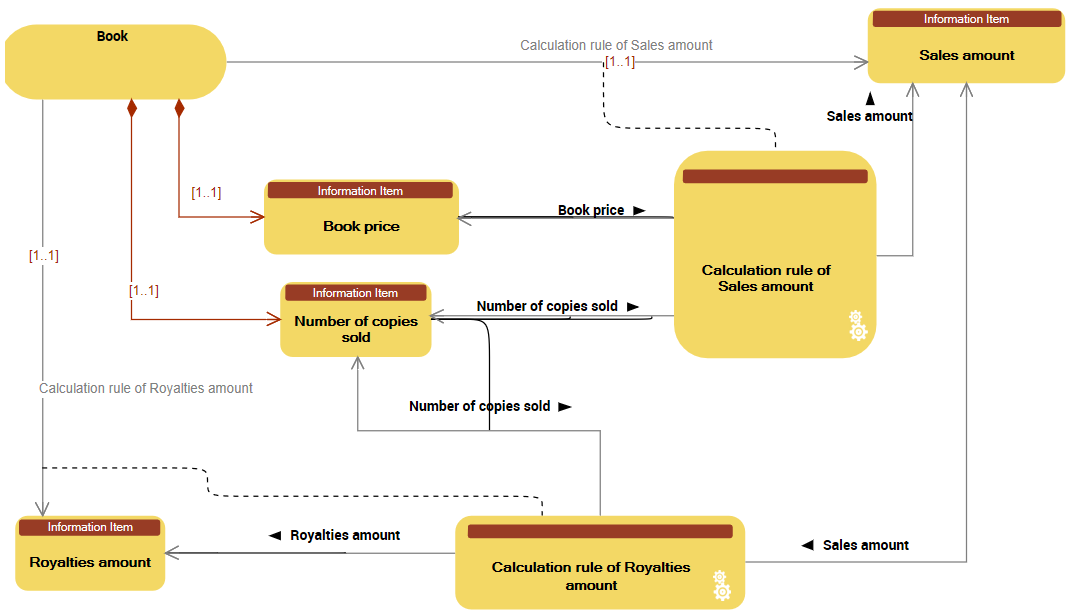
The “Sales amount” is a calculated according to:
• the “Book price”
• the “Number of copies sold”
The definition of the sales amount calculation rule is as follows:
Sales amount = Number of copies sold x Book price
The royalties amount is calculated according to the number of copies sold. The calculation rule is as follows:
• 8% of the sales amount if the number of copies sold is less than 10,000.
• 10% of the sales amount if the number of copies sold is less than 20,000 and greater than 10,000.
• 12% of the sales amount if the number of copies sold is less than 20,000.