Describing a business capability
A business capability can be based on business sub-capabilities. The capabilities expected by the business capabilities described are the capabilities associated with each business sub-capability.
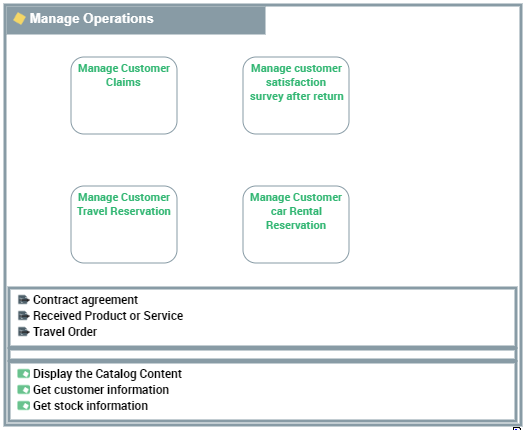
For example, the business capability that consists of managing operations is broken down into a number of business capabilities such as: “Handle customer complaints”, “Manage travel reservations”.
The capability structure diagram describes the composition of a business capability.
Creating a business capability
You can create a new business capability in several ways:
• From the business capability map diagram,
• From the properties page of a business capability map,
• From the navigation pane.
To create a Business Capability from a business capability map diagram:
1. Click the Capability Composition button.
The Add Business Capability window appears.
2. Enter the name of the new capability and click Next.
3. Specify the Owner of your business capability and click OK.
The new business capability appears in the diagram.
The properties of a business capability
The Characteristics property page of the business capability map provides access to:
• its Owner, by default on creation of the business capability, the current enterprise.
• its Name,
• the text of its Description.
• the Desired Capability Effect is an Outcome.
For example, the desired capability effect of "Manage operations" is a "Contract acceptance"
 For more details on results, see Describing the outcomes.For more details on the use of results, see Defining business capability dependencies.
An business capability is described by the following pages:
• the Structure page specifies a part of the list of components that constitute the business capability described, as well as the dependencies between these components,
For more details on the structures of a business capability, see Defining the structure of a business capability.• the Expected Capabilities property page is used to specify a list of business skills and functionalities that are expected from the business capability.
For more details on the skills and functionalities associated with a business capability, see Defining the business skills and functionalities associated with business capabilities.• In the Capability Usage page:
• he Capability Component section provides access to the capacity maps that use the described capability.
For more details on the components of a business capability, see Using the capability compositions.Creating a capability structure diagram
To create a capability structure diagram:
1. Right-click the business capability that interests you and select New > Diagram.
The Diagram type selection dialog box opens.
2. Select Business Capability Map Diagram.
3. (Optional) Uncheck the Diagram Initialization box.
4. In the Edit Mode section, select Edit diagram with graphical entry.
5. Click OK.
The diagram opens in the edit area. The frame of the business capability described appears in the diagram.
You can construct this diagram in tabular input mode.
Tabular input is available with this diagram. For more details on the use of tabular input, see Building a diagram in tabular entry mode.Defining the structure of a business capability
The components represented in a business capability structure diagram are Capability Composition. Each capability composition is associated with a business capability.
 A Business capability component is the involvement of a business capability in the context of a business capability map (one and only one) linked to an enterprise.For more details on how to use business components in a diagram, see Using the capability compositions.
A dependency link between one capability composition and another is used to specify the elements on which this dependency is based, that is, the effect of one required by the effect of the other.
For more details on creating dependency links between two capability compositions, see Using the capability compositions: The capability compositions and their dependencies appear in the Structure property page of the business capability described.
Defining the business skills and functionalities associated with business capabilities
A technical functionality is a capability expected from an equipment item (hardware or software) to ensure the operation of a technical element or an application.A value stream is an end-to-end collection of Value Stages that creates an outcome for a customer, who may be the ultimate customer or an internal end-user of the value stream.Each business capability is associated with functionalities that it is able to provide and that it needs to ensure its functionalities.
To associate a skill with a business capability:
1. Open the Expected Capabilities properties window of the business capability.
2. In the Expected Business Skill section, click New.
An Expected Business Skill creation dialog box opens.
3. Click, for the Connect a Business Skill check box.
4. Specify the name of the skill.
5. Click OK.
The business skill appears in the list of skills associated with the business capability.
For more information on enterprise skills, see Describing Business Skills. To associate a functionality with a business capability:
1. Open the property pages of the business capability concerned and select the Expected Capabilities page.
2. In the Expected Functionality section, click New.
An Add functionality window appears:
3. Click the down arrow.
4. Select a functionality.
5. Click OK.
The functionality appears in the list of functionalities associated with the business capability.
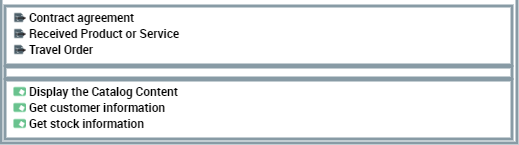
For more information on enterprise functionalities, see Describing functionalities. The business skills, functionalities and the expected effects appear in the diagrams, at the bottom of the frame of the capability described.
A report is available to check the suitability between the business capability map and the operational environment, for more details, see Breakdown Report of Business Capabilities.