Customizing Phase Sequence
Creating a method from the navigation tree
To create a method from the navigation tree:
1. In the Methodology navigation window, right-click the Methods folder and select New > Method.
 The "Methods" folder contains all the methods included in the repository.
The Creation of Method dialog box appears.
2. Enter the Name of the new method.
3. Click OK.
The method is created and added to the list of methods.
A method is described in a phase scheduling diagram, but also through links between phases, through deliverables and through resources.
Creating a phase in a method
You can create a phase in a method from in a navigation window:
 In the Methodology or TOGAF 9 navigation window, right-click the method concerned and select New > Phase.
You can also create phases in a method from the scheduling diagram of a method.
To create a phase in a method from the scheduling diagram of the method:
1. Depending on the type of phase you want to create, click one of the following buttons in the objects toolbar: Begin  , Production
  , End
, End  , Verification, Delivery or Milestone.
, Production , End , Verification, Delivery or Milestone.2. Holding down the mouse button, click in the diagram workarea.
The Creation of ... dialog box for creating the phase appears.
3. Enter the name of the phase and click OK.
Links between phases
In a method scheduling diagram, you can easily link different phases.
To link phases:
1. In the objects toolbar, click 
2. Click the first phase and, holding down the mouse button, draw a line to the second phase.
3. Release the mouse button.
If the "Sub-Phases" view is activated, an intermediate dialog box appears in which you are asked to select a link type. For more details, see Specifying phase composition.Specifying phase composition
To specify phase composition:
1. Select the View menu > Views and Details.
2. In the dialog box that appears, select the Sub-phases check box, then click OK.
3. Draw a link between two phases.
The Create link dialog box appears.
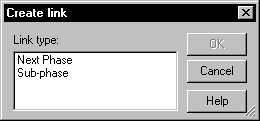
It offers a choice between a "Next Phase" link which indicates a sequence between two phases, and a "Sub-Phase" link which indicates that one phase is subset of the other.
4. Select the "Sub-Phase" link. A dotted arrow line is displayed between the two phases.
The list of sub-phases of a phase is accessed from the Details tab of the phase properties dialog box.For more details on project creation from a method, see "Creating Work Packages with TOGAF 9 ADM", page 32.Adding a participant to a method
To graphically specify the participants in phase implementation, you can insert participants in the diagram.
To create a participant:
1. Click the Participant  button in the objects toolbar.
button in the objects toolbar.The participant appears in the diagram.
2. Click the name "System Participant", press key <F2> and change the name of the participant.
To assign a phase to a participant:
Position a phase within the frame of the participant.The frame of the participant is highlighted.
When positioned, the phase is connected to the participant, which indicates that this participant executes this phase.