Preparing SolMan Synchronization
Before synchronizing a process hierarchy with SolMan, you must first generate an image of the SolMan hierarchy. This is done through a "mapping" tool, that generates an image of the objects in the SolMan Hierarchy.
Mapping is performed via a macro that implements the logic of alignment of business object hierarchy with the SolMan hierarchy. As these two hierarchies have very different characteristics, an analysis is needed to define how this process will be done.
In HOPEX, a business process hierarchy can involve four object types: Business processes, value streams (former functional processes), organizational processes and operations.
All three types of processes can also be nested (org processes within org processes for example). This provides a high level of flexibility in describing processes.
In SolMan, there are:
• Only three types of objects: scenarios, processes, and process steps
• Folders that can group these objects
• A strict structure: only processes can be linked to scenarios, only process steps can exist within a process.
The logic of performing this mapping is as follows:
• Mapping starts with a business object (business process, value stream, organizational process)
• A HOPEX operator navigates from this object to collect the sub-hierarchy of objects
• For each object in this hierarchy, the mapping macro is called to determine which SolMan object type is needed, create it and link it properly in the SolMan hierarchy.
As this is an automatic process, process structures (objects used, number of process levels, object type in each level) should be consistent for all processes in the repository.
To run this mapping in a defined customer context, you must:
• If necessary, adjust the extraction operator (one is provided as a standard example)
• Write a macro, possibly based on the example provided with the product, to align with the local configuration of a business process hierarchy.
Paragraph 8.1 gives more technical details about how to implement this operator and this macro.
Mapping Business Objects
When the technical configuration described above is complete, mapping work can start. Mapping can be generated at any level of the business hierarchy: business process, value stream or org process. This allows for incremental generation, or updates when local changes have been made.
You should start mapping and generation at the highest level to initialize the hierarchies properly, and then map the objects that have changed.
To perform mapping, you must open a list of objects (business processes, value streams, or organizational processes). Here is an example of business processes.
List of Processes
Select Business Processes in the navigation menu to obtain a list of business processes as follows:

You can filter the processes you want to display as shown below:

• My Business Processes lists all processes for which the user is the Process Owner or Designer.
• All Business Processes lists all processes in the repository.
• Business Processes for SAP lists all the business processes that are already mapped in HOPEX with SolMan objects.
• Business Processes in SolMan lists all the business processes for which SolMan objects have been created in SolMan. This list is a subset (or same set) of the objects of the previous list.
In the last two lists, two columns with check boxes display which objects are mapped and which objects have already been transferred into SolMan:

Launching mapping
To launch object mapping:
1. Select one or more objects in the list of objects.
2. Click Prepare SolMan objects.
3. Select a branch as a mapping destination:

4. For each root object, specify where the object will be attached in the SolMan hierarchy:

You can browse the SolMan Hierarchy to select a level of attachment (here the root HOPEX Processes folder):
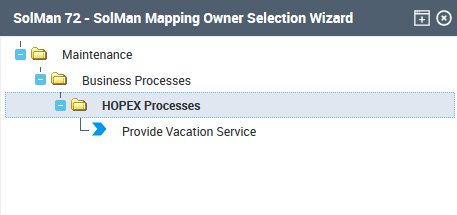
5. Then launch the mapping process. The window displays the list of generated objects at the end:

Here you can see which type of SolMan object has been associated with each HOPEX object, and if it already exists, whether it has been created or updated.
Reviewing SolMan Mapping
Before synchronizing the hierarchy with SolMan you should review the mapping to check that everything is in order. You can do this by selecting View SolMan Objects in the navigation menu. You have access to a tree of all SolMan objects within each branch where you can see which business object is mapped on each SolMan object:
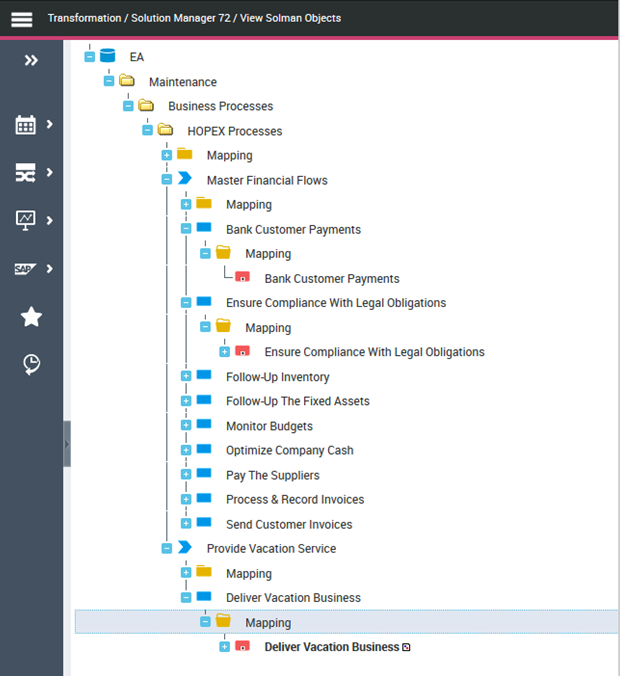
Note that this tree is intended to be read-only. You should not change this hierarchy here; hierarchy should only be changed by executing the mapping process. A key user should be allocated rights to change this hierarchy through standard navigation tools.
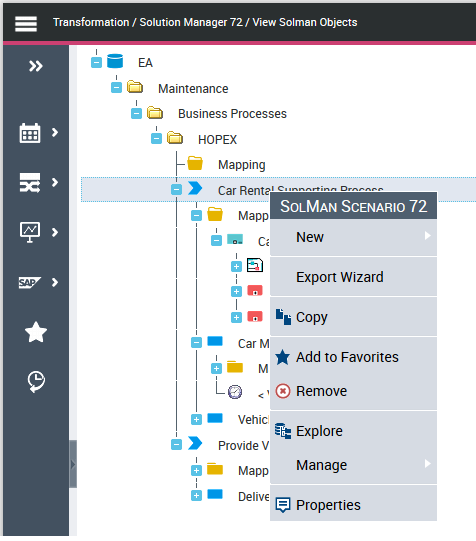
Standard configuration provides menu options on these objects. Commands (Remove, or changes through Explorer) should only be run by experienced users with an in-depth understanding of the behavior of this component:
Defining the Documentation Type Associated with Exported HOPEX Object
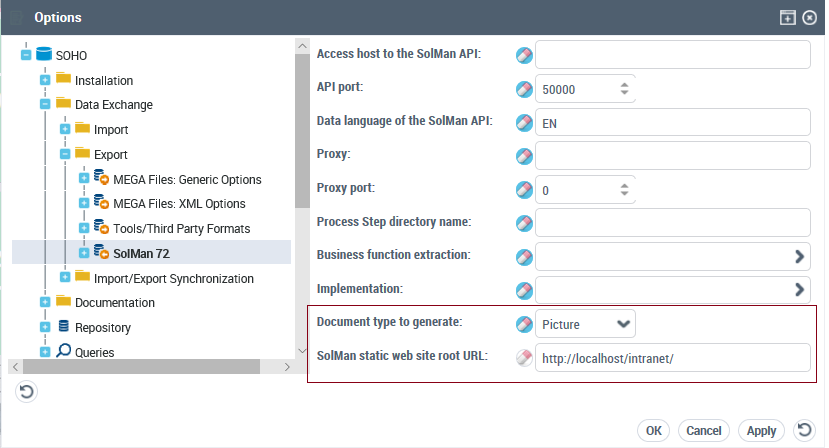
When exporting HOPEX business object into SolMan, an option enables you to generate an image (.png) or a link to a static Web site that describes diagrams related to the business objects (see Exporting a Business Hierarchy into SolMan).
After the export, the SolMan objects are created, and for all HOPEX objects that have diagrams, these diagrams will be attached to SolMan objects as images or URL. When you export an object already existing in SolMan, only the diagrams that have changed since the last synchronization are transferred to SolMan.
To specify which type of document (image or url) must be generated :
1. Click Main Menu > Settings > Options.
2. The Options window appears.
3. In the left tree, select Data Exchange > Export > SolMan 7.2.
4. In the right pane, select the Document type to generate : Picture or URL.
5. For the URL, specify the root URL.