7. FAQs
7.1.1. I cannot find the option to enable data modification
The option was moved and renamed to 'Authorize HOPEX data modification'
Note that it is not recommended to use this option.
If you need to configure it, go in options, display Extended level, browse group 'Installation > Customization'.
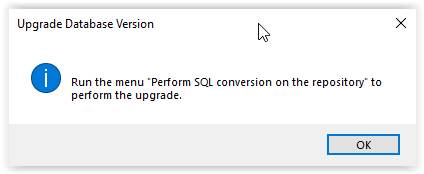
7.1.2. Warning 'Run the menu 'Perform SQL conversion on the repository' to perform the upgrade
This means that the format of tables in SQL Server must be converted.
You need to run a menu (Perform SQL conversion on the repository) from the Administration Console. See earlier in this document.
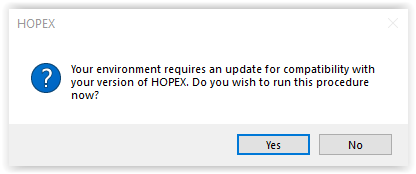
7.1.3. Warning 'Your environment requires an update for compatibility with your version of HOPEX…'
This warning report that the system database is not up to date. This occurs if the programs have been updated and the environment has not/not yet been updated.
7.1.4. Warning 'Writing access diagram is not compiled. The diagram should be recompiled …'
Certain actions can leave the writing access diagram (ex-User diagram/Authorization diagram) is in a state not compiled.
To compile the metamodel of the environment:
1. Start the Windows Administration Console (administration.exe).
2. Select and open the environment to be converted with the login System.
3. Select the folder 'User management'
4. R click > Compile writing access diagram
5. Click Start to trigger the compilation
Wait until the processing is complete.
Wait until the processing is complete.
6. Click 'Close'
7. Exit the Windows Administration Console
7.1.5. How to run a specific conversion or utility?
It is now required to use the update wizard instead of triggering explicitly conversions.
It is still possible to run conversions or utilities.
Procedure for conversions:
1. Start the Windows Administration Console (administration.exe).
2. Select and open the environment to be converted with the login System.
In the folder 'Repositories', select SystemDb or a data repository
In the folder 'Repositories', select SystemDb or a data repository
• R click > Conversions > Convert data into current version and select From <source version>.
• Check the appropriate conversions.
See the table 'Conversion details', later in this document
See the table 'Conversion details', later in this document
• Click 'OK' to trigger the conversion
Wait until the conversion is complete
Wait until the conversion is complete
• Close the environment
3. Exit the Windows Administration Console.
Procedure for utilities:
1. Start the Windows Administration Console (administration.exe).
2. Select and open the environment to be converted with the login System.
In the folder 'Repositories', select SystemDb or a data repository
In the folder 'Repositories', select SystemDb or a data repository
• R click > Utilities.
• Check the appropriate conversions.
See the table 'Conversion details', later in this document
See the table 'Conversion details', later in this document
• Click 'OK' to trigger the conversion
Wait until the conversion is complete
Wait until the conversion is complete
• Close the environment
3. Exit the Windows Administration Console.