4. FAQs
4.1.1. How to check that no user is connected to the HAS instance?
Check list of workspaces in Administration.exe.
Use supervision console.
4.1.2. How to prevent that a user connects to the HAS instance during hotfix installation?
You need to warn end users.
4.1.3. I did not install the version I wanted to. How to restore the previous version of the module?
You need to download again and install again the expected version of the module.
4.1.4. How to verify that no workspace exists in read/write mode?
Check list of workspaces in Administration.exe.
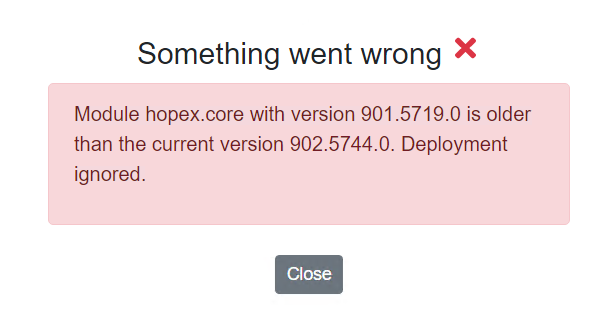
4.1.5. Error Something went wrong. Module X with version YY is older that the current version ZZ. Deployment is ignored!
This means that the version selected cannot be installed since it is older that the current version. Only upgrade is possible, not downgrade.
4.1.6. Error: Module mode constraints do not match current server mode Production
This means that the version selected cannot be installed since it is not compatible with the current installation.

4.1.7. How to create an offline package?
You need an interne access to HOPEX Store
Run HAS installer, ex: Hopex.Application.Server-1.0.94.Setup.exe
Start installation as usual but click on button' Create offline package'

4.1.8. How to verify data reading access compilation
For each HAS Instance:
1. Start Administration.exe.
2. Select the environment to be upgraded.
3. R click > Open.
4. Login with the System identifier.
5. In the administration tree, select the folder User management > Data writing access.
• R click > Compile
• Wait for end of processing (compilation completed).
6. Exit Administration.exe.
Note that this feature is not active by default
4.1.9. Unexpected login message 'You are not authorized to access this page'
When trying to login to HAS console, a message 'You are not authorized to access this page' is displayed. It likely that you tried to connect with a different login than the administrator login (Admin). Use administrator login to connect.
4.1.10. Unexpected error 'The Sql Server Client could not be found. ODBC Driver 17 for SQL Server may not be installed'
As said, ODBC Driver 17 for SQL Server is not installed. This is a technical requirement. Download and install ODBC Driver 17 for SQL Server.
4.1.11. Can I use the installer to update only the Instance manager
Yes. Run installer and check only Install Instance Manager Only.
Note that if the expected version of .NET core is not installed, the Instance Manager ill not restart. Verify that this pre-requisite fulfilled before running the setup.exe.
