Connecting to a HOPEX Desktop
When you connect to HOPEX, you can:
• create a private workspace (if you do not already have one).
 You can only have one private workspace open in the same environment.The private workspace is open for each user on both his/her repository and on the system repository. A private workspace always exists on system repository even if the user is not using any of the system repository objects.
• resume work in your private workspace
• resume work in a collaborative workspace
To connect to a HOPEX desktop:
1. Start the HOPEX application from its HTTP address.
If you do not know this address, contact your administrator.The connection page appears.
2. In the Login field, enter your identifier.
3. (If you have a password) In the Password field, enter your password.
4. In the drop-down menu for environments, select your work environment.
If you can access one environment only, this is automatically taken into account and the environment selection field does not appear.5. Click SIGN IN.
When you have been authenticated, a new dialog box appears.
6. (If you belong to a person group) In the drop-down menu for groups, select the group with which you want to connect or "My assignments" to connect with one of your own assignments.
7. In the drop-down menu for repositories, select your work repository.
If you can access only one repository, this is automatically taken into account and the repository selection field does not appear.If you already have a private workspace open, the repository is automatically selected and this field is grayed. To change repository, you must first dispatch or discard your current private workspace.8. In the profile drop-down menu, select the profile with which you want to work.
9. If:
• you do not have a collaborative workspace available, the Workspace field is not available. Click LOGIN.
A private workspace is created and your desktop opens.
If you already have a private workspace open, you should connect to it. If you want to change profile or repository, you must close the private workspace that is open.• you have at least one collaborative workspace available, in the Workspace field, select Access Private Workspace or select the collaborative workspace to which you want to connect, or select Create Private Workspace (if one has not already been created). Click LOGIN.
A user has at most one private workspace in progress in an environment, but can have in parallel several available collaborative workspaces.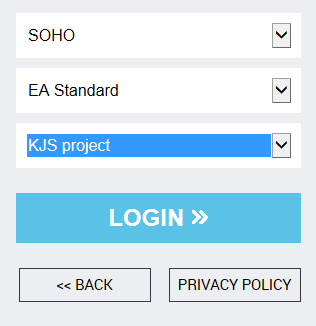
Your desktop opens and objects in Check Out in the collaborative workspace are available. Authorized participants can update these objects.
A private workspace comprises a set of files located in a sub-folder of the repository:
"<EnvironmentName>\DB\<RepositoryName>\<RepositoryName>.Transactions\xyz.*"
where "xyz" represents the user code.
Note that a private workspace cannot be separated from its repository (these files cannot be used independently).