Performances
You can launch performance diagnostic tests from the Performances navigation pane.
You can test the performances either:
• on a specific repository
or
• on a specific profile
 See Launching a performance diagnostic test on a profile.
In that case you must first define a Test Case on the specific profile.
(see Defining a Test Case on a profile).Launching a performance diagnostic test on a repository
To launch a performance diagnostic test on a repository:
1. Access the HOPEX Monitoring Console.
2. Click Performances navigation pane arrow.
3. Click RDBMS Test.
4. (In a cluster configuration) In the Server node field, select the server concerned.
5. In the Environment field, select the environment.
6. In the Repository field, select the repository.
7. Click Launch new RDBMS Test.
8. Click Refresh  .
.
.The test row appears in the result table, with the "RUNNING" status.

9. Once the test Status is "OK", double-click the test row to open or download it.
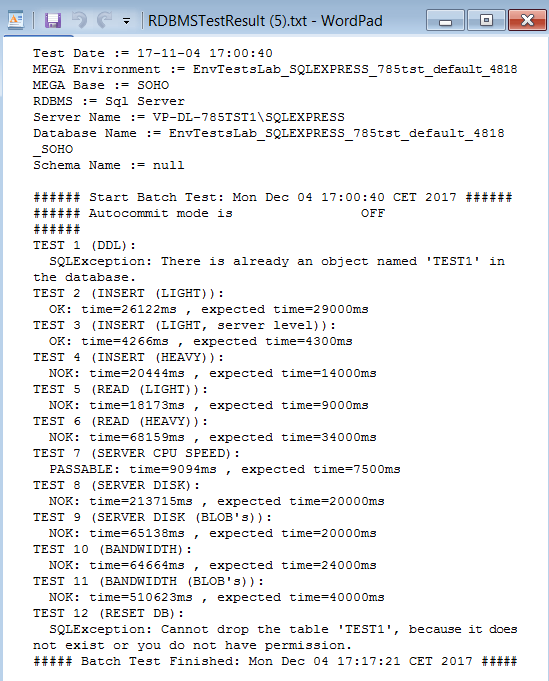
Defining a Test Case on a profile
You can define a Test Case using a macro and/or a Test Case Configuration.
The macro describes the Test Case to be performed.
The TestCase Configuration is defined for a MetaClass, and if needed with related MetaAssociations and/or MetaAssociationEnds.
To define a Test Case on a profile:
1. Connect to HOPEX Administration (Web Front-End or Windows Front-End).
2. Access the profile properties and select Test Case.
3. In the Test Case section, click New.
If New is not available, check in the Repository options that you are authorized to modify HOPEX data.4. Enter a Name for your test case and click OK.
5. In the Number of Loops cell, enter the number of times requested for the test.

6. In the TestCase Configuration section:
• connect a macro (go to step 7)
and/or
• create a Test Case Configuration (go to step 8).
7. (If needed) In Macro, click Connect  and connect the macro describing the test.
and connect the macro describing the test.8. (If needed) In TestCase Configuration click New  .
.
.• Enter your TestCase Configuration Name and click OK.
• Click Properties  to define the TestCase Configuration.
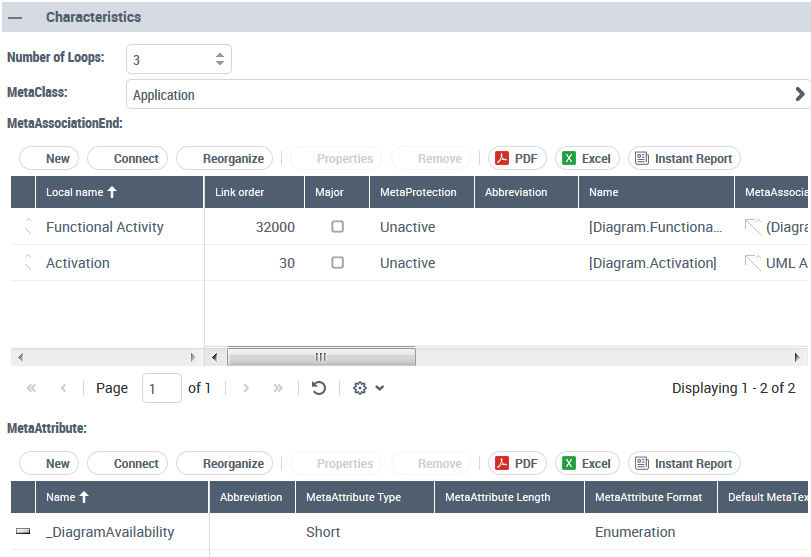
to define the TestCase Configuration. • In the Number of Loops field, enter the number of time you want the testCase Configuration to be run.
Example: 3
• In the MetaClass field, connect the MetaClass concerned by the test case.
Example: Application.
• (If needed) In the MetaAssociationEnd table connect the MetaAssociationEnds concerned by the test.
Example: Activation and Functional Activity.
• (If needed) In the MetaAttribute table connect the MetaAttributes concerned by the test.
Example: _DiagramAvailability.
9. Click Apply.
Launching a performance diagnostic test on a profile
Prerequisite: a Test Case is define on the profile concerned, see Defining a Test Case on a profile.
To launch a performance diagnostic test on a profile:
1. Access the HOPEX Monitoring Console.
2. Click Performances navigation pane arrow.
3. Click MEGA Test.
4. (In a cluster configuration) In the Server node field, select the server concerned.
5. In the Environment field, select the environment.
6. In the Repository field, select the repository.
7. In the Profile drop-down list, select the profile on which you want to perform the diagnostic test.
8. Click Launch new MEGA Test.