Viewing Updates
The repository property windows shows the updates made in the repository.
 You can also view the updates from the dispatch tree (Repository Activity > Repository Dispatch navigation window
The repository property window shows the updates performed:
• on the current HOPEX repository (by default), or
• on the system repository.
By default, the updates displayed are those you have performed:
• in your current private workspace
• on the HOPEX repository
You can also display the updates dispatched on the current repository within the interval defined by two dispatches.
The Updates window
To display the Updates window, see Displaying your current updates on the HOPEX repository, or Displaying your current updates on the system repository.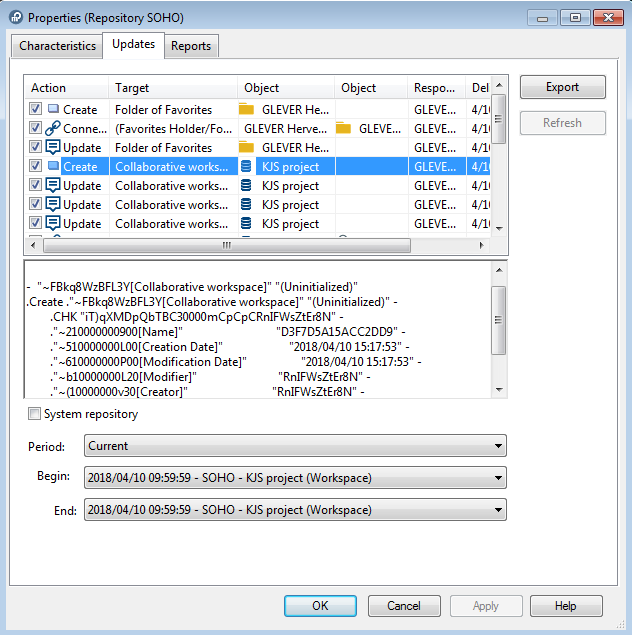 To sort the updates, click the column header.
Indicated for each action are:
• the Action type performed
Example: "Create", "Connect", "Update".
See Command File Syntax for more information on operators.• the type of the object concerned (Target)
• the name of the Object concerned
• the name of the second Object concerned in the case of a "Connect", "Disconnect" or "Change" action
• the person Responsible for the action
• the Delivery date of the action
Format: <D/MM/YYYY h:mm:ss AM/PM>
If you have not dispatched your work yet, the date indicated is the execution date of the action.
• The name of the Dispatch that contains the action, in the following format:
<YYYY/MM/DD hh:mm:ss> <repository> <responsible>
With:
• <YYYY/MM/DD hh:mm:ss>: workspace date and creation time
• <Repository>: name of the current repository
• <responsible>: name of the person or of the collaborative workspace responsible for the action
If you have not dispatched your work yet:
<your name> (workspace)
<name of your collaborative workspace> (collaborative workspace)
• (when you select the line of a command), the complete text of the update is displayed in the window lower pane.
If needed, to copy the command and paste it in a text file for example, roll the mouse over the whole text, then press <CTRL> + <C> and paste the text in a text file.Displaying your current updates on the HOPEX repository
To view the updates you have made in your current workspace:
1. In the HOPEX menu bar, select File > Properties.
This process may take some time if there are many updates.The property window of the repository in which you are working appears.
2. Select the Updates tab.
By default, the Updates tab shows in chronological order the actions you have performed in your private workspace on the HOPEX repository
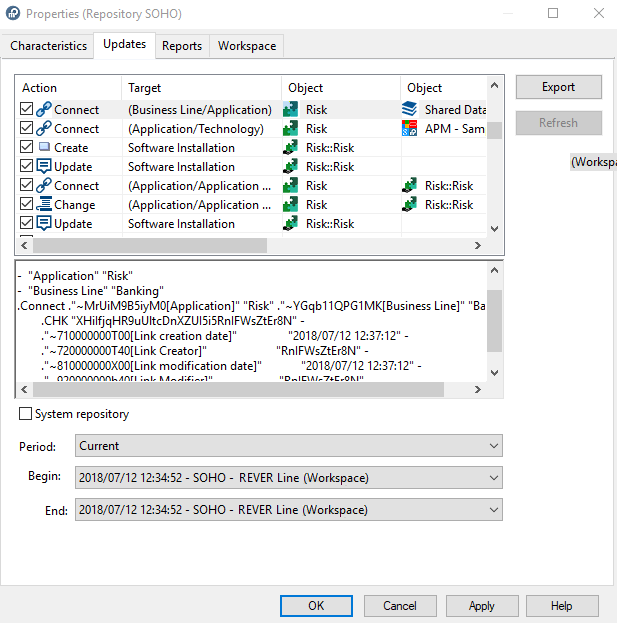 Actions you have performed in your private workspace on the system repository are not shown. To display the updates performed on the system repository, see Displaying your current updates on the system repository.
Displaying your current updates on the system repository
By default, the Updates tab shows the actions you have performed in your workspace on the HOPEX repository.
The display of updates is exclusive (HOPEX repository or system repository).To display your current updates on the system repository:
1. In the HOPEX menu bar, select File > Properties.
This process may take some time if there are many updates.The property window of the repository in which you are working appears.
2. Select the Updates tab.
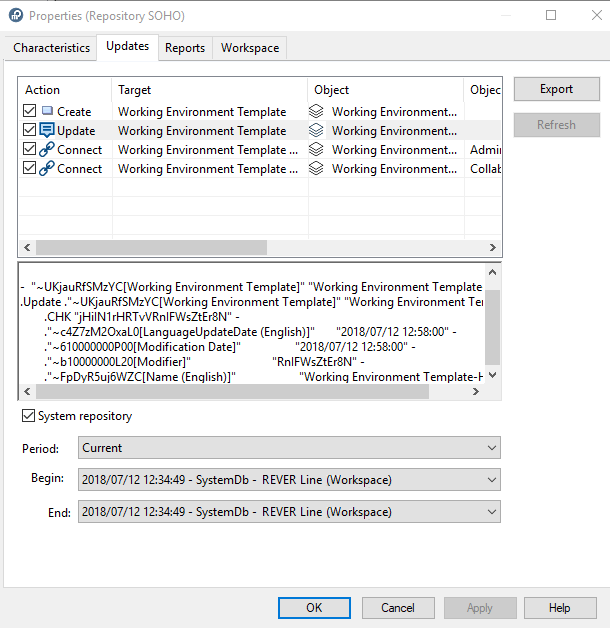
3. Select the System repository check box.
The Updates tab display in chronological order the updates performed on the objects of the system repository.
Viewing updates dispatched on the repository over a period of time
By default, the Updates tab shows the actions you have performed in your workspace on the HOPEX repository. You can display the updates made over a period defined by two dispatches.
To view the updates made over a period of time:
1. In the HOPEX menu bar, select File > Properties.
This process may take some time if there are many updates.The property window of the repository in which you are working appears.
2. Select the Updates tab.
3. Select (/Clear) System Repository to display the system repository (/HOPEX repository) updates.
4. In the Period field, select the period you are interested in.
E.g.: Today, Current week, Current month, From the beginning.
The selected period defines the list of dispatches available in the Begin drop-down list.
5. In the Begin field, select the dispatch from which you want to display the updates.
The first item corresponds to the first dispatch in the repository.6. In the End field, select the dispatch until which you want to display the updates.
You can select your current workspace, your updates are included in the display.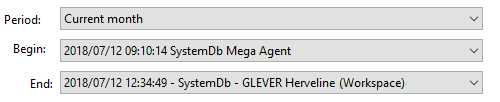
7. Click Refresh.
The selected repository log appears as a list of actions displayed in chronological order.
Viewing the Dispatches and their Content
See also Viewing the Repository Update Log.The Repository Dispatches folder contains private workspaces dispatched in the current repository and in the system repository. Dispatches are listed by day, week and month.
To display private workspaces dispatched and the content of their updates:
1. From HOPEX (Windows Front-End), in the Repository Activity > Repository Dispatch navigation window, expand the repository file concerned:
• <Current HOPEX repository name> or
• System repository (SystemDb)
2. Right-click the dispatch concerned and select Properties.
To access the content of the Repository Activity navigation window, you must have Expert metamodel access (see Configuring the Metamodel Access).Private workspaces dispatched on the current repository and system repository are contained in the repository folder.
3. Select the Updates tab.
Exporting Updates
In the repository update log window, the Export button enables export of selected commands in MGL or XMG format.
To export your private workspace log, see Exporting Your Private Workspace Log. To export updates:
1. Access the repository update log.
2. Select the updates to be exported.
3. Click Export.
4. Select the export format:
• *.mgl: text format
• *.xmg: MEGA XML format.
5. Click Export.
The file is exported and saved in the specified folder.
The Execution Report appears.
6. (Optional) Click Open result file to view the file.
7. Click OK to close the window.