Managing Locks on Objects
The lock management window can be accessed from:
• HOPEX Administration
• HOPEX
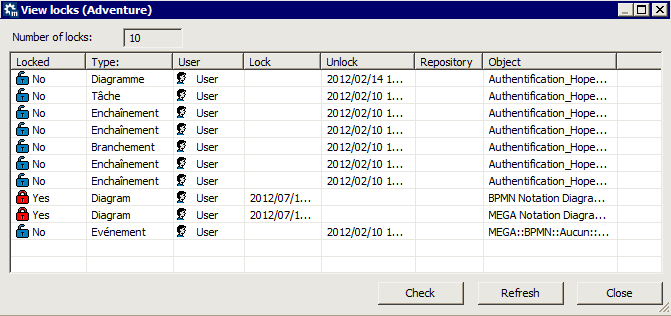
The Display Locks window displays the locks created since the creation of the oldest private workspace. The following information is provided for each lock:
• the lock state (Locked):
•  Yes: When a user locks an object, other users can only view it, even if they dispatch their work.
Yes: When a user locks an object, other users can only view it, even if they dispatch their work.•  No: the object is locked when its modifications are dispatched. Other users must dispatch their work or refresh their private workspaces before they can modify the object.
No: the object is locked when its modifications are dispatched. Other users must dispatch their work or refresh their private workspaces before they can modify the object. To unlock an object or delete a lock, see Managing locks in HOPEX Administration
• the name of the Object concerned
• the Type of object concerned
• the User who owns the lock
• the date and time (GMT0) of the Lock, and, if applicable, Unlock.
• the name of the Repository to which the lock relates.
Managing locks in HOPEX Administration
To manage locks from the Administration application:
1. Connect to the environment concerned.
2. Expand the Repositories folder, then that of the repository concerned.
3. Right-click the Locks folder and select Manage.
The View locks dialog box opens.
4. To:
• unlock an object, right-click the lock concerned and select Unlock.
• delete an object, right-click the lock concerned and select Delete.
Managing locks in HOPEX
To view the locks from HOPEX:
1. In the HOPEX menu bar, select Tools > Manage > View Object Locks.
The View locks dialog box opens.
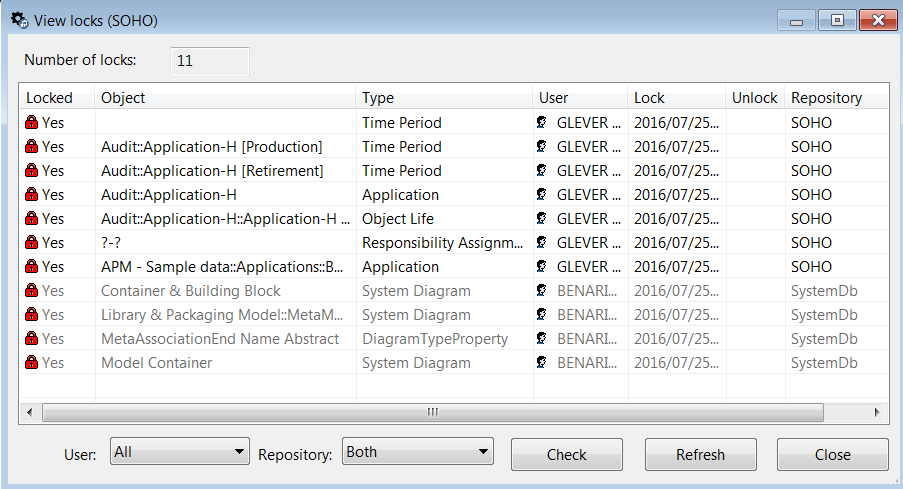
The locks appear grayed, except that of the current user.
2. To:
• delete an object, right-click the lock concerned and select Delete.
• unlock an object, right-click the lock concerned and select Unlock.
To:
• sort locks as a function of a column, click the column header.
 You can also arrange columns in the order you want. To do this, click the header of the column to be moved and, holding down the mouse button, move it to the required position.
• refresh lock display, click Refresh.
• sort the display according to User, select:
• Current to view your locks only.
• Other users to view locks of other users only.
• All to view your locks and those of other users.
• sort the display according to Base, select:
• Current Repository enables display of locks on the current repository.
• System Repository enables display of locks on the system repository.
• Both enables display of locks on current and system repositories.