Exiting a Session
When you exit HOPEX, you close your session. From:
• your private workspace you can:
• save in the repository the modifications you have made in your private workspace
• keep the modifications you have made in your private workspace
 These modifications will remain awaiting validation, subsequent modification, or deletion.
• cancel modifications you have made.
• a collaborative workspace you can:
• keep modifications you have made
These modifications are saved in the collaborative workspace. These modifications are not saved in the repository until the collaborative workspace is closed.• cancel modifications you have made.
Exiting a session from a private workspace
In HOPEX (Windows Front-End), to exit your work session:
1. In the HOPEX menu bar, select File > Exit.
The HOPEX exit dialog box appears.
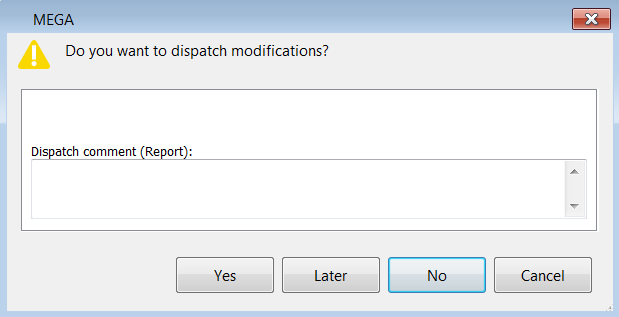
2. (Optional) In the Dispatch comment (Report) frame, enter a comment to remind you of modifications made in your private workspace.
This comment is added in the dispatch properties, see Viewing the Dispatches and their Content.3. Select your HOPEX exit mode.
• Yes
Modifications you have made in your private workspace are saved in the repository.
 In order to work effectively as a team, it is recommended that you dispatch frequently and regularly. Other users can update their own private workspace without dispatching their work (menu File > Refresh).This exit mode also allows the user to select a different repository the next time he/she logs in.
• No
All modifications you made since your last dispatch will be lost. You can use this option if you want to view data quickly and exit without impacting the repository.
Modifications to your desktop are also lost.• Later
This option allows you to keep your changes without impacting the repository. You can open your session later and continue working but other users are not yet seeing the changes you have made.
Click Cancel to not exit your private workspace.Exiting a session from a collaborative workspace
Exiting HOPEX from a collaborative workspace is the same whether you are its owner or not.
For as long as the collaborative workspace is not closed, participants can exit and rejoin the collaborative workspace at any time.
In HOPEX (Windows Front-End), to exit your work session:
1. In the HOPEX menu bar, select File > Exit.
The HOPEX exit dialog box appears.
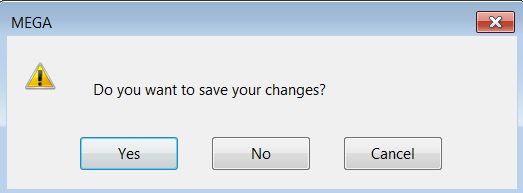
2. Click:
• Yes to save your modifications in the collaborative workspace.
You will be able to continue your modifications in a subsequent work session.
These modifications are not saved in the repository. Users not participants in the collaborative workspace do not see these modifications.
• No to cancel your modifications in the collaborative workspace.
Your modifications are not saved in the collaborative workspace, but the latter remains available to carry out other updates.
Click Cancel to remain in your collaborative workspace.