Requirement Direct Assessment
Requirements can be assessed directly without starting assessment campaigns. By default, the standard assessment template proposes all contexts (entities or processes) in which the current requirement can be assessed.
 The assessment template used here is "Assessment on requirements by regulation and process".
The Compliance Manager can select all or certain of the proposed contexts.
Direct assessment context
Direct assessment is carried out for all context objects available in the Scope section of requirement properties:
• Organizational processes
• Business processes
• Entities
For more details on requirement contextualization see also "Defining Application Scope", page 43.Assessing requirements
To directly assess a requirement:
1. In the Legal Inventory tab, select Regulations Management > Requirements.
2. Select the requirement you want to assess and click Properties.
3. In the requirement properties, select the Assessment tab and click Assess.
4. In the wizard that appears, select nodes to be assessed.
 An assessment node comprises:
• an object to be assessed (in this case a requirement)
• one or several context objects if necessary (entities, processes, regulations or requirements)
5. Click Next.
You can now select values that characterize this requirement (contextualized) in terms of:
• Impact
• Likelihood
Values of the list are applied to all selected assessment nodes.6. Specify the measure date in the calendar.
By default this is today's date. You can select a date earlier than today's date.
7. Click OK.
Measures are created for each assessment node (ie. the requirement in a particular context).
You can create several measures on different dates in the same way. As you create measures, the list can become lengthy. In this case, it can be useful to group measures by date in order to easily find those that interest you.
To group by date, click the arrow at extreme right of the header of the Date column and select Group by this field.Consulting assessment answers
The manager can view answers entered by the respondent when performing direct assessment. He/she can also decide to modify values calculated from these answers if he/she considers them inappropriate.
To view answers used to calculate assessed characteristics values:
 In the Assessment tab of the assessed object properties, right-click the measurement that interests you and select Display Node.This menu is not available in the context of multiple assessment.
Answers used as the basis for calculation of values appear. They are in read-only only.
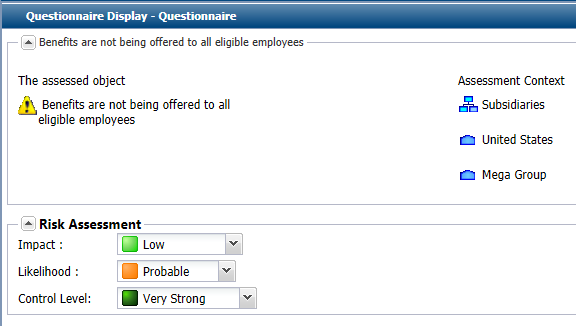
The responsible/manager can decide to modify values resulting from answers.
To modify assessed characteristics values:
1. Open the properties of the assessment you want to modify.
2. Modify values in the Signed Value column for each assessed characteristic value.
These values replace values calculated from answers given by the respondent.
Initial values are visible in the Calculated Value column.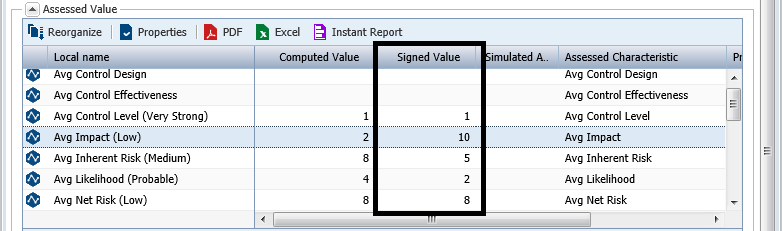 The values specified in the Signed Value column are not used in reports supplied by default. You can however call a MEGA professional to include these values in your questionnaires.