Assessing Multiple Requirements Simultaneously
If you have to assess several requirements, it can be quicker to use the multiple assessment table.
This table allows you to specify the same value for several assessment nodes of different requirements.
 An assessment node comprises:
• an object to assess
• one or several context objects (entities, processes, operations), if necessary
To assess multiple requirements simultaneously:
1. Select Regulatory Environment > Direct Assessment > Multiple Assessment Table.
2. Click Connect Objects to be Assessed.
The wizard that appears proposes a tree of entities to which processes and requirements are attached.
3. Select an entity.
The tree expands automatically and allows you to select requirements assessed in their context.
A requirement is assessed in the context of elements of the branch from the requirement up to the root.
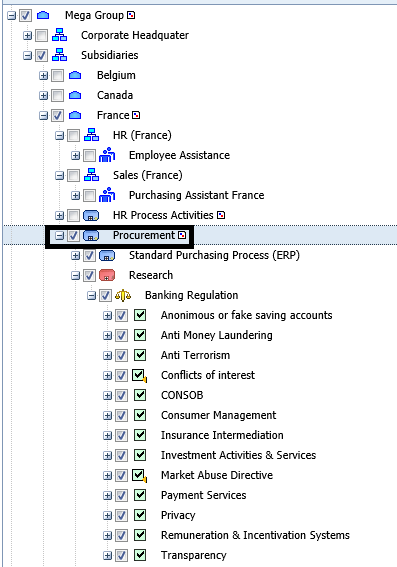
In the above example, if you selected the "Procurement" process, all regulations and requirements located at a lower level are selected, as well as all parent context objects up to the tree root.
 If you deselect a node of a branch, only the child elements of this branch are deselected.
4. Click OK.
The list of requirements to be assessed in a particular context appears.
5. In the Impact and Likelihood columns, select the values corresponding to your assessment.
6. When values have been specified, select the assessed nodes and click Validate.
7. Modify the effective measure date if necessary and click OK.
By default the measure date is today's date. You can select a date earlier than today's date.Validation automatically creates a measure in the Assessment tab of the requirement properties.
Assessing requirements on different dates
You can at any time decide to assess requirements that have already undergone a first assessment.
To reassess requirements in their context:
1. Select Regulatory Environment > Direct Assessment > Multiple Assessment Table.
2. Click Connect Objects to be Assessed.
3. Select from the proposed tree the assessment nodes previously assessed.
For more details, see Assessing Multiple Requirements Simultaneously.A dialog box asks you to again select requirements to be assessed.
4. Select Yes.
The previous values corresponding to each assessment node are proposed.
5. Keep these previous values or modify them as required, then click Validate.
6. Enter a date for the new measure and click OK.
The most recent measure values appear in the multiple assessment table.
The different requirement measures appear in the Assessment tab of the properties of each requirement.