Starting Execution Campaigns
When you have created the execution campaign, you must start it via the workflow.
Starting Execution Campaigns
To start the execution campaign:
1. In the HOPEX IRM desktop, select Execution > Campaigns.
2. Click the campaign icon and select Automatic Assessment Campaign (In Preparation) > Start.
 "(In Preparation)" corresponds to the current status of the automatic execution campaign.
The campaign is started automatically:
• on the begin date specified on the campaign
• at the time indicated on the steering calendar
Start of the execution campaign invokes automatic processing enabling planning and start of sessions.
A message indicating that parameterization is not complete might appear. This is the case when controls of scope are not connected to a steering calendar. However you can start the campaign.Examples of Session Automatic Launch
Execution sessions are started according to:
• execution campaign begin and end dates
• begin and end dates and recurrences specified on the steering calendar of the controls to be executed
For more details on steering calendars, see Defining Control Execution Calendars.When a due date is reached, HOPEX checks:
• that the campaign has not been closed manually
• that the campaign end date is not expired
If both conditions are met, the next session is scheduled.
Example 1
If the begin date specified on the steering calendar is later than the campaign end date, controls are not executed.
Example 2
On the steering date it is specified that execution is scheduled everyday at 6am.
The campaign is created and the transition is triggered at 10am.
If the check box Execute at start date/hour is not selected, the campaign is launched on the morrow at 6am.
If the check box is selected, a message indicates scheduling in the past is not possible. Example 3
The check box Execute at start date/hour is selected.
On the execution campaign, the date of the first scheduled execution is later than today's date (campaign start date).
In that case, the campaign start date corresponds to the launching of the assessment session.
Example 4
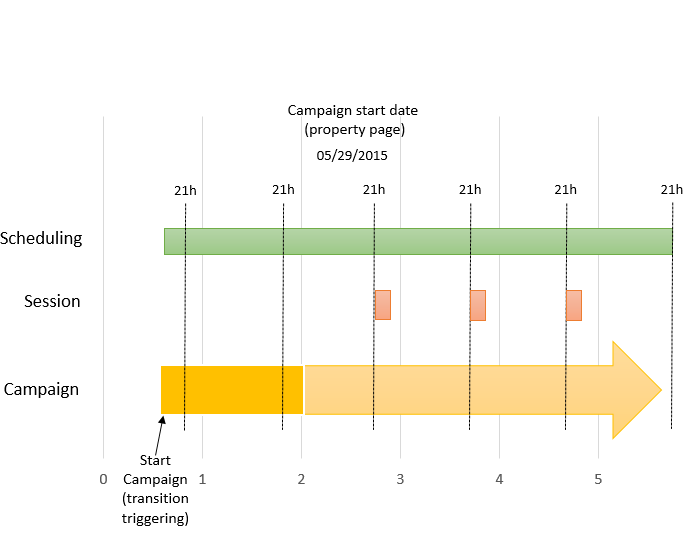
Example of scheduling on the steering calendar
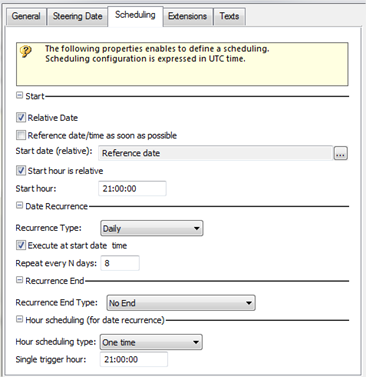
The following result is obtained:
Scheduling Execution Campaigns
To consult dates and times of next execution of a campaign in progress:
1. In the HOPEX IRM desktop, select Execution > Campaigns.
2. Open the properties of the execution campaign and select the Automatic Execution page.
The list of timespots defined by the steering calendar appears.
The End Date indicated on the campaign defines the effective end of the campaign. For more details on sessions actually launched, see Examples of Session Automatic Launch.
The dates indicated correspond to the scheduled jobs. A new session is created at each job execution. The previous session is closed. To view the sessions in progress, login with the “IRM Functional Administrator” profile and select Administration > Tools > Scheduling Management.
You may force the trigger of a job for testing purposes. To do so, in the Triggers section, select the session and click Execute.