ODBC Extraction Utility
The ODBC extraction utility is used to extract the description of a database accessed with the ODBC protocol. This description, obtained in structured format, can then be used for reverse engineering purposes in HOPEX or for generation in modification mode.
Prerequisite
The ODBC extraction utility works with 32-bit ODBC Administrator.
Extracting the Description of a Database
The extraction utility is designed to run on a workstation that does not have HOPEX installed. You can then transfer the results to a HOPEX workstation for reverse engineering. It can also be used for generation in modification mode.
In order to extract the data, the workstation must be connected to the database using ODBC protocol (see the installation documentation for this product). The database driver must have a conformance level of 1 or higher.
To install this utility, simply copy to a directory the files mgwdbx32.exe and mg_dbex.dll. If it does not exist, the file ODWDBEX.INI must be created.
The extraction utility can be installed independently of HOPEX Information Architecture.
To extract the description of a database:
1. In the HOPEX installation folder, under the "Utilities\MEGA Data Extractor" folder, run the mgwdbx32.exe extraction utility.
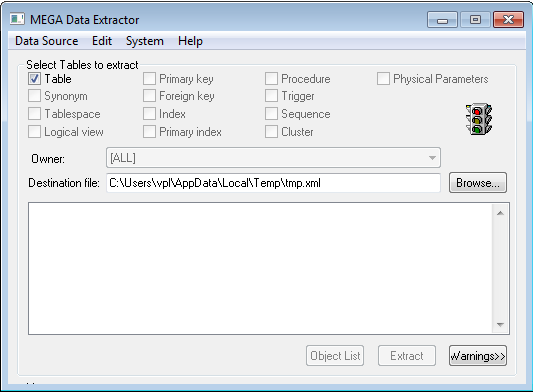
2. Connect to a data source by clicking Data Source > Connect.
The Data Sources dialog box opens.
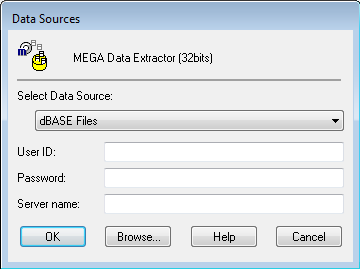
The drop-down list shows the ODBC connections.
 (The list is empty if these connections are not defined or could not be established.)
3. Use the Browse button to access the ODBC manager to define a new data source or install a new driver.
4. Depending on the connection, you may need to specify a User ID, a Password, and a Server Name. If other parameters are required by the ODBC manager, you will be prompted for them when the connection is established.
5. Confirm the information entered by clicking OK.
A green light indicates that the connection has been established. Otherwise a message appears if the connection has not been correctly established. In this case, check the data source definition.
Once the connection has been established, select the desired extraction options.
If some of the options remain disabled, this is because the driver does not support them. To obtain information on the ODBC protocol used, select ODBC information in the System menu.
6. Select the elements to be extracted in addition to the tables and columns. By default, all of these elements are selected.
All the accessible tables are displayed, whether or not you are the owner. Synonym tables can also appear if you select the corresponding check box.
To view only those tables belonging to a specific Owner, select the appropriate owner from the drop-down list. It may take a few seconds for the list of owners and their tables to appear. Table extraction takes a few minutes.
The following elements are included in the extraction:
• Primary keys (Primary keys).
• Foreign keys (Foreign keys).
• Index (Index): these are indexes that do not use primary keys.
• Primary index (Primary index): these are indexes that do not use primary keys.
 Not all drivers support the ODBC primitives used to extract these elements; if this is your case, a message will indicate this in the report file. In addition, some DBMS do not handle the corresponding concepts, which are then ignored.
The Destination file field specifies the name and path of the extraction file; use the Browse button to specify its location.
7. After selecting the extraction options, click the Extract button to begin the extraction.
A message reports the number of tables extracted. You can select the Warnings button to view the report file.
During the extraction, the Extract button becomes Cancel and can be used to stop the extraction.You can view the list of accessible tables by clicking the List Tables button, and then select specific tables from the list for extraction (all tables are selected by default).
8. On completion of extraction, select Edit > Report file to consult the report, or Edit > Extraction file to consult the result.
The results file can then be transferred to a workstation that has HOPEX Database Builder where reverse engineering can be performed (see Reverse engineer tables). It contains a database description in the form of HOPEX objects.
When the extraction operation has been completed:
 Select Disconnect in the Data Source menu to disconnect from the data source. Reconnect to another data source if needed, or exit the dialog box by selecting Exit in the Data Source menu.
 Extraction Report File
The file that reports on the table extraction is created by the ODBC extraction utility. It is called <FIC>_CRD.TXT where <FIC> represents the first three characters of the name of the results file.
It contains a list of the tables that were reread.
Example:
==================================================
Data Source Extracting: DATASOURCE
==================================================
Table: OWNER.TABLENAME1
Table: OWNER.TABLENAME2
(cont.)
==================================================
End of extraction
==================================================
Extraction Results File
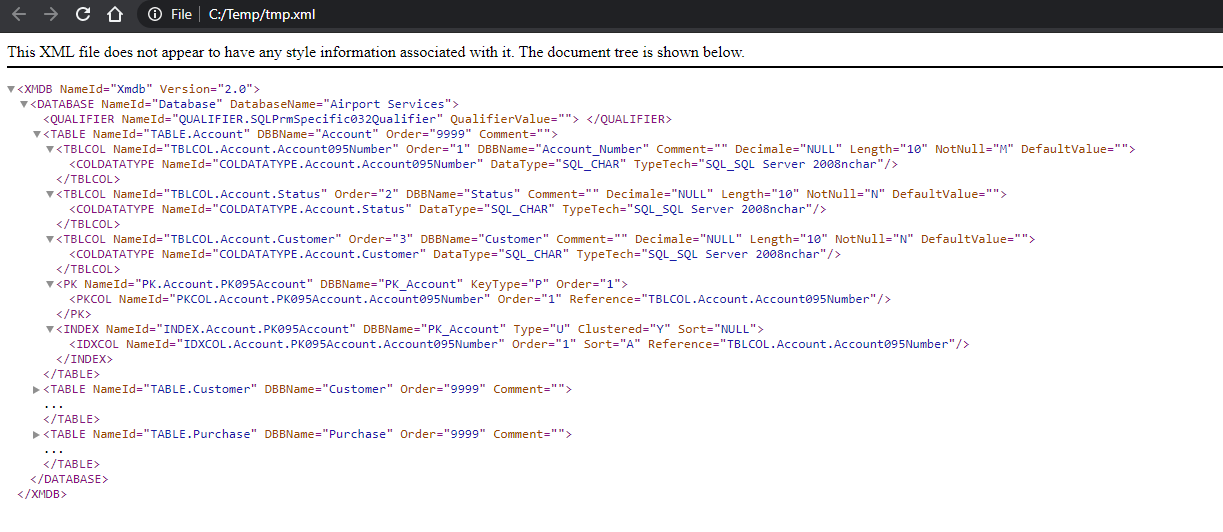
The extraction results file contains the description of the tables and columns that results from the read. This file has extension ".xml".
Example of extraction file:
Customizing ODBC Extraction
When the extraction is incomplete or does not correspond to your needs, you can customize the extraction with the Odwdbex.ini file. This configuration depends on the ODBC driver you are using.
You can customize the extraction in a number of different ways by using:
• ODBC standard APIs available for the main concepts (Table, Column, Key, Index, etc.)
• HOPEX queries delivered as a replacement for ODBC standard APIs
• customized queries.
By default, ODBC standard APIs are used for the main concepts and HOPEX queries for the other concepts. For some ODBC drivers, HOPEX queries are used for the main concepts as the result obtained by the ODBC standard is incomplete.
Using the Odwdbex.ini file and customized queries
To customize extraction:
1. Contact your data administrator to obtain the customized queries corresponding to your ODBC driver used to select objects (Eg: primary keys, foreign keys, sequences, etc).
2. In the "All users" folder in Windows, create a file named Odwdbex.ini (example: C:\Documents and Settings\All Users\ApplicationData\Mega\Odwdbex.ini).
3. Edit the file and add the queries for the concepts whose behavior you want to manage. The concepts that are not cited here remain unchanged.
[<DBMS Name>]
PRIMARY KEYS="Custom query"
FOREIGN KEYS="Custom query"
TBLCOLUMNS="Custom query"
...
The <DBMS Name> value depends on the ODBC utility. To obtain the appropriate value:
1. Run the HOPEX extraction tool (mgwdbx32.exe).
2. In the Data Source menu, select the data source.
3. Then click System > ODBC Information.
4. Read the "DBMS Name".
You can edit the Odwdbex.ini file by selecting System > Edit Odwdbex.ini in the HOPEX extraction tool. Check that the file is archived.
For more the format of queries, see Select Clause Formats.
Using ODBC standard APIs
To force the use of ODBC APIs:
1. Edit the Odwdbex.ini file.
2. At the level of each concept concerned, modify the extraction strategy using the keyword: USE_DRIVER_ODBC.
Example in the ODWDBEX.INI file:
[<DBMS Name>]
INDEXES=USE_DRIVER_ODBC
Select Clause Formats
It is important to use the indicated syntax and in particular not to omit any of the "1"s. Note that the clauses must fit on a single line in the ODWDBEX.INI file. Primary Keys
SELECT
1,
TABLE_OWNER,
TABLE_NAME,
COLUMN_NAME,
KEY_SEQUENCE,
PK_NAME
FROM ...
WHERE ...
• TABLE_OWNER: owner of the primary key table
• TABLE_NAME: name of the primary key table
• COLUMN_NAME: name of the primary key column
• KEY_SEQUENCE: Number of the column in the key sequence (starts at 1)
• PK_NAME: Name of the primary key; “1” if this name is not supported by the DBMS.
Foreign Keys
SELECT
1,
PKTABLE_OWNER,
PKTABLE_NAME,
1,
1,
FKTABLE_OWNER,
FKTABLE_NAME,
FKCOLUMN_NAME,
KEY_SEQ,
UPDATE_RULE,
DELETE_RULE,
FK_NAME
FROM ...
WHERE ...
• PKTABLE_OWNER: name of the owner of the primary key table (reference table)
• PKTABLE_NAME: name of the primary key table
• FKTABLE_OWNER: name of the owner of the foreign key table
• FKTABLE_NAME: name of the foreign key table
• FKCOLUMN_NAME: name of the foreign key column
• KEY_SEQ: number of the column in the key sequence (starts at 1)
• UPDATE_RULE : R: Restrict, C: Cascade
• DELETE_RULE : R: Restrict, C: Cascade
• FK_NAME: name of the foreign key; “1” if this name is not supported by the DBMS.
Indexes
SELECT
1,
TABLE_OWNER,
TABLE_NAME,
NON_UNIQUE,
1,
INDEX_NAME,
TYPE,
SEQ_IN_INDEX,
COLUMN_NAME,
COLLATION
FROM ...
WHERE ...
• TABLE_OWNER: name of the owner of the table concerned by the statistic or the index
• TABLE_NAME: name of the index table
• NON_UNIQUE: the indexes must have a unique value
• INDEX_NAME: name of the index
• TYPE : Index type
• SEQ_IN_INDEX: number of the column in the key sequence (starts at 1)
• COLUMN_NAME: name of the column
• COLLATION: column sort; "A" increasing order, "D" decreasing order
Columns
SELECT
1,
COLUMN_OWNER,
TABLE_NAME,
COLUMN_NAME,
DataType ODBC,
DataType Name,
Detail,
Length,
Scale,
1,
NULLABLE,
COMMENT,
DEFAULT_VALUE,
1,
1,
1,
Order
WHERE [Joint between <MEGA:OWNER><MEGA:OBJECT_NAME>]
• <MEGA:OWNER> is replaced by the user, the Schema or "".
• <MEGA:OBJECT_NAME>] is replaced by the name of the table.
• COLUMN_OWNER: name of the column, string with 128 characters.
• TABLE_NAME: name of the table, string with 128 characters.
• DataType ODBC: data type in the form of an integer. This value is the value of ODBC data types therefore comprised of the following:
# -1 (SQL_LONGVARCHAR)
# -2 (SQL_BINARY
# -3 (SQL_VARBINARY)
# -4 (SQL_LONGVARBINARY)
# -5 (SQL_BIGINT)
# -6 (SQL_TINYINT)
# -7 (SQL_BIT)
# 0 (SQL_UNKNOWN_TYPE)
# 1 (SQL_CHAR)
# 2 (SQL_NUMERIC)
# 3 (SQL_DECIMAL)
# 4 (SQL_INTEGER)
# 5 (SQL_SMALLINT)
# 6 (SQL_FLOAT)
# 7 (SQL_REAL)
# 8 (SQL_DOUBLE)
# 9 (SQL_DATE)
# 10 (SQL_TIME)
# 11 (SQL_TIMESTAMP)
# 12 (SQL_VARCHAR)
• DataType Name: name of the data type, string of 128 characters. It is built as follows: "SQL_<DbmsName><String>"
• Precision: length in MEGA if "Length" is empty.
• Length: length in MEGA if greater than 0.
• Scale: integer
• NULLABLE: integer specifying if the column can be NULL. ODBC values possible: 0 (SQL_NO_NULLS), 1 (SQL_NULLABLE) or 3 (SQL_NULL_WITH_DEFAULT).
• COMMENT: column comments, string with 1257 characters.
• DEFAULT_VALUE: default value of the column, string with 1257 characters.