HOPEX Desktops
HOPEX desktops include:
• a toolbar common to all HOPEX desktops
• a navigation bar (and window arrangement), common to all HOPEX desktops
• an edit area
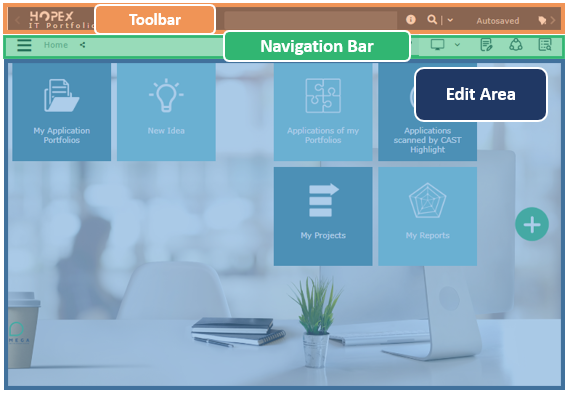
Toolbar
The toolbar is common to all HOPEX desktops and available in all pages of the HOPEX desktops.

The toolbar contains:
•  the name of the solution used.
the name of the solution used.It enables to return to the home page.
 See Home Page.
•  to switch the quick search bar.
to switch the quick search bar.•  the quick search bar to carry out full-text searches or searches by object type in the entire HOPEX repository. It also enables to define in which window you want to display your search results, according to your needs.
the quick search bar to carry out full-text searches or searches by object type in the entire HOPEX repository. It also enables to define in which window you want to display your search results, according to your needs.See Quick Search.• (In a public workspace) Autosaved indicates in a tooltip the date and time your desktop was last saved.
For information on:- workspaces, see Working in HOPEX,
- saving, see Saving your work (public workspace).
•  Notifications to access your notifications.
Notifications to access your notifications. The red dot indicates that you have unread notifications.
•  Main menu to access your connection information and main actions.
Main menu to access your connection information and main actions.See Main menu.•  Help to access the HOPEX online documentation.
Help to access the HOPEX online documentation. This (user and technical) documentation includes a search tool. •  Logout to disconnect from HOPEX.
Logout to disconnect from HOPEX.See Exiting a Session.Navigation bar
The navigation bar is common to all HOPEX desktops and available in all pages of the HOPEX desktops.

The navigation bar contains:
•  a navigation menu to access the navigation panes.
a navigation menu to access the navigation panes.•  a breadcrumb to return to a previously displayed page.
a breadcrumb to return to a previously displayed page.See Breadcrumb.•  a Refresh button, to immediately update all the open windows in your desktop when you modify the name or value of an object attribute (trees, lists, property pages, diagrams).
a Refresh button, to immediately update all the open windows in your desktop when you modify the name or value of an object attribute (trees, lists, property pages, diagrams).•  Undo/Redo buttons to undo or redo the last action(s) performed.
Undo/Redo buttons to undo or redo the last action(s) performed.•  a group of buttons associated with the edit area to display or hide windows in the edit area.
a group of buttons associated with the edit area to display or hide windows in the edit area.•  enabled button
enabled button•  disabled button
disabled buttonEdit Area
The edit area is used to perform business and technical operations proposed by the selected Solution.
In the edit area, you can display, for example, the list of objects, the detail of objects, their diagrams, analysis reports, etc.
See also: Arranging windows in the edit area.On first connection to HOPEX, the edit area displays the home page.
See Home Page.