Managing Windows and Panes
Arranging windows in the edit area
In the edit area, five windows are available to display different types of information:
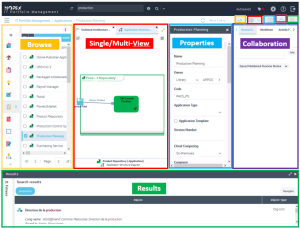
For improved readability, the group of buttons associated with the edit area is used to display or hide the windows.
Navigation |  | Displays the list of objects of the selected navigation pane |
View selection (the default view depends on the desktop) |  | Hide view: the central page is hidden. |
 | Single-view: displays the central page, particularly the diagrams and reports of selected objects. | |
 | Multi-view: authorizes the display of several views in the central page, for example a number of diagrams, in the form of tabs. | |
Properties |  | Displays the properties of the selected object |
Collaboration |  | Displays the window furthest to the right that contains the Review Notes, Workflows, Activity Feed, Social and Ideation tabs |
Results |  | Displays the bottom window of the desktop. This windows displays the search results or the content of a report chart part. |
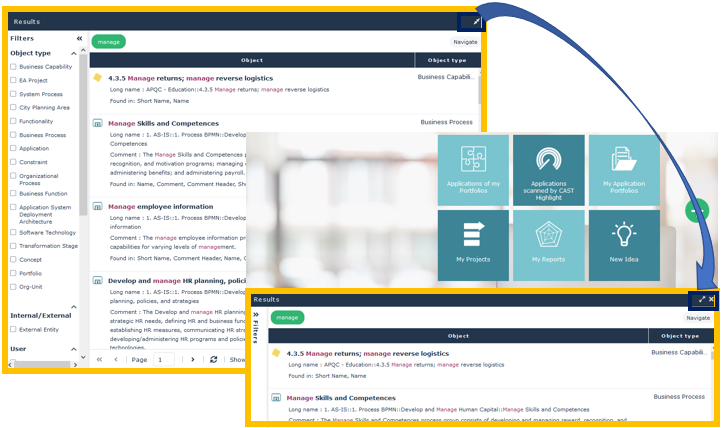
Maximizing/Reducing a window
For a better readability you can enlarge certain windows:
• Single-view / Multi-view
Useful, for example, to display a crowded diagram.
• Results
Useful, for example, with a search with numerous results.
To display the window in full page for a better readability:
1. In the window bar, click Maximize  .
.
.The window fills the entire desktop.
2. To display the window back to its place, click Reduce  .
.
.The window is back to its previous size and place.
Folding and expanding navigation panes
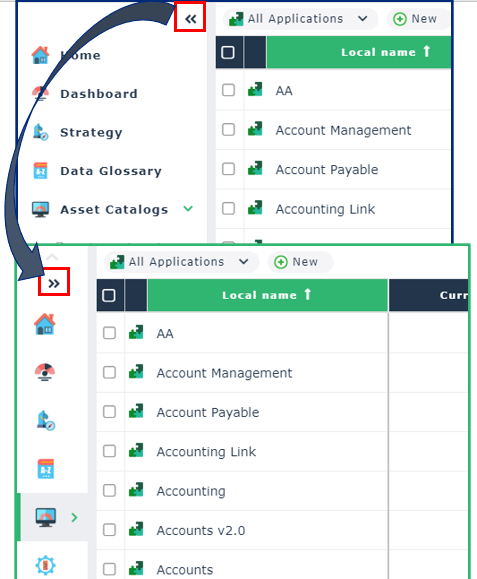
You can reduce the navigation pane panel to icon size to declutter your workspace.
By default, the panel is expanded.
To fold the navigation pane panel:
 In the navigation pane panel, click Collapse window
  .
.This configuration is kept in your personal settings and the navigation panes are still displayed in the form of icons.
 To return to an unfolded display, click the icon again.See also Resetting Your Desktop Customizations.