Customizing the Home Page of Your Desktop
The home page appears in the form of tiles that provide access to repository data.
 See Home Page.
You can customize your home page.
 You can, for example, add a tile to access the History. For more details on options, see Using the History.
Adding a tile to your home page
To add a tile to your home page:
1. Access the Home page.
2. In the Home page, click  .
.
.The Add tiles window displays the list of available tiles linked to the product and to your profile.
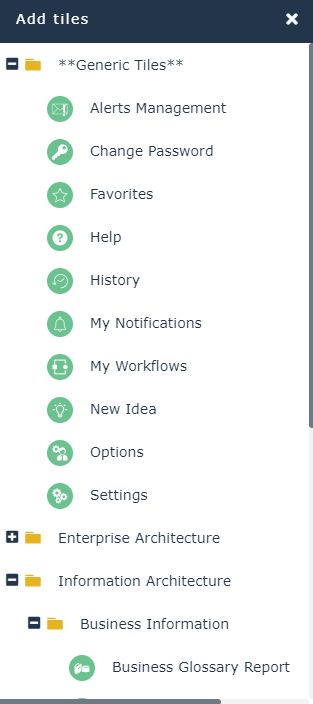
3. Select a tile and drag and drop it in your home page.
Expand folders if necessary.To delete the tile from your home page, see Deleting a tile from your home page.Deleting a tile from your home page
To delete a tile from your home page:
1. Access the Home page.
2. Roll the mouse over the top of the tile to display the title bar of the tile.
3. Click  and select Delete.
and select Delete.The tile is deleted from your home page.
To add the tile to your home page, see Adding a tile to your home page.Modifying the size of a tile
Generic tiles are small. The other tiles can be:
• Medium

• Large
A larger tile displays more text.

To modify the size of a tile:
1. Access the Home page.
2. Roll the mouse over the top of the tile to display the title bar of the tile.
3. Click and select Resize.
and select Resize.4. Depending on the size of the tile, select:
• Large to enlarge it.
• Medium to reduce it.
Adding an object to your home page
All the business objects in the repository can be added to your home page. Other objects such as diagrams or reports can also be added to the home page.
To add an object to your home page:
 In a diagram or in a tree, right-click the object and select Add to Home Page.In a list, you can also select the object, and roll the mouse over its Local Name and click Add to Homepage
  .
.This command creates a shortcut to the properties of the object or a diagram of the object depending on the size of the tile.