Managing Favorites
Favorites allows you to quickly access objects consulted regularly. They enable access to all actions possible on these objects. Favorites are useful when your repository is large and you want to save valuable time in navigation.
Adding an Object to Favorites
Adding an object to favorites
To add an object to your Favorites list:
1. Depending on where you are in HOPEX:
• Object, tree, search results: right-click the object and select Add to Favorites.
• list of objects: in the Local Name column, roll the mouse over the object and in the button list that appears, click More  > Add to favorites
  .
.
> Add to favorites .• list of favorites: Right-click the favorites folder concerned and select <Name of favorites folder > Connect > Object. Select the objects(s) in the object query dialog box and click OK.
The Favorites wizard window appears.
2. Select the folder or sub-folder in which you want to add the object.
 If needed, create a sub-folder (right-click a folder and select New > Folder of favorites).
3. Click OK.
The object is added to the selected folder of favorites.
Adding several objects of a list to favorites
To add several objects to your Favorites list:
1. In HOPEX, display the object list.
2. Select all the objects you want to add to your Favorites list.
 If needed, use the filtering tool to filter the data displayed, see Filtering a list data.
3. Right-click an object of the list and select Add to Favorites.
The objects are added to the Favorites folder.
Mass adding objects to favorites
To mass add objects to your Favorites list:
1. Access your list of favorites.
See Accessing favorites.2. Right-click the favorites folder concerned and select <Name of favorites folder> > Connect > Object.
3. In the object query window, select the objects that you want to add.
4. Click OK.
The objects are added to the folder of favorites concerned.
Accessing Favorites
Favorites are sorted by type:
• your favorites
• shared favorites
If needed, you can create sub-folders of favorites, see Organizing your Favorites.
You can display your favorites in the form of:
• a tree (by default)
You can manage and classify your favorites in sub-folders.
• a list
You benefit from functionalities available for an object in a list (e.g.: diagram creation, property access).
Accessing favorites
To access favorites:
1. In your HOPEX desktop, click the navigation menu  > Favorites.
> Favorites.HOPEX (Windows Front-End): in HOPEX toolbar, click Favorites  (or in the menu bar select Display > Favorites).
In the edit area, the Hierarchical view tab displays the favorites tree.
2. Expand the folders concerned to access the favorites.
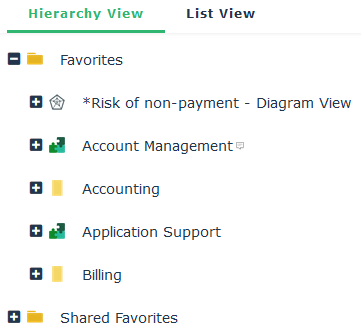
3. (If needed) To access the objects linked to a favorite, expend the favorite.
4. (If needed) To benefit from the functionalities available for an object in a list, click the List View tab.
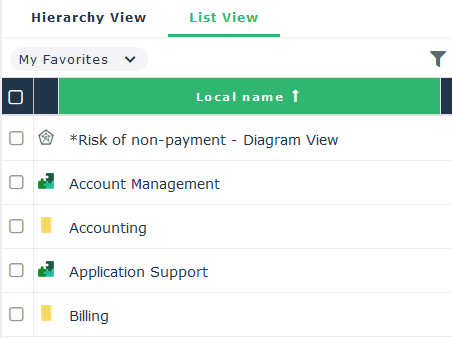
Organizing your Favorites
If needed, you can create sub-folders to organize your favorites.
Alternatively, you can create the sub-folder when adding the object to favorites, see Adding an Object to Favorites.Creating a sub-folder of favorites
To organize your favorites:
1. Access the favorites.
2. In the Hierarchy View tab, right-click a folder and select New > Folder of favorites.
3. In the Local Name field, enter the folder name.
4. Click OK.
Classifying a favorite in a sub-folder
To classify a favorite:
1. Access the favorites.
2. In the Hierarchy View tab, select the favorite and drag and drop it in the required folder.
Removing an Object from Favorites
To remove an object from favorites:
1. Access favorites.
2. In the Hierarchy View tab, right-click the object to be removed and select Remove.
3. Keep the Remove from "Favorites" selection and click Remove.
If you select Delete, the object is deleted from the HOPEX repository.The object is removed from your favorites.