Adding Objects to Diagrams
You can add an already existing object to a diagram:
• from a navigation tree by drag and drop in the diagram,
• with the object inserting bar,
• from the insert toolbar available on each object.
Adding an object from the diagram inserting bar
To add an object in a diagram from the object inserting bar:
1. In the object inserting bar, click the icon corresponding to the object wanted.
 If you cannot find the appropriate object type, see Configuring the Object Types (Views) and Details of a Diagram.
Example: Application Service  .
.
.The object ghost and your mouse pointer stick together.
Smart guides or the grid helps you to properly position the object in the diagram, see Using smart guides and Using the Grid.
2. Click in the diagram.
The window to add an object appears.
3. You can:
• insert an object of the repository: in the Name field drop-down list select an object.
If the object list is too long, click the right-oriented arrow (Connect) and use the object search tool.• create an object: in the Name field, enter the object name, then click Next and modify the object owner if needed.
4. Click OK.
The object is added (and connected) to the diagram.
The same object can appear several times in the same diagram.Adding an object from an object inserting toolbar
The inserting toolbar available on each object makes it easy to add an object to the diagram:
• It proposes only the objects that can be connected to the current object.
• The added object is automatically connected to the current object.
To create an object from an object of a diagram:
1. Click the object of the diagram.
The object inserting toobar appears. It includes the object types that you can link to it.
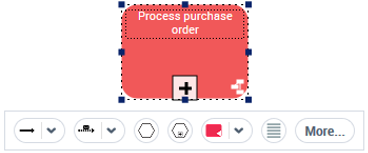
2. (If needed) In the object inserting toolbar, click More to display other object types.

3. Click the icon that represents the object you want to add in the diagram.
For example: Operation  .
.
.The Select link window appears.
The ghost of the object that will be added, as well as its link to the previous object are displayed.
4. In the Select link window, select the type of link that links both objects.
For example: Sequence Flow in a BPMN organizational process diagram.
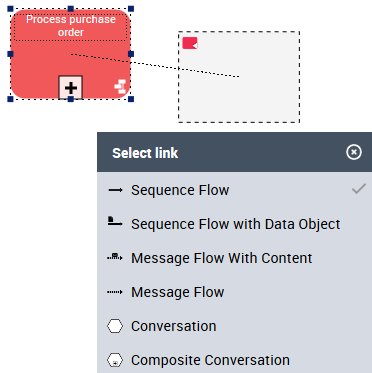 To cancel the action, click the <Esc> key.
5. Click in the diagram, where you want to place the object.
If the Select link window hides the place where you want to position the object, click  to close it).
The object is added, as well as its link to the previous object.
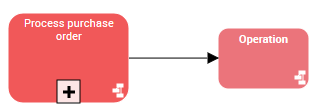
Adding several objects of the same type
You can add several objects of the same type, with no need to select each time the object in the object inserting bar.
To add several objects of the same type:
1. In the object inserting bar, double-click the icon corresponding to the object wanted.
2. Add the first object.
The ghost of the second object of the same type and your mouse pointer stick together.
3. Repeat the action to add as many objects as you want.
The object type remain selected as long as you do not press the <Esc> key or Select  or another object type.
or another object type.Inserting an object in a sequence flow
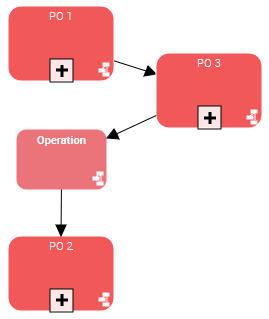
In the particular case of a sequence flow of Organizational Processes and/or Operations, you can insert an Organizational Process or an Operation directly into the sequence flow. The source sequence flow is split into two sequence flows, which avoid creating and deleting or moving the link.
Example: you can insert an operation in an organizational process sequence flow.
To insert an object in a sequence flow:
1. In the object inserting bar, click the icon representing the object type you want to insert.
Example: an operation.
2. Roll the mouse over the sequence flow where you want to insert the object.
The sequence flow is highlighted in gray.
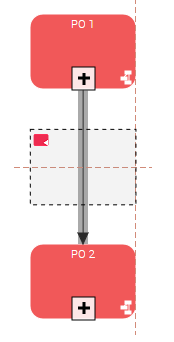
3. Release the mouse button.
The object is inserted in the sequence flow.

The source sequence flow is automatically split into two sequence flows.
Note:
If you do not have enough space between both objects, the object is placed above the others. You must then move it.
 To ease the insertion when there is not enough space to insert the object, you can add space beforehand, see Adding Space between Elements.