Accessing Questionnaire Templates
To access questionnaire templates:
 From the navigation menu of the IRM solutions desktop, select Assessment > Preparation > Questionnaire Templates.
Opening a Questionnaire Template
To open an existing questionnaire template:
1. From the navigation menu of the IRM solutions desktop, select Assessment > Preparation > Questionnaire Templates.
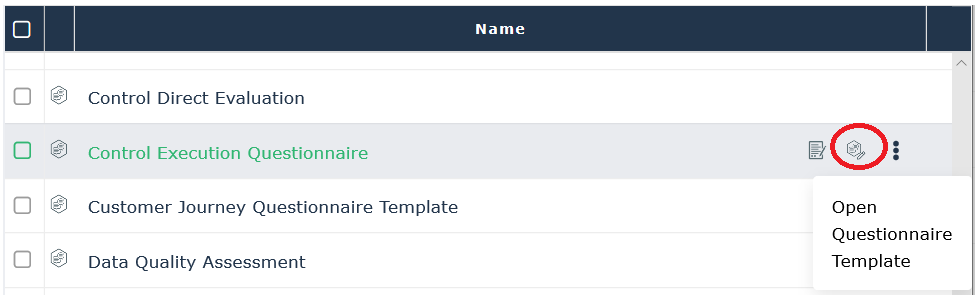
2. Hover over the questionnaire template and click the Open Questionnaire Template icon that appears.
Viewing Questionnaire Template Properties
To view questionnaire template properties:
1. From the navigation menu of the IRM solutions desktop, select Assessment > Preparation > Questionnaire Templates.
2. Hover over the questionnaire template and click the Properties icon that appears.
The properties of a questionnaire template are as follows:
Mode
• Standard: standard mode is the mode that involves assessment sessions
• Direct: direct mode is the mode that involves direct assessment (unitary assessment in the properties of an object or multiple assessment)
Display Diagram
This check box enables the respondent to view diagrams when answering questionnaires involving objects associated to diagrams.
Delegation allowed
Indicates whether the questionnaire can be delegated or not.
Questionnaire Template Type
Allows you to visualize the mechanism used to design the questionnaire template.
• Standard: uses the new questionnaire builder
 For more details, see Presentation of the Questionnaire Builder.
• Extended: uses the old way of designing questionnaires (the questionnaire template has not yet been converted for use in Questionnaire Builder)
Creating a Questionnaire Template
To create a questionnaire template:
1. From the navigation menu of the IRM solutions desktop, select Assessment > Preparation > Questionnaire Templates.
2. Click New.
The Questionnaire Builder workspace opens. See Presentation of the Questionnaire Builder for more information about designing questionnaire templates.