Configuring the Search Tools
In HOPEX, you can configure the search tools:
• for a search by object type, or
• an advanced search using the Wizard.
Extending/Restricting the object types queried
When you run a search by object type or an advanced search using the Wizard, by default, the usual object types and the essential characteristics are displayed:
• usual objects include:
• the main object types
E.g.: Application, Portfolio, Risk, Business Capability, Functionality, Organizational Process, Class, Content, Use Case.
• the objects that play a containing role
E.g.: Enterprise, Library, Package, Subject area, Project domain.
• essential characteristics are objects considered as a strong components
 A component is an intermediary object that represents the use of an object in a particular context.
E.g.: Operation (for an Organizational Process), Attribute (for a Class), Column (for a Table).
You can:
• restrict the search to usual object types.
• extend the search to all the object types (in "Advanced" or “Expert” metamodel access)
This category include all of the object types including:
• objects considered as weak components (objects used in a particular context),
E.g.: Participant, Flow, Application Component.
• abstract objects.
 Abstract objects are prefixed with [A] and are listed after the concrete objects in the IntelliSense tool.
Abstract objects are prefixed with the / character and are first listed in the IntelliSense tool.
To extend or restrict the scope of the query:
1. On your HOPEX desktop, check that you are in "expert" metamodel access mode (Main Menu > Settings > Options > Repository).
2. Access advanced search.
3. In the search wizard toolbar, click Display  .
.
.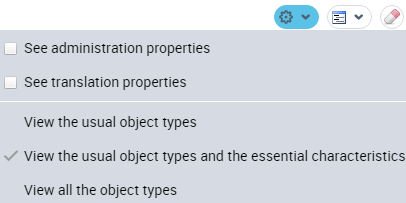 If the options do not appear, refresh your browser page.
4. Select one of the options offered.
The list of object types in the advanced search tool as well as in the search by object type bar is refreshed according to your selection.
The last option selected becomes the default option.Extending the search to administration and/or translation attributes
When you run your search using the Wizard, to facilitate readability, by default, the administration and translation attributes are not available.
To extend the scope of the search to administration and/or translation attributes:
1. Access the advanced search in Wizard mode.
2. Select the Wizard mode tab.
3. In the search wizard toolbar, click Display .
.4. Select the object properties that you want to add to your search:
• See administration properties
Eg. : creator, creation date
• See translation properties
Eg.: in addition to the "Comment" attribute, you can also access comments in the other languages available, "comment (English)" and "comment (German)" for example.
The list of object attributes of the advanced search tool in wizard mode refreshes according to your selection.
The last option selected becomes the default option.Defining the condition combination rules
When running an advanced search in Wizard mode, by default, all the conditions that you define must be fulfilled.
If needed, you can change the condition combination rule:
• ALL conditions must be fulfilled (AND) (by default)
• AT LEAST ONE condition must be fulfilled (OR)
• NO condition must be fulfilled (NOT)
To define the condition combination rule:
1. Access the advanced search in Wizard mode.
2. In the search wizard toolbar, click Condition Combination Rule  .
.
.3. Select the rule that you want.
Example: Select "NO condition must be fulfilled" to search all objects that do not meet the conditions you defined.
The last option selected becomes the default option.