SAML2 ADFS Server Configuration
To create the Relay Party:
1. Start AD FS Management console.
2. In the AD FS folder, select Relying Party Trust folder.
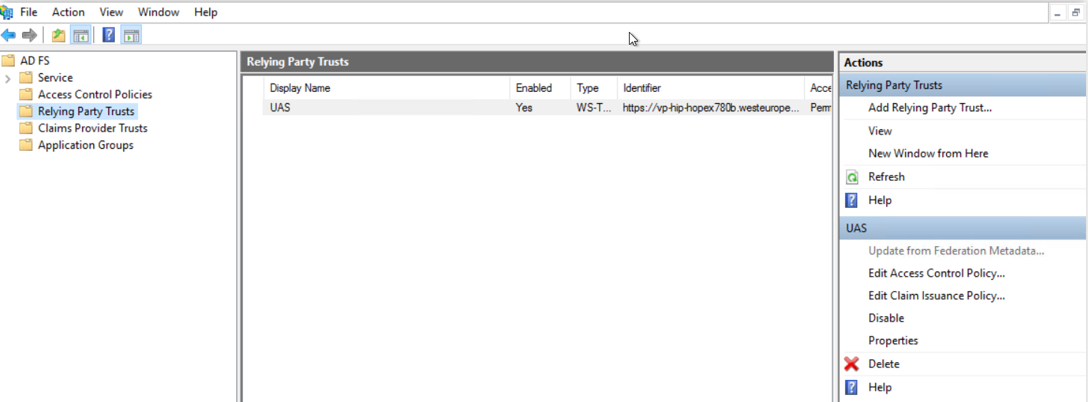
3. In the Actions pane, in the Relying Party Trusts section, click Add Relying Party Trust.
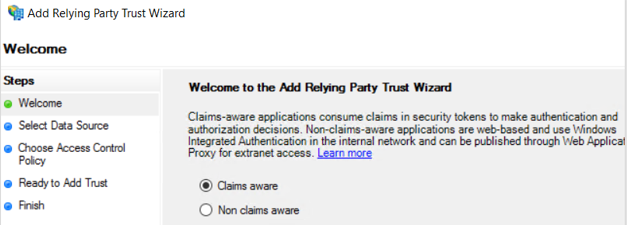
4. In the Welcome page, select Claims aware.
5. In the Specify Display Name page, select Enter data about the relying party manually
6. Enter the Web Front-End server name.
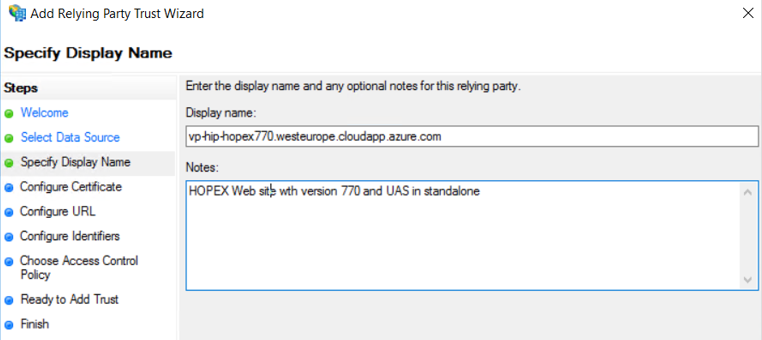
7. Click Next.
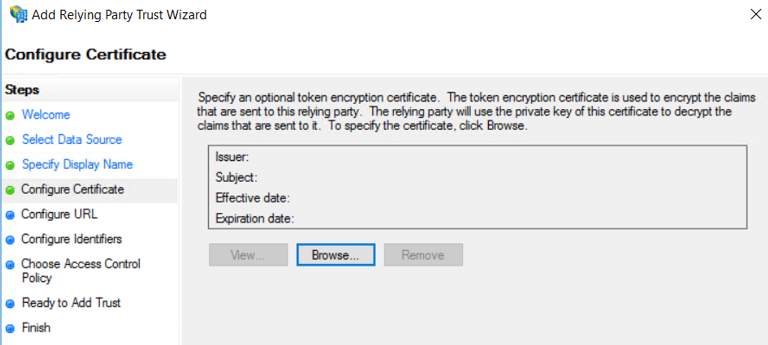
8. Click Browse.
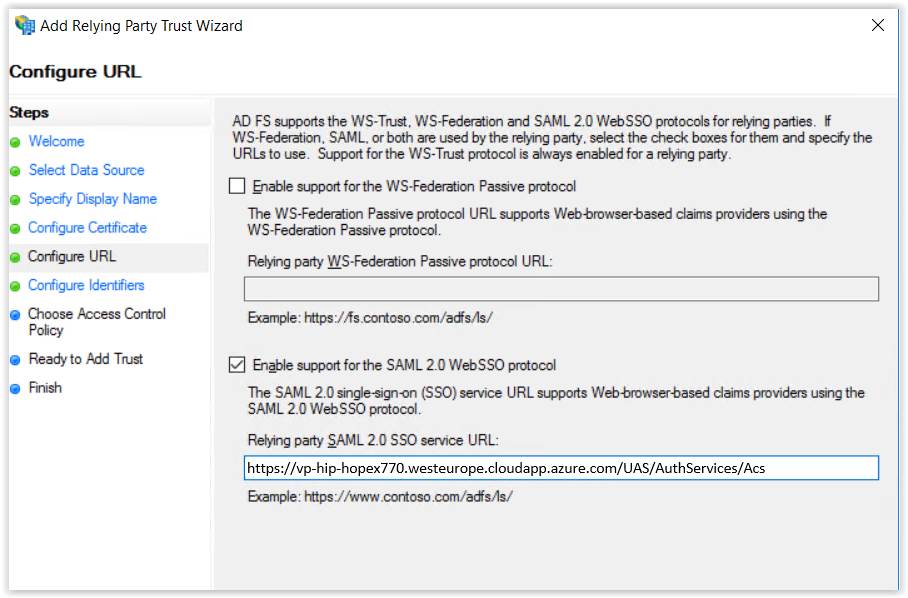
9. In the Configure URL page, select Enable support for the SAML2 Web SSO protocol.
10. Enter the Relying party SAML2 SSO service URL:
http://{servername}/UAS/AuthServices/Acs
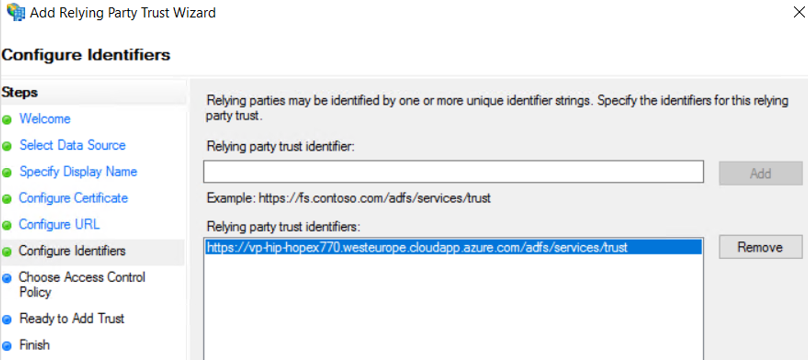
11. In the Configure Identifiers page, enter the Relying party trust identifier:
http://{servername}/UAS
12. Click Add.
13. Click Next.
To add Signature certificate imported from the front server:
1. Import the certificate to the local storage.
2. Export the certificate without the private key.
To assign the certificate in ADFS:
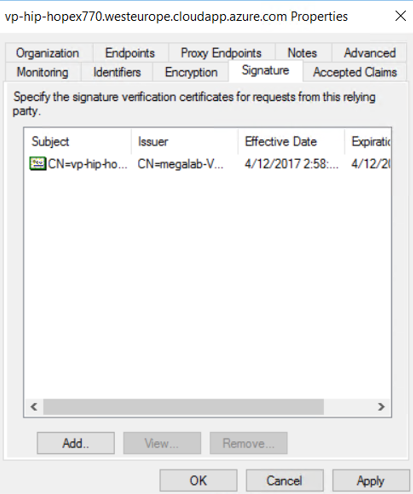
1. Right-click the Relay party.
2. In the Signature tab, select the imported certificate file
3. Click OK.
To configure claims to be returned to UAS:
1. Select the Relay and click Edit Claim Issuance Policy.
2. To send the user ID to UAS, click Add Rule.
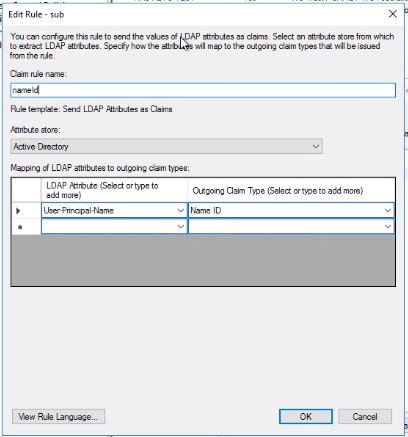
3. Select “Send LDAP Attributes as Claims”.
4. In the Claim rule name field, enter the name “nameid”.
5. In the Attribute store drop-down list, select “Active Directory”.
6. In the Mapping of LDAP attributes to outgoing claim types, select:
a. In LDAP Attribute: “User-Principal-Name” (you can choose another value, depending on which AD attribute is used as an identifier for the employees)
b. In Outgoing Claim Type: “Name ID”
7. Click OK.
8. To send additional claims to UAS, click Add rule.
9. Select “Send LDAP Attributes as Claims”.
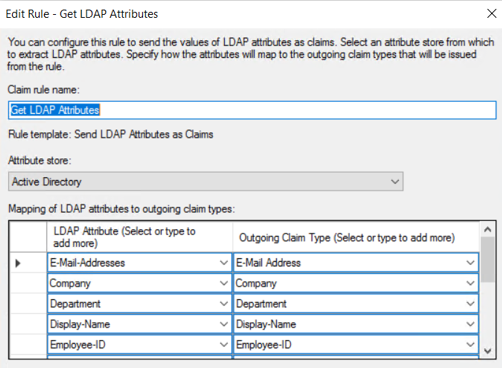
10. In the Claim rule name field, enter the name “Get LDAP Attributes”.
11. In the Attribute store drop-down list, select “Active Directory”.
12. Add attributes and transformation rules.
13. Click OK.
14. To send the groups to which the user belongs, click Add rule.
15. Select “Send LDAP Attributes as Claims”.
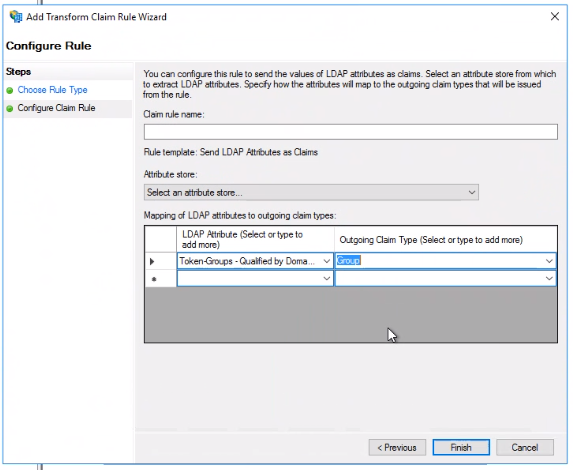
16. Enter the name “Get Groups”.
17. In the Attribute store drop-down list, select “Active Directory”.
18. In the Mapping of LDAP attributes to outgoing claim types, select:
a. In LDAP Attribute: “Token-Groups-Qualified by Domain” (you can choose another value, depending on which AD attribute is used to store groups of users)
b. In Outgoing Claim Type: “Group”
19. Click OK.
To configure UAS to enable SAML2 Provider and to communicate with ADFS:
1. Open HOPEX Administration.
2. Right-click HOPEX and select Options > Modify.
3. Expand Installation > Authentication > Identity Provider folders.
4. Select Identity provider folder, and in the right pane, select Activation of the SAML2 identity provider.
5. Select SAML2 folder and in the right pane, in:
 the Location of the metadata file: enter your federationmedata.xml URL.the Identifier of the SAML2 identity provider: enter the ADFS URL.