Describing Batch Processing
With HOPEX Application Design, you can describe the sequencing of automated processing in batch planning structure diagrams.
This type of diagram is used to represent the execution schedule for batches, batch programs and their organization.
Defining a Batch Process
A batch processing is a set of IT processing operations executed by a computer without human intervention, generally overnight or at the weekend.
A batch process is defined by a batch plan or by a program.
 A batch planning defines all the IT processing operations to be executed on one or several machines over a given time period.A program is an elementary stage in execution of a batch processing that consists of running execution of a program using the appropriate parameters.
A batch plan is a set of batch processes. Each is associated either with a program or with another batch plan. A batch plan can be described by a batch planning structure diagram.
 For more details, see Building a Batch Planning Structure Diagram.
A program is a set of batch processes. Each of these can be associated with a single program. A program is described by a batch program structure diagram.
For more details, see Creating a Batch Program Structure Diagram.Building a Batch Planning Structure Diagram
A batch planning defines all the IT processing operations to be executed on one or several machines over a given time period.Prerequisite
You must first define a work environment for a project in progress. See "Le volet Projet en cours", page 22.
Creating a batch planning structure diagram
The sequencing of automated processes can be described in a batch planning structure diagram.
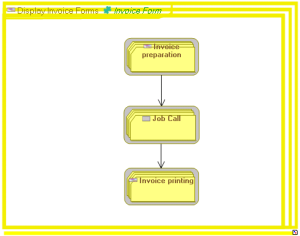
To create a batch planning structure diagram:
1. Click the Current Design Project navigation pane.
2. In the navigation window, click Application Architecture Design.
3. Click the Batches tile.
The list of batch plans appears.
4. Right-click the batch planning that interests you and select New > Batch Planning Structure Diagram.
The diagram opens.
Adding a call for batch processing in the diagram
The components of a batch plan are defined with batch processing calls that are positioned in the diagram. This can be applied to batch plans or programs.
To add an operating type component to the string structure diagram for batch process:
1. Select the Batch Processing Call button and click in the diagram.
The Add a Batch Processing Call dialog box opens.
2. Click the arrow at the right of the Batch Process Called box and select Connect in the drop-down list.
A connection dialog box opens.
3. Select Batch Planning in the left part of the window and click the search arrow.
The list of batch plans appears.
4. Select the report that interests you and click Connect.
5. Click OK.
The call for batch processing appears in the diagram with the batch planning icon.
Defining batch sequencing
To specify the execution order of processes:
1. Click Batch Sequence.
2. Click the initial batch processing call and, holding the left mouse button down, draw a link to the batch processing call.
3. Release the mouse button.
The link representing the sequencing of the processes appears in the diagram.
Creating a Batch Program Structure Diagram
A program is an elementary stage in execution of a batch processing that consists of running execution of a program using the appropriate parameters.Creating a batch program structure diagram
The sequencing of the processes of a program can be described in a batch program structure diagram.
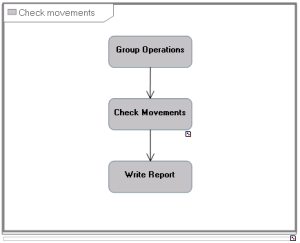
To create the batch program structure diagram:
1. Right-click the program in question.
2. Select New > Batch program structure diagram.
The diagram opens.
Adding a programming call to the diagram
The components of an program are defined with programming calls that are positioned in the diagram.
To add a component to a diagram:
1. Select Programming Call and click in the diagram.
The Add a Programming Call dialog box opens.
2. Click the arrow at the right of the Batch Process Called box and select Connect in the drop-down list.
A connection dialog box opens.
3. Select Program in the left part of the window and click the search arrow.
The list of batch plans appears.
4. Select the program in question and click Connect.
5. Click OK.
The program call appears in the diagram.
The of program execution is defined by links. For more details, see Defining batch sequencing.
Describing IT Service Implementation
The execution of IT services can be described by a batch planning structure diagram. For more details, see Creating a batch planning structure diagram.
To describe that an IT service is implemented by a batch plan, for example:
1. Open the properties window of the IT service in question.
2. Select the Implementation tab.
3. In the Service/Implementation section, right-click on the Implementation per Batch Process folder and select New.
The window for creating an IT service implemented by a batch process appears.
4. Click the arrow at the right of the Implementing Batch Process box and select Connect in the drop-down list.
A connection dialog box opens.
5. Select Batch Planning in the left part of the window and click the search arrow.
The list of batch plans appears.
6. Select the report that interests you and click Connect.
7. Click OK.
The IT service implemented by a batch process appears in the list. It is connected to the batch plan selected.
Using Realizations
A realization mechanism is provided to associate an application process to an organization schedule or via a Program.
To describe that an batch plan is associated with an application process:
1. Open the properties pane for the batch plan in question.
2. Select the Characteristics tab and the Realization subtab.
3. In the Composite Realization section, click New.
The window for creating a system process batch realization appears.
4. Opposite the Base Type field, select Connect.
The query dialog box appears.
5. Select the application process that interests you and click Connect.
6. Click OK.
The system process batch realization appears in the properties page of the batch plan.