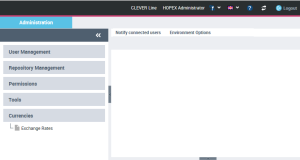
Connecting to the Administration Desktop
From the Administration desktop, you can in particular perform the following administration operations:
• user management
• permission management (UI access)
• repository management
To perform Administration operations via the Web, you must have connection rights to the Web Administration desktop, that is connect with an administration profile.
 At installation, only the Mega user can connect to the Web Administration desktop.
To connect to the Administration desktop:
1. Start the HOPEX application using its HTTP address.
If you do not know this address, contact your administrator.The connection page appears.
2. In the Login field, enter your identifier.
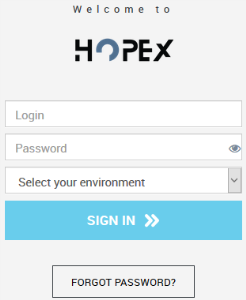
3. In the Password field, enter your password.
4. In the drop-down menu for environments, select your work environment.
If you can access one environment only, this is automatically taken into account and the environment selection field does not appear.5. Click SIGN IN.
When you have been authenticated, a new dialog box appears.
6. (If you belong to a person group) In the drop-down menu for groups, select the group with which you want to connect or "My assignments" to connect with one of your own assignments.
7. In the drop-down menu for repositories, select your work repository.
If you can access only one repository, this is automatically taken into account and the repository selection field does not appear.8. In the drop-down menu for profiles, select an administration profile:
• HOPEX Administrator, for global management of users and repositories.
• MEGA Administrator - Production, if you are in production mode
• Web user Administrator, for management limited to users and locks.
For information on these profiles, see The Administration Profiles ProvidedIf you have only one profile (administration), this is automatically taken into account and the profile selection field does not appear.9. In the drop-down menu for applications, select the Administration (Web Front-End) application.
If with the profile selected, you can only access the Administration (Web Front-End) application, this is automatically taken into account and the application selection field does not appear.10. Click Privacy Policy, read the confidentiality policy, then select I have read and accept the privacy policy.
The Login button is active.
This step is requested only once, when you first log on to a HOPEX Web desktop. A certificate is automatically linked to your person.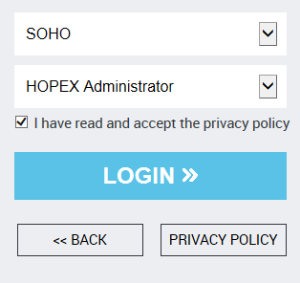
11. Click LOGIN.
Click BACK if you want to return to the authentication dialog box.The Administration desktop appears and the session is opened.