Securing the application
Hiding the error details
To prevent the end users from seeing the error details and get knowledge about how the application is written, some actions can be taken to hide those:
1. Open the Administration module of Hopex on the web server (Administration.exe, in the Hopex installation folder).
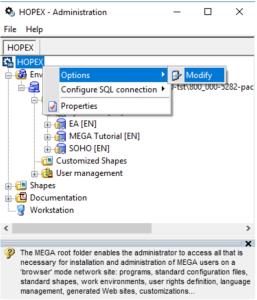
2. Access the options at the root level:
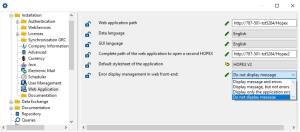
3. In the Options tree, expand Installation, and select Web Application.
4. In the right pane, change the option “Error display management in web front-end” to “Do not display message”:
5. Click OK.
6. Close the options and the Administration module.
7. Locate the web.config file of the “Hopex” web application (by default in “C:\inetpub\wwwroot\HOPEX”), and edit it.
8. Check the “HideErrors” key in the file. If not present, add the below line :
<add key="HideErrors" value="1"/>
Activating the automatic logoff
To activate an automatic logoff of the users after a certain time of inactivity:
1. Open the Administration module of Hopex on the web server (Administration.exe, in the Hopex installation folder).
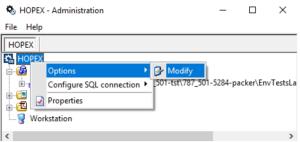
2. Access the Options at the root level:
3. In the Options tree, select Workspace:
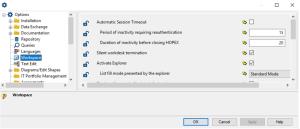
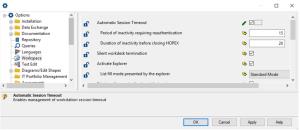
4. Select “Automatic Session Timeout” option, and tune up the parameters (in minutes) as required:
o “Period of inactivity requiring authentication” (15 by default)
o “Duration of inactivity before closing MEGA” to the wanted values (20 by default)
5. Click OK, and close the Administration module.
6. Restart the application to validate this whole configuration.