Initializing a Business Dictionary Using Logical or Physical Data
Initialize a business dictionary consists of creating, in a business dictionary, the concepts that correspond to logical or physical data, and thus creating a realization link between the business concepts and the logical or physical data in question.
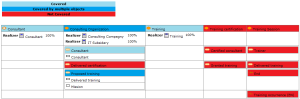
A realization report allows you to view these realization links.
You can initialize a business dictionary using:
• logical data (a data package)
• physical data (database)
A default option applies automatic initialization: when you create logical or physical data, the corresponding concepts are created automatically in the work business dictionary. You can modify the option in order to disable automatic creation of concepts or to create/reuse concepts in other dictionaries.
Modifying the Initialization Option
To modify the initialization option:
1. Click the icon of the user profile and select Parameters > Options.
The options window appears.
2. In the left pane of the options window, select Data Modeling then Business dictionary initialization.
3. In the right pane, select the required automatic initialization value:
• Never: disables automatic initialization of the business glossary.
• Work business dictionary: enables automatic initialization of the business dictionary. The concepts are created automatically in the work business dictionary.
• All business dictionaries: enables automatic initialization of the business dictionary. The concepts can be created or reused on all the business dictionaries.
Initializing a Business Dictionary Using Logical Data
To initialize a dictionary using logical data:
1. Click the navigation menu then Business Information.
2. In the navigation pane, click Business tools.
3. In the edit area, click the Initialize business dictionary from logical data tile.
4. In the wizard that appears, click the Add button and select the source package.
5. Once the package is selected, click Next.
6. The wizard displays the name of the corresponding business dictionary.
7. Click OK.
The business dictionary is created. It appears in the list of business dictionaries in the repository.
Initializing a Business Dictionary Using Physical Data
To initialize a dictionary using physical data:
1. Click the navigation menu then Business Information.
2. In the navigation pane, click Business tools.
3. In the edit area, click the Initialize business dictionary from physical data tile.
4. In the wizard that appears, click the Add button and select the source database.
5. Once the database is selected, click Next.
6. The wizard displays the name of the corresponding business dictionary.
7. Click OK.
The business dictionary is created. It appears in the list of business dictionaries in the repository.
Displaying the Realization Report
You can use the realization report to view the realization (or implementation) coverage of dictionary elements with another architecture element.
To access the report:
1. Click the navigation menu, then Reports.
2. In the navigation pane, select Realization report.
Report parameters
This consists of defining report input data.
|
Parameter
|
Parameter type
|
Constraint
|
|---|---|---|
|
Object list
|
Org-unit
Application
Library
Capability
Class
Concept
State concept
Event concept
Concept type
Content
Exchange contract
Concept life cycle
Exchange
Entity (DM)
functionality
Business function
System process
Functional process
Business process
Organizational process
IT service
Data view
Concept view
|
One object is mandatory
|
|
Realization display mode
|
Show responsibles
Show responsibles and the percentage
Hide responsibles
|
|
|
Indicators display mode
|
Boolean
|
|
Report example
The example below enables viewing of the coverage rate of objects specified as parameters.
Note that realizations of structural components of concepts specified as parameters are also displayed.