Accessing the List of Individuals
To access all the individuals of your repository with HOPEX Web Front-End :
1. In the Business information pane, click Subject Areas > Architecture Information Hierarchy.
The subject area tree appears.
 To access individuals from a subject area with HOPEX Windows Front-End, in the Information Architecture desktop, select the IA Library tab, then the Information Architecture navigation pane.
2. Expand the Subject Areas folder.
3. Expand the folder that corresponds to the subject area that interests you.
4. Expand the Individuals folder.
The list of individuals appears.
Creating an Individual from a Subject Area
To create an individual from a subject area:
1. Right-click the subject area that interests you and select New > Individual.
The individual creation wizard opens.
2. Specify the Local Name and click OK.
3. In the Individual Classification section, you can click New to specify the concept to which the dictionary individual is connected.
For more details, see Creating an Individual Classification.4. Click OK.
The name of the new individual appears in the tree under the subject area.
Individual Properties
The individual properties dialog box presents the following elements in the Characteristics tab:
• Its Local Name
• The individual classifications, which appear in the Classification section.
 An individual classification is used to connect an individual to the concept that characterizes it.For more details, see Creating an Individual Classification.
The other tabs in the dictionary individual properties dialog box are:
• The Individual State section, enabling presentation of the different states of an individual.
For more details, see Describing Individual States and Events.• The Component tab, presenting individuals connected to a described individual.
For more details, see Creating a Dictionary Entity Component.Creating an Individual Classification
An individual classification is used to connect an individual to the concept that characterizes it.
For example, the individual "Asimov" is an instance of "Person" and "The Robots" is an instance of "Work".
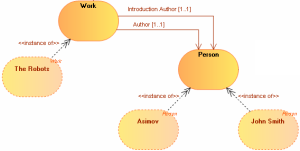
To create an individual classification:
1. Open the properties window of the individual carrying the relationship.
For example, the "Asimov" individual.
2. Select the Characteristics tab.
3. In the Classification section, click the New button.
The individual classification creation wizard opens.
4. At the left of the Characterizing Element field, click the Connect button.
The query wizard opens.
5. Select the concept you want to connect.
For example, the "Person" concept.
6. Click OK.
The individual classification into individuals is created.
Creating a Dictionary Entity Component
An entity component is used to connect an individual to a dictionary element.
HOPEX Information Architecture also enables connection of two individuals into individuals with a Dictionary Entity Component relationship type.
For example, you can specify that "Asimov" is the author of the work "The Robots".
To create a dictionary entity component between two individuals:
1. Open the properties window of the individual carrying the relationship.
For example, the "Asimov" individual.
2. Select the Components tab.
3. Click the New button.
The dictionary entity component creation wizard opens.
4. At the left of the Characterizing Element field, click the Connect button.
The query wizard opens.
5. Select the individual you want to connect.
For example, the "The Robots" individual.
6. Click OK.
The entity component is created. It appears in the individual structure diagram of the described object.
For more details, see Individual structure diagram.Individual structure diagram
With HOPEX Information Architecture, the individual structure diagram describes the internal structure of the concept instance and the links between its components. This diagram is initialized from concept graph elements.
This diagram is composed of dictionary entity components used to connect two individuals.
It is then possible to specify that "Asimov" is the author of the work "The Robots".
An entity component is used to connect an individual to a dictionary element.For more details, see Creating a Dictionary Entity Component.