Accessing Collaboration Information on an Object
Accessing a collaboration information on an object in a list
To access a collaboration information on an object in a list:
1. From your HOPEX desktop, access a list of objects that contains the object concerned.

2. Roll the mouse over the Local name column of the object and click More  .
.
.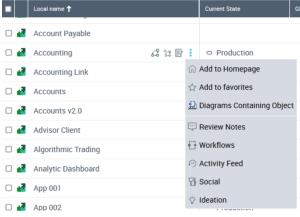
3. Click the feature concerned:
•  Review Notes
Review Notes•  Workflows
Workflows•  Activity Feed
Activity Feed•  Social
Social•  Ideation
IdeationThe Collaboration  window of the edit area appears and displays the tab of the selected feature:
window of the edit area appears and displays the tab of the selected feature:Accessing a collaboration information on an object in a tree
To access a collaboration information on an object in a tree:
1. In your HOPEX desktop, open the Collaboration window.
2. In the Collaboration window, select the collaboration feature corresponding tab.
3. In your HOPEX desktop, access a tree that includes the object concerned.
4. In the tree, select the object concerned.
For example: an object in your favorite tree.
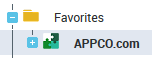
The collaboration tab details the collaboration information for the object.
Displaying a Collaboration Feature
The tabs in the Collaboration window display the collaboration information concerned for the object selected in another window on your desktop.
To display a Collaboration feature:
1. From your HOPEX desktop, click the edit area display button for Collaboration .
.The Collaboration window appears and provides access to the following objects:
• Review Notes
• Workflows
• Activity Feed
• Social
• Ideation

2. Select the tab that corresponds to the feature concerned.
3. Select an object in another window.
The corresponding collaboration information for the object appears in the tab concerned.