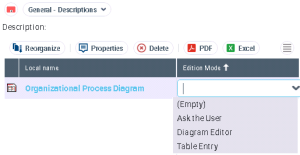
Defining the diagram opening mode
A number of opening options are available:
• Always open in table entry mode,
• Always open in editor mode,
• Ask, for each diagram, the opening mode to be used and store it.
Opening a diagram in tabular input mode
Tabular input mode is offered for certain diagram types only.
To open a diagram in table entry mode:
1. In the navigation window, right-click the object concerned to display its pop-up menu and create a new diagram.
 If a diagram already exists for the object selected, its name appears in the pop-up menu of the object.
 2. Click the diagram you want to open.
A dialog box opens ti choose the diagram opening mode.

3. Select Yes.
The UI for table entry mode opens in the edit area. The table already contains the elements contained in the diagram. The view of the elements in the table and the diagram can vary according to the rights attached to the user profile.
For more details on previewing a diagram, see Viewing Diagrams From an Object.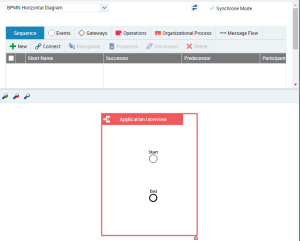
The tabular input page is divided into two sections:
• one section contains the input table for the diagram data,
• the other section contains a preview of the diagram.
Modifying the diagram edition mode
When a diagram is created, its edition mode is specified depending on the user choice.
For more details on the user choices, see Opening a diagram in tabular input mode.To modify the diagram edition mode:
1. Open the General >Descriptions properties property page of the object concerned.
The list of diagrams that concerns the object appears.
2. In the Edition Mode colon, select the opening mode that interests you.