Using HOPEX in a Multilingual Context
Knowledge sharing is possible across the company and in different languages through multilingual support: repository content is managed and published in as many languages as required.
HOPEX allows you to enter data in several languages.
You can easily switch from one language to another to enter or consult data or to generate documents.
Modifying the Data Language
HOPEX allows you to enter data in several languages. You can switch from one language to another to enter or consult data or to generate documents.
Modifying the data language (Windows Front-End)
To modify the data language in HOPEX (Windows Front-End):
1. In the HOPEX menu bar, select Tools > Language.
2. Select the language.
The data (translated) appears directly in the selected language.
 To configure the list of work languages, see Managing Options.
Modifying the data language (Web Front-End)
To modify the data language in HOPEX (Web Front-End):
1. In your HOPEX desktop, click Main Menu  .
.
.2. Select <current language> > <new language>.
The data (translated) appears directly in the selected language.
Defining the available languages
To make a language available:
1. Access the options.
2. Select Languages.
3. In the right pane, select the language.
4. Click OK.
Entering Data in Several Languages
Object characteristics in the target language
You can define the object characteristics in a target language.
E.g.: its name
To enter an object characteristics in a target language:
1. Access the object properties.
2. Display the General - Translation page.
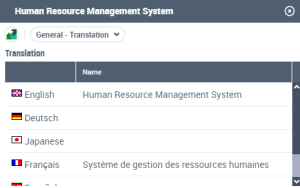
3. In the Translation pane, in the Name field, enter the name of the object in the corresponding target language.
You can enter the name of the object in all of the available languages.
Available languages are displayed only. Available languages are defined in Main Menu > Settings > Options > Languages.Object comments in the target language
To enter the comment of an object (or other text type) in another language:
1. Access the object properties.
2. Display the General - Translation page.
Each target language has a Comment (<language>).
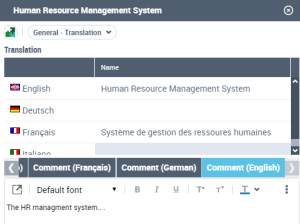
3. Select the target language, that is the language into which you want to translate your original text.
4. Enter your text.
You can use editing tools.Multilingualism and duplicated object names
When you duplicate an object, it must be in the repository language so that translations in the various languages will be correctly transferred to the duplicates.
To determine the language of your repository, consult repository properties.For more details on duplication, see Duplicating objects.Viewing Untranslated Objects
To view untranslated objects:
1. Open the HOPEX options dialog box.
To, access the options dialog box, see:2. Click the Languages icon.
3. Select the Indication of objects not translated check box.
The name displayed for untranslated objects is their name in the language in which they were created. When you select this option, the name is suffixed by the code of the corresponding language (for example, US for English). This option is disabled by default.
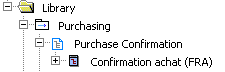
In the example above, an application has been created in French and has to be translated into the current language (English in this example).