The Excel Import/Export Wizards
The Excel Import/Export wizard supports two file formats: XLS and XLSX.
Import Wizard
The file imported from Excel in HOPEX enables you to:
• create or modify a list of objects.
• connect objects by a given link.
Data contained in the import file should be clearly structured so as to be correctly interpreted in HOPEX. This being so, it is recommended that a previously exported file be used as a model.
The import result file indicates anomalies encountered.
Export Wizard
The HOPEX export wizard generates an Excel file in which you can work before importing objects into the source repository or another repository.
HOPEX offers two types of export to Excel:
• Direct export of a list of objects to Excel
 This type of export is available from a list of objects only. See Exporting an object List in Excel Format.
• wizard-based export, which enables you to parameterize exported data format. See Using the Excel Export Wizard.
Exporting an object List in Excel Format
You can export an object list in Excel format.
For example, using the "All applications" tile of the desktop home page, you can display the list of all applications.
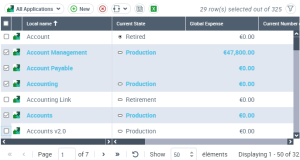
To export selected objects and displayed attributes:
 In the menu bar of the list, click Excel
  .
.The contents of the Excel file depend on the selected HOPEX options.
For more details on options, see Using the import/export wizards.• If the option Export Excel: Availability in listviews is not selected, the Excel file contains exported objects in rows and the displayed attributes in the initial list in columns. This file cannot subsequently be re imported into HOPEX.
• If the Export Excel option: Availability in listviews is selected, the Excel file contains exported objects in rows and some of the editable attributes in columns. This file can be re imported into HOPEX using the import wizard. See Using the Excel Import Wizard.
Checking the Excel Import/Export Options
Checking the Excel import/export access options
To be able to access Excel import and export features:
1. Open the options window then click one of the following folders:
• Data Exchange > Import > Tools/Third Party Formats
• Data Exchange > Export > Tools/Third Party Formats
2. Check that the Excel (*.xls, *.xlsx) check box is selected.
For more details on accessing import and export features, see:Checking the Excel import/export usage options
Using the import/export wizards
To be able to use the Excel import features:
1. Open the option window and select the folder Data Exchange > Import/Export Synchronization > Tools/Third Party Formats.
2. Check that the option Export Excel: Availability in Listviews is selected.
For more details on the use of wizards, see:Managing languages in the imported or exported Excel files
Object names are by default imported or exported in the current language.
An option enables you to to process object names in each available language (for example the Short name of an object in French, English, etc.).
To activate this option:
1. From the HOPEX desktop menu, select Tools > Options.
2. Select Data Exchange > Import/Export Synchronization > Tools/Third Party Formats.
3. Select the option EXCEL Import/Export : MetaAttributes Translation Availability and click OK.
Dates format
By default, dates format of files generated by Excel import/export is: yyyy/mm/dd.
To modify this format:
1. From the HOPEX desktop menu, select Tools > Options.
2. Select Data Exchange > Import/Export Synchronization > Tools/Third Party Formats.
3. In the option EXCEL Import/Excel: Dates Format , define the format and click OK.