The Full-text Search.
HOPEX Solutions and products enable you to execute quick searches of all objects that have been indexed. This feature is available as standard.
 If the repository is not indexed, the search by object type is available; see The Search by Object Type.
Performing a full-text search
Prerequisite: the repository is indexed. Repository indexing is performed by your administrator:
For more details, see Enabling/Disabling repository indexing for full-text search.To perform a full-text search:
1. On your HOPEX desktop, in the full-text search bar, enter the term you want to search for.
As soon as you enter a character, some suggestions (associated with autocompletion) are proposed.
You can add several terms to your search, included tags and persons.
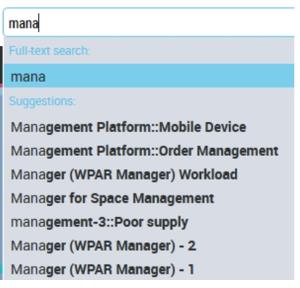
2. By default the research is positioned on the text you entered, if needed, press the down navigation key to select one of the Suggestions or select it with the mouse.
3. Press [Enter] or click  .
.
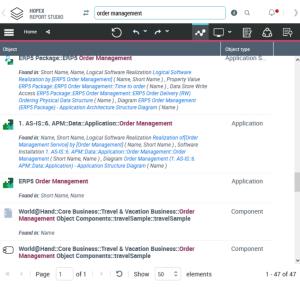
.Results are displayed, by relevance, in the Edit area.
Each full-text search result contains:
• the location where the entered text was found:
• the short name
• the comment
• the object type
• the relevance (not displayed by default), which takes into account:
• the number of times text was found
• the weighting attributed to the attribute concerned.
The full-text search syntax
By default, the search targets objects for which one of their indexable attributes contains all of the terms entered, in the order entered.
To refine your search, you can use operators. You can use several operators and mix them.
Without operator
Without operator, the search is performed on all of the terms, in the order entered.
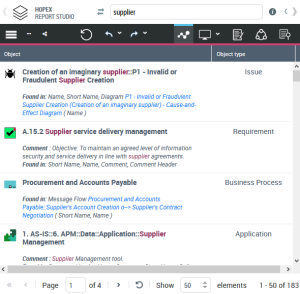
Example 1: the search supplier returns 183 results.
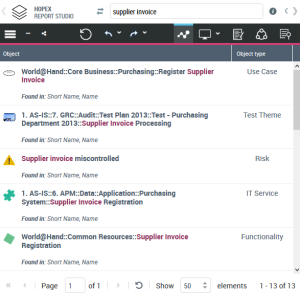
Example 2: the search supplier invoice returns 13 results.
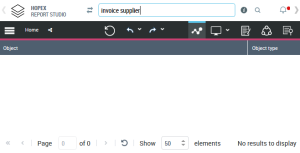
Example 3: The search invoice supplier returns no result.
AND operator
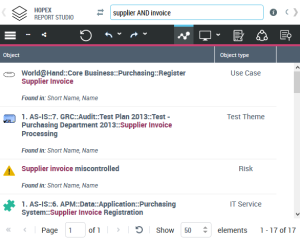
The AND operator enables to include all of the terms in the search regardless their order.
The search supplier AND invoice returns 17 results.
OR operator
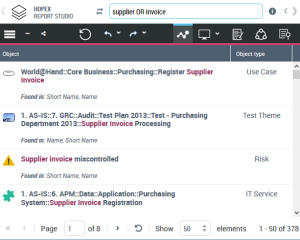
The OR operator enables to include at least one of the terms in the search.
The search supplier OR invoice returns 378 results.
* operator
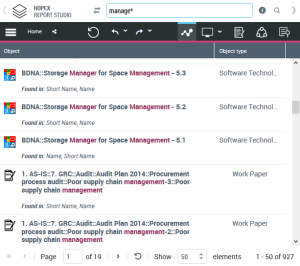
The * operator enables to replace one or several characters.
E.g.: manage*
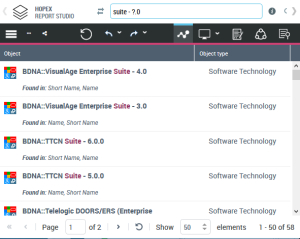
? operator
The ? operator enables to replace a single character.
E.g.: suite - ?.0
# operator
The # operator enables to include one or several tags in the search.
To add a tag to the search:
1. Enter the # character followed by at least the first letter of the tag.
Example: #c, #cat

2. Select the tag in the list of tags that begin with this letter.

@ operator
The @ operator enables to include one or several persons in the search.
To add a person to the search:
1. Enter the @ character followed by at least the first letter of the person's name.
Example: @m, @me
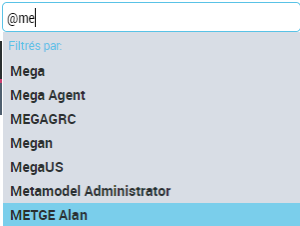
2. Select the person in the list of persons whose name begins with this letter.