Control Direct Assessment
HOPEX IRM enables assessment of controls in terms of design and efficiency:
You can assess controls:
• Directly
• Through questionnaires sent to identified recipients.
 For assessment by questionnaire, see Managing Assessment Campaigns.
Direct Assessment Context
In direct assessment, the values of the control characteristics can be specified in two ways:
• In the properties of each control
• globally, using a multiple assessment table.
This is an "expert view" assessment.
You can assess controls for which you have editing rights. Direct assessment is carried out for all context objects available in the Scope section of control properties:
• Organizational processes
• Business processes
• Entities
For more details on control contextualization see also Contextualizing Controls.Assessing a Control
Before assessing a control, you need to ensure it has been contextualized in an appropriate way. For more details, see Contextualizing Controls.To directly assess a control:
1. Open the properties of a control.
2. In the Assessment page, click Perform Assessment.
The Perform Assessment is available is the control has been contextualized accordinglly (a control must be connected to a process, which must in turn be connected to an entity).3. In the wizard that appears, select the context(s) to be included in the control assessment.
4. Click Next.
You can now select values that characterize this control (contextualized) in terms of:
• design
• effectiveness
Other questions can be asked if your administrator has configured the questionnaire supplied as standard.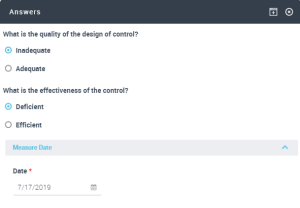
5. In the Control Design field, indicate whether the control is:
• adequate
• inadequate
6. In the Control Effectiveness field, indicate whether the control is:
• effective
• ineffective
Values are applied to all previously selected assessment nodes.7. Specify the measure date in the calendar.
By default this is today's date. You can select a date earlier than today's date.
8. Click OK.
Control measures are created for each assessment node (ie. the control in a particular context).
You can create several measures on different dates in the same way.

Assessing Multiple Controls Simultaneously
If you have to assess several controls, it can be quicker to use the multiple assessment table. This table allows you to specify the same value for several assessment nodes of different controls.
An assessment node comprises:• an object to assess
• one or several context objects (entities, processes, operations), if necessary
To assess multiple controls simultaneously:
1. From the navigation menu click Assessment > Direct Assessment > Control Multiple Assessment Table.
2. In the window that appears, click the Build Multiple Assessment Table button.
3. Select the type of object that constitutes the context for controls:
• Org Unit
• Operation
• Business
processes
processes
• Organizational
Process
Process
The control assessment template is selected by default.
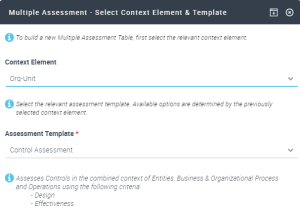
4. Click Next.
5. In the displayed tree, select the objects that apply to the context.
A control is assessed in the context of elements of the branch from the control up to the root.
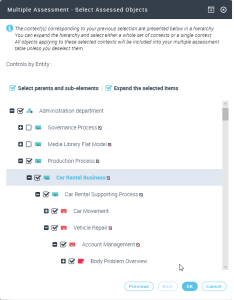
In the above example, if you select the "Car Rental Business" process, all controls and context objects located at a lower level are selected, as well as all parent context objects up to the tree root.
If you deselect a node of a branch, only the child elements of this branch are deselected.6. Click OK.
The list of controls to be assessed in a particular context appears.
7. In the Control Design field, indicate whether the control is:
• adequate
• inadequate
8. In the Control Effectiveness field, indicate whether the control is:
• effective
• ineffective

9. When values have been specified, select the assessed nodes and click Validate the Multiple Assessment Table .
10. In the window that opens click Yes to confirm.
Validation automatically creates an assessment in the Assessment page of the control properties. For more details, see Displaying the Results of Control Assessment.